Read-only access
Set up read-only access
With read-only access, you grant a user permission to view data in the system without being able to edit it. The only exception to this is sending out access invitations.
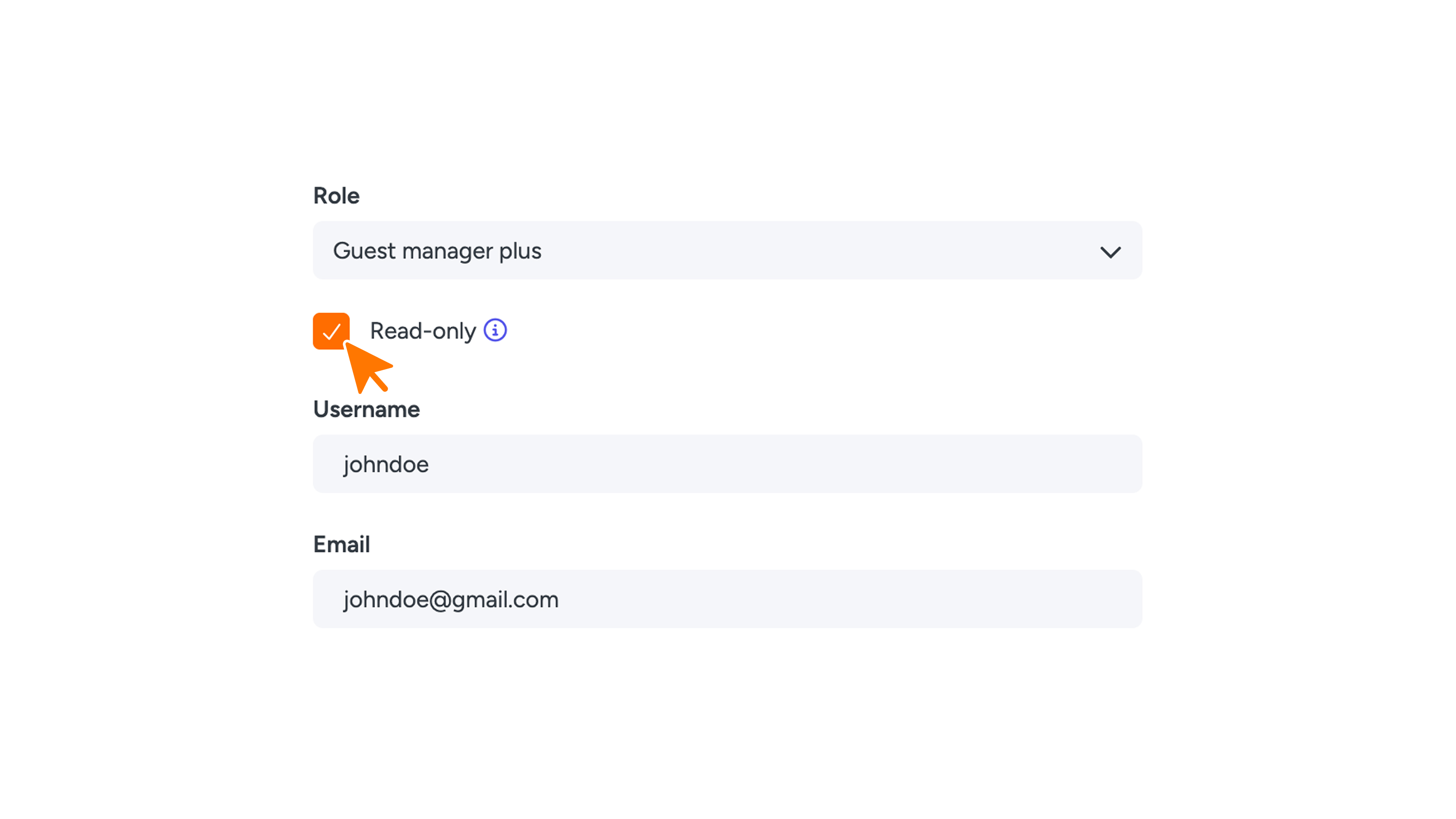
Please note: currently, this setting can only be enabled for users with the 'guest manager plus' role.
Enabling read-only
- Go to the user you want to modify.
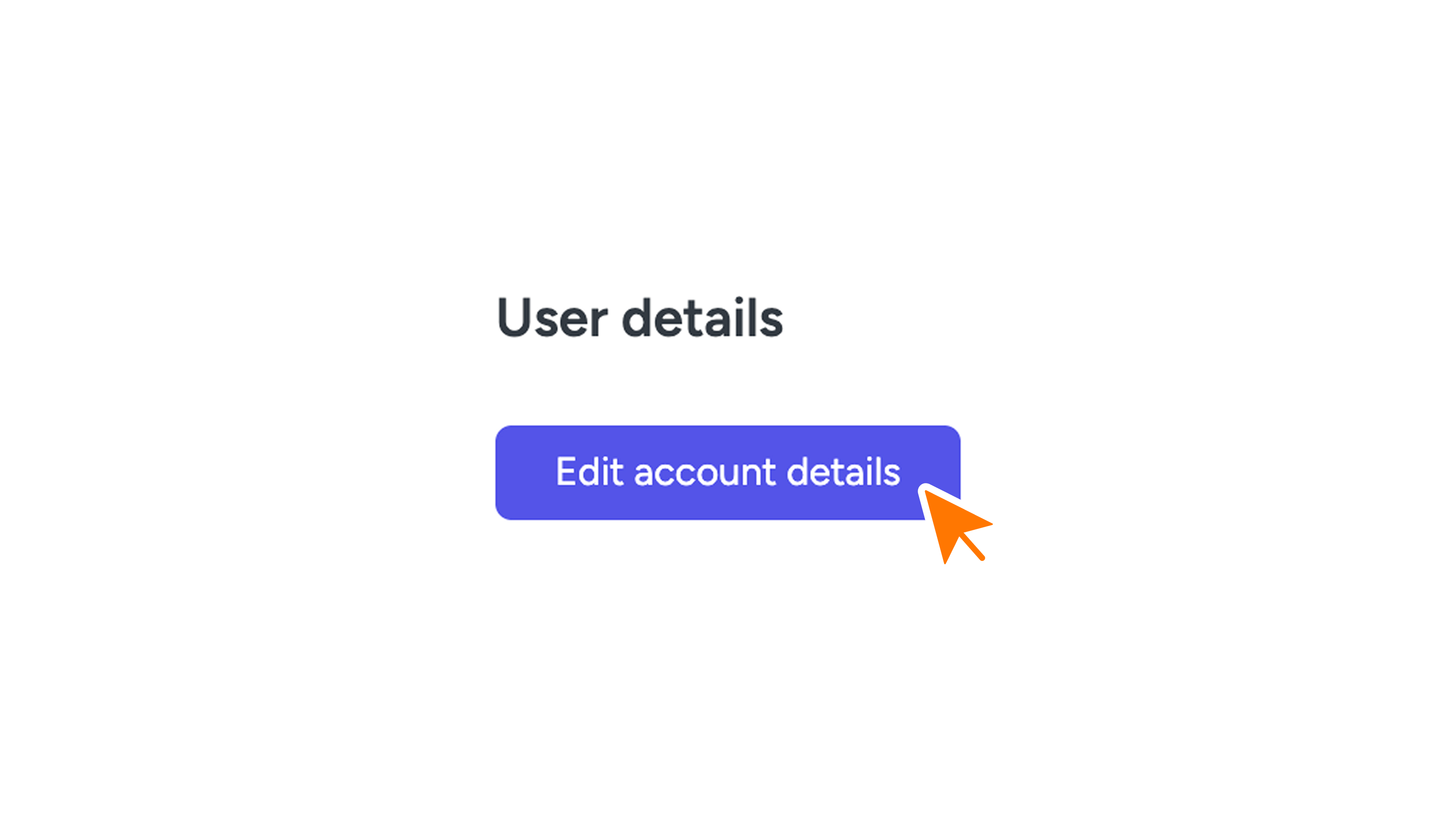
- Click the Edit account details button.
- Check the Read only checkbox.
The checkbox is only visible when a supported role is selected.
How do I see if a user is read-only?
There are two ways to check this:
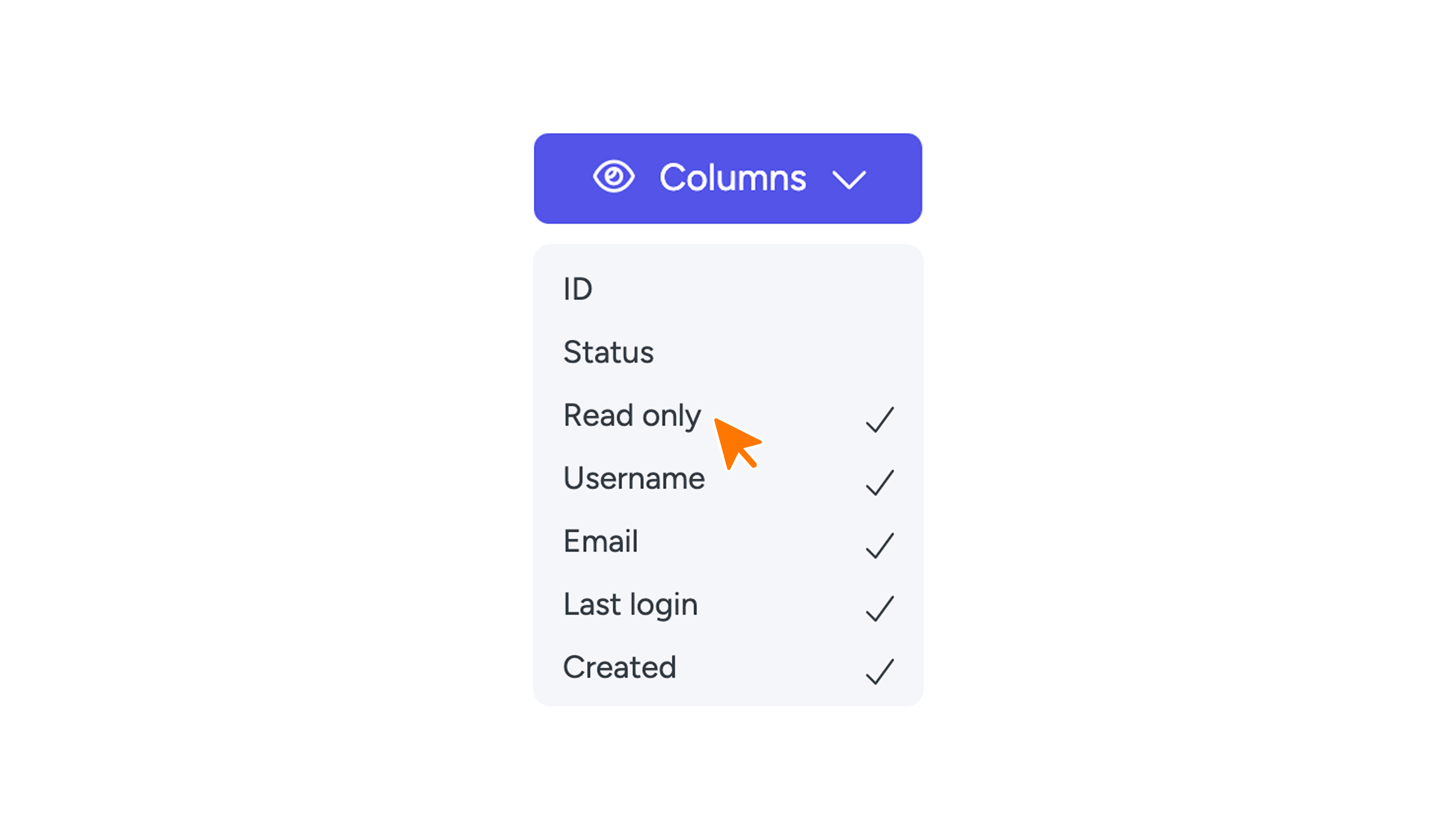
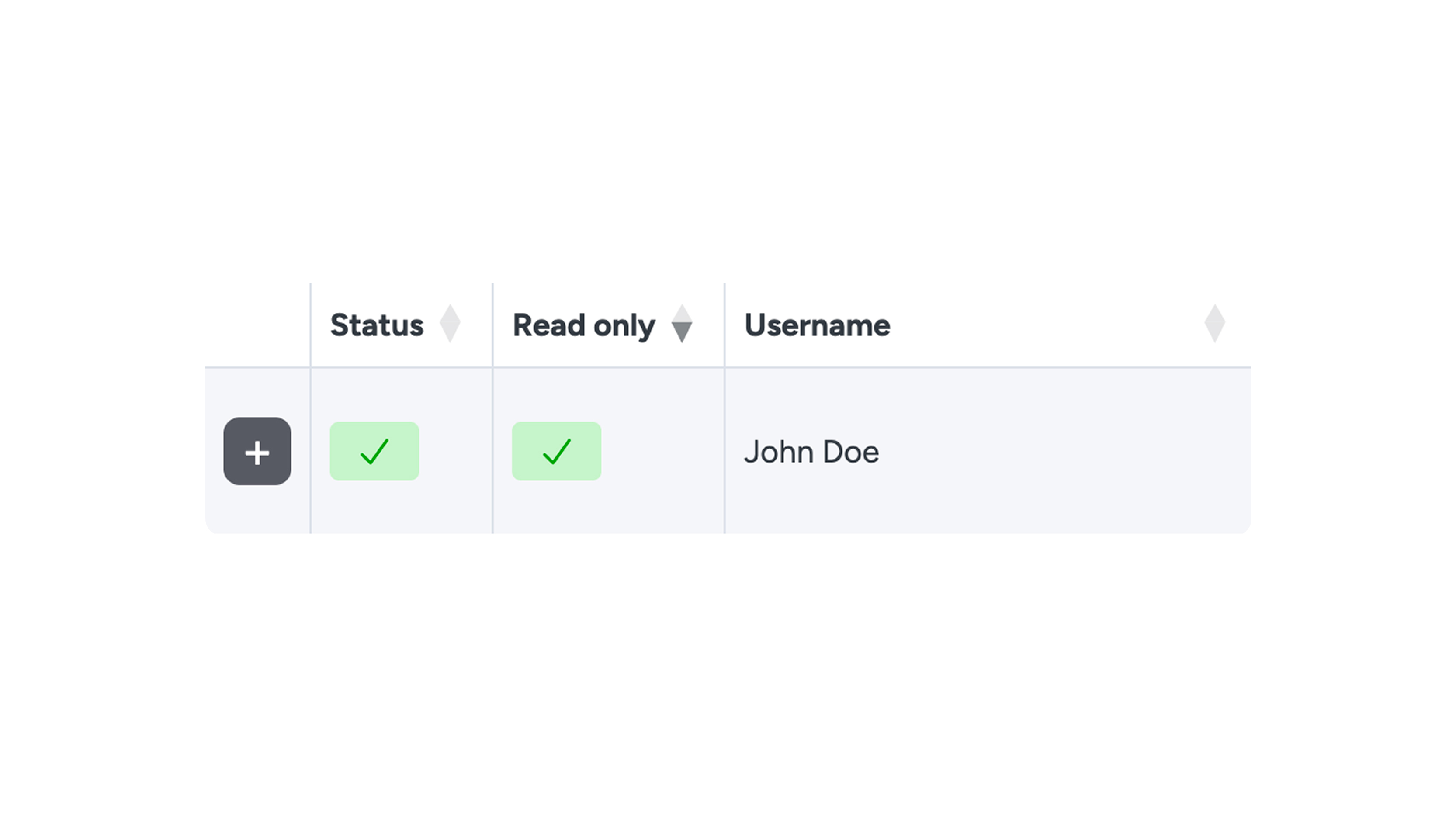
- Via the user table: Make the 'Read only' column visible by clicking the Columns button and checking Read only.
- Via editing a user: If read-only is enabled, the following message will appear: 'This user has read-only access. Most permissions no longer apply, they can view content but cannot create, edit, or delete it.'