Online check-in
Why use online check-in?
Booking.com recently stopped sharing guest phone numbers with accommodations. Furthermore, OTAs (like Booking.com and Airbnb) use masked email aliases. Messages sent through these aliases are often delayed, which can lead to guests receiving their digital keys too late.
The online check-in module resolves this issue:
- Guests enter their real email address and phone number in advance.
- Digital keys are sent directly to the guest without delay.
- You build a reliable guest database, even for bookings made through OTAs.
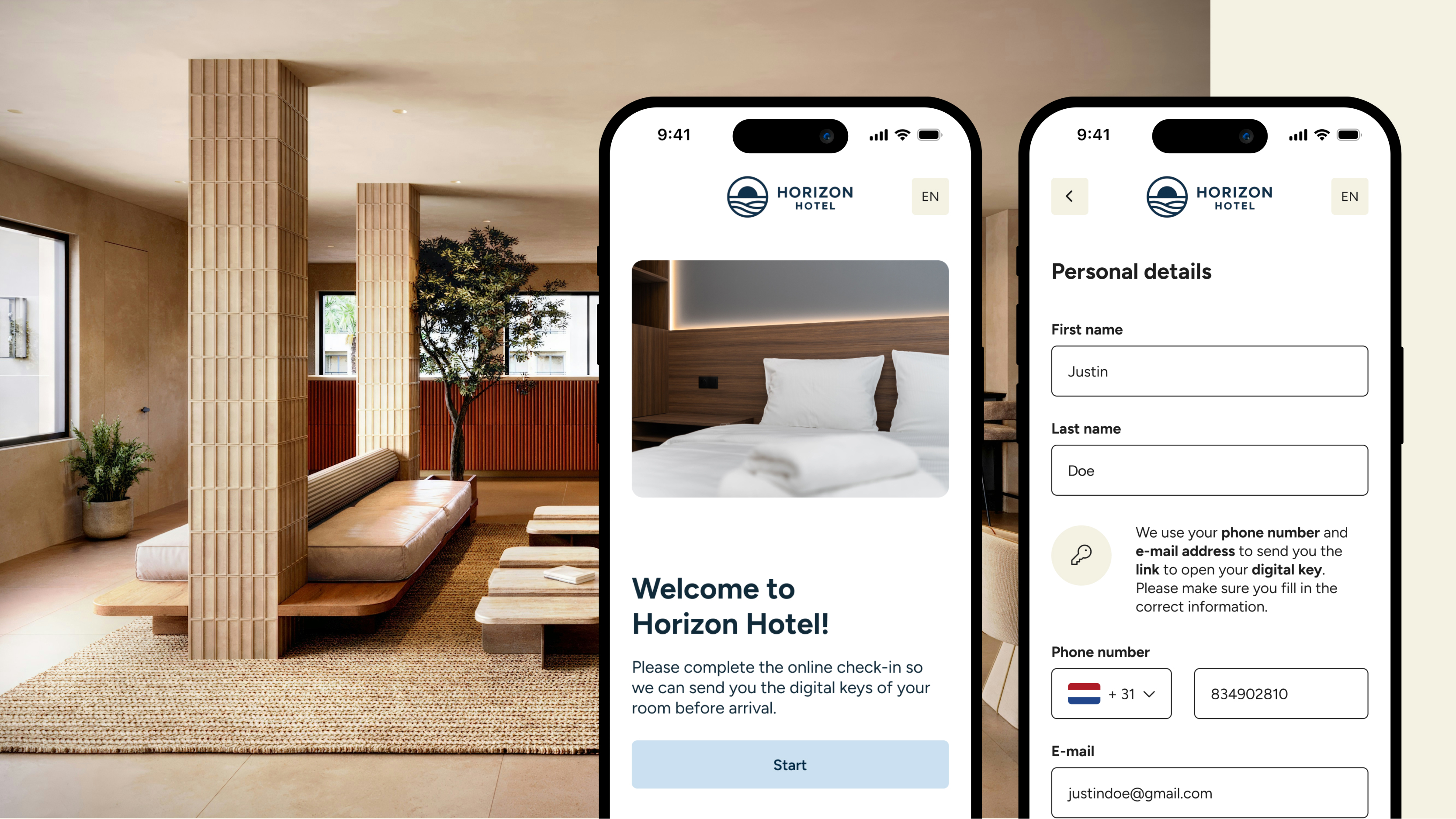
What does the online check-in module offer?
- Direct delivery of keys: Digital keys are sent directly to the guest’s personal email address, bypassing booking platform aliases.
- Phone number backup: If an email fails to deliver, the key can also be sent via SMS or WhatsApp.
- AI Assistant on WhatsApp: Guests can ask questions before and during their stay via their personal web app and WhatsApp, where our AI Assistant provides instant support.
- Contact details per room: For multi-room bookings, details are collected separately for each primary guest, ensuring everyone receives the correct key.
- PMS synchronization: Collected contact details are automatically synced back to your Property Management System (PMS).
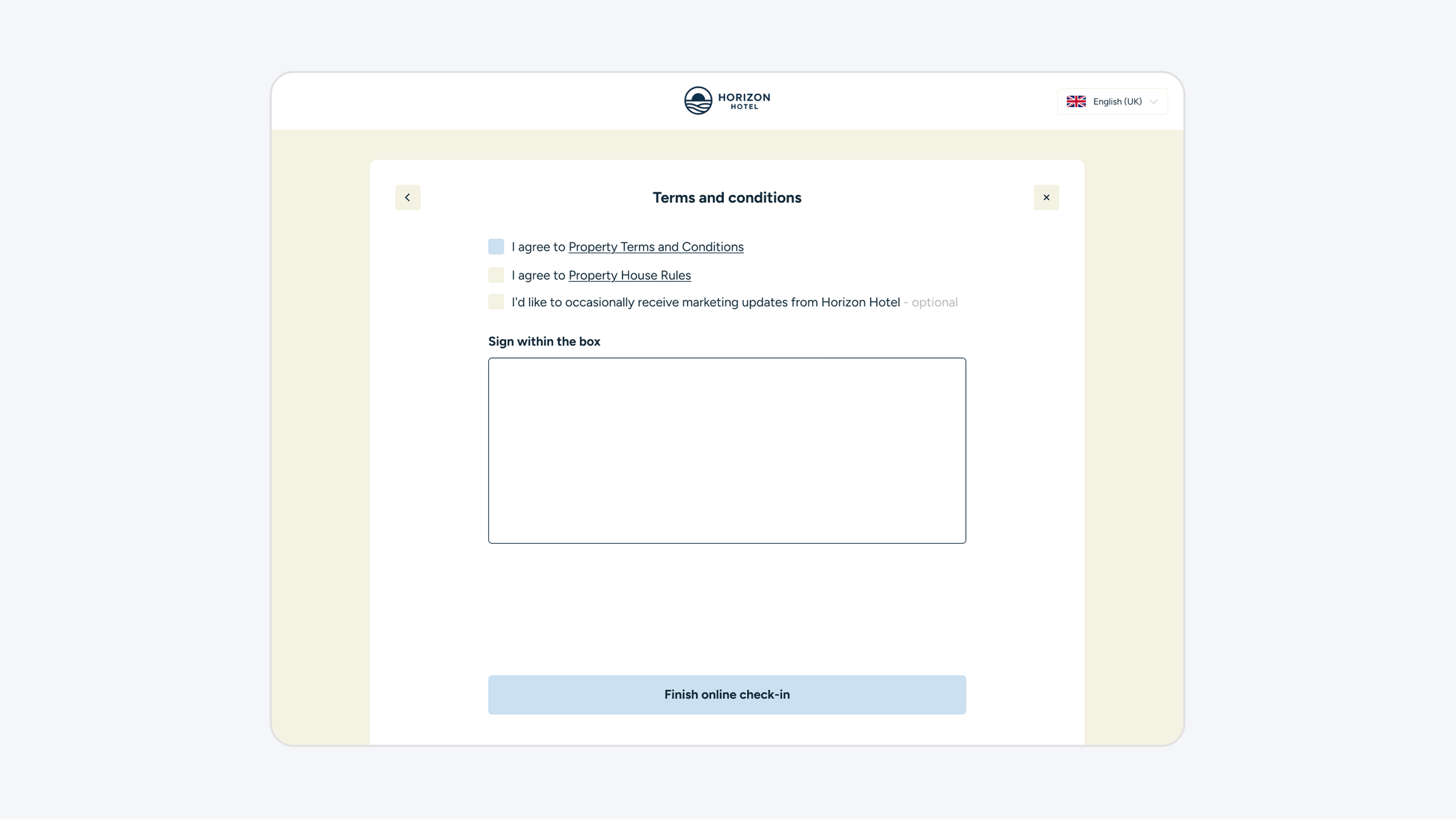
How to set up online check-in
Follow these two steps to activate the module:
Step 1: Save the email template
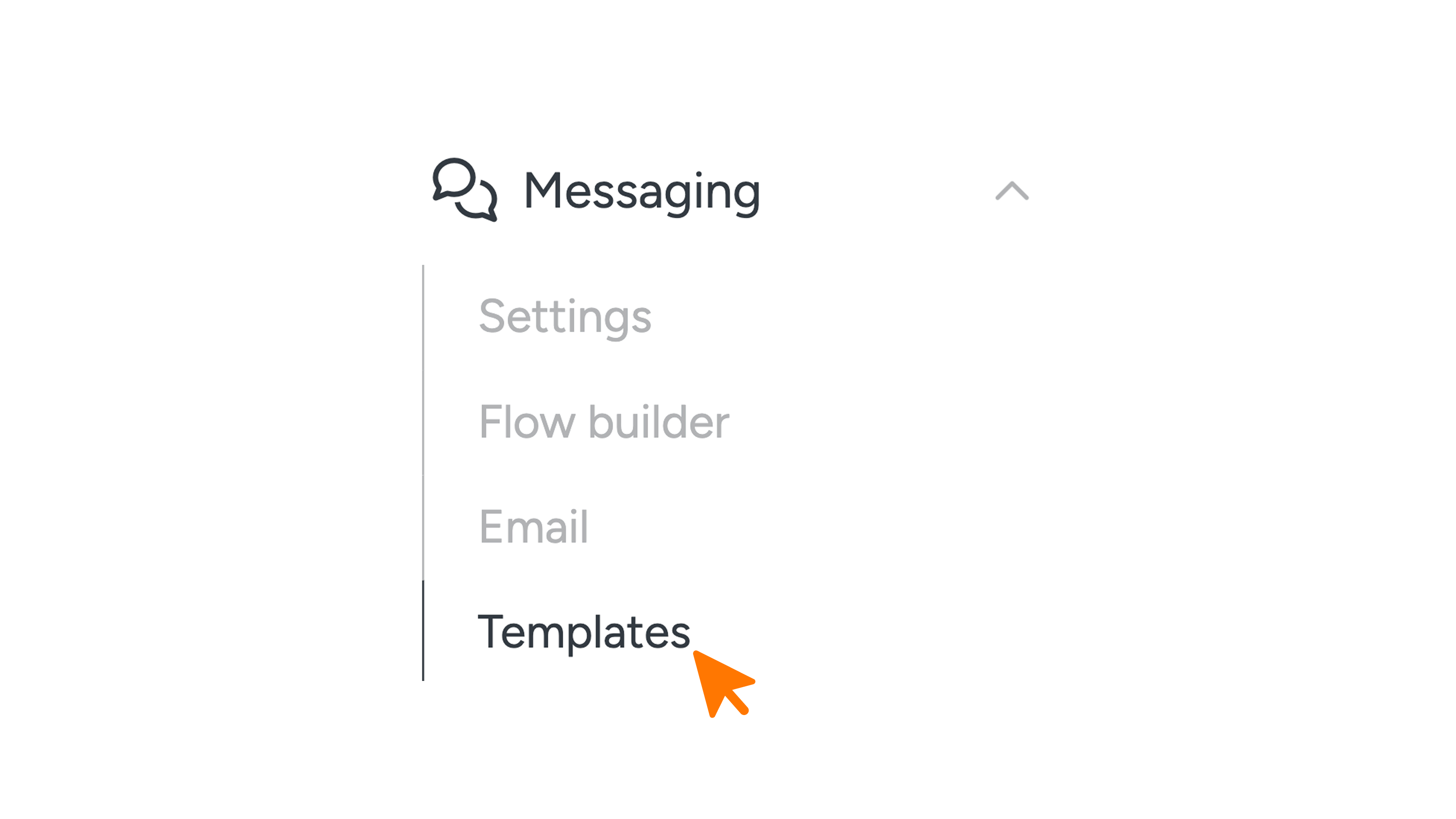
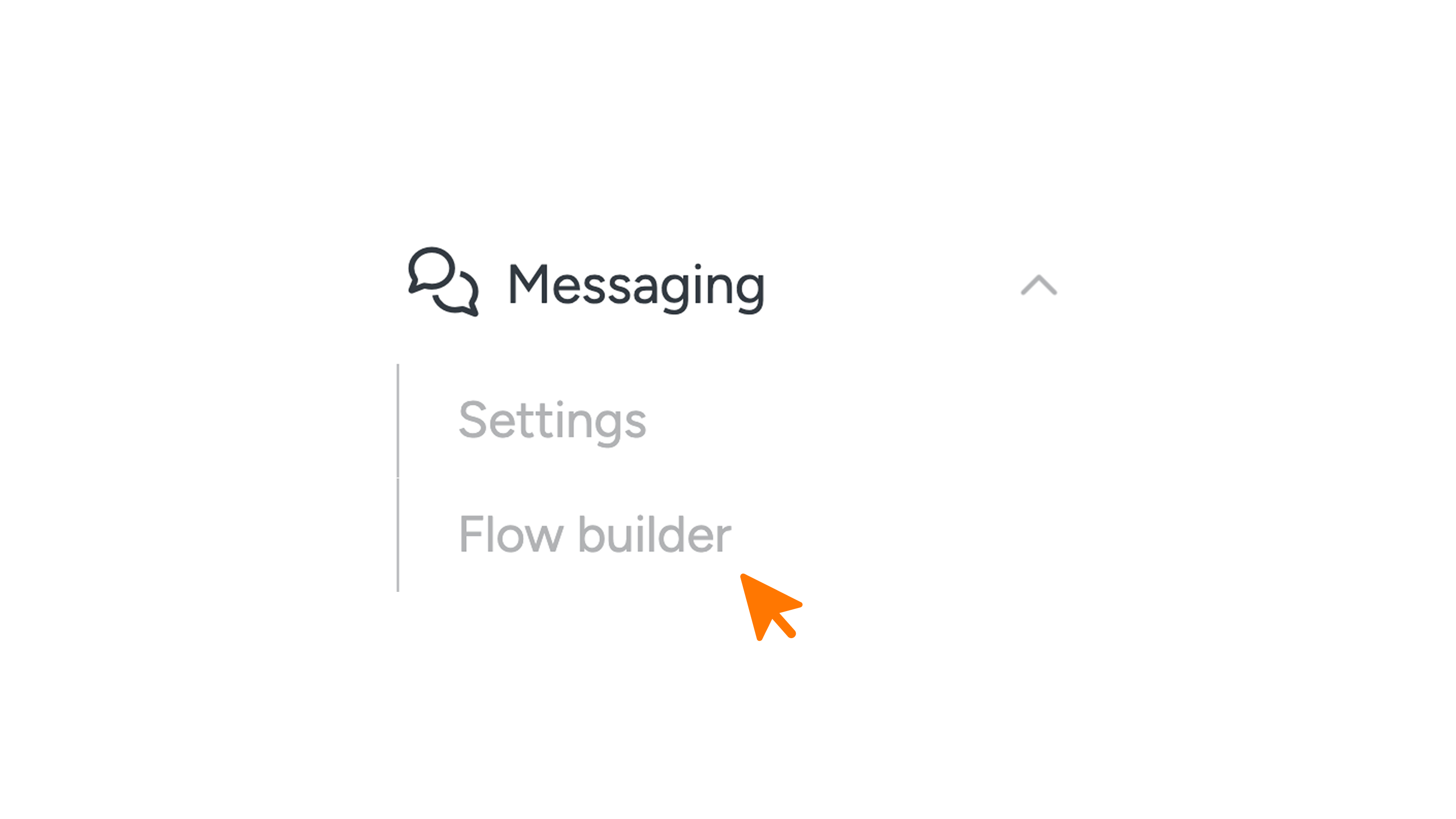
1. In the dashboard, navigate to Messaging.
2. Click Templates to open the overview.
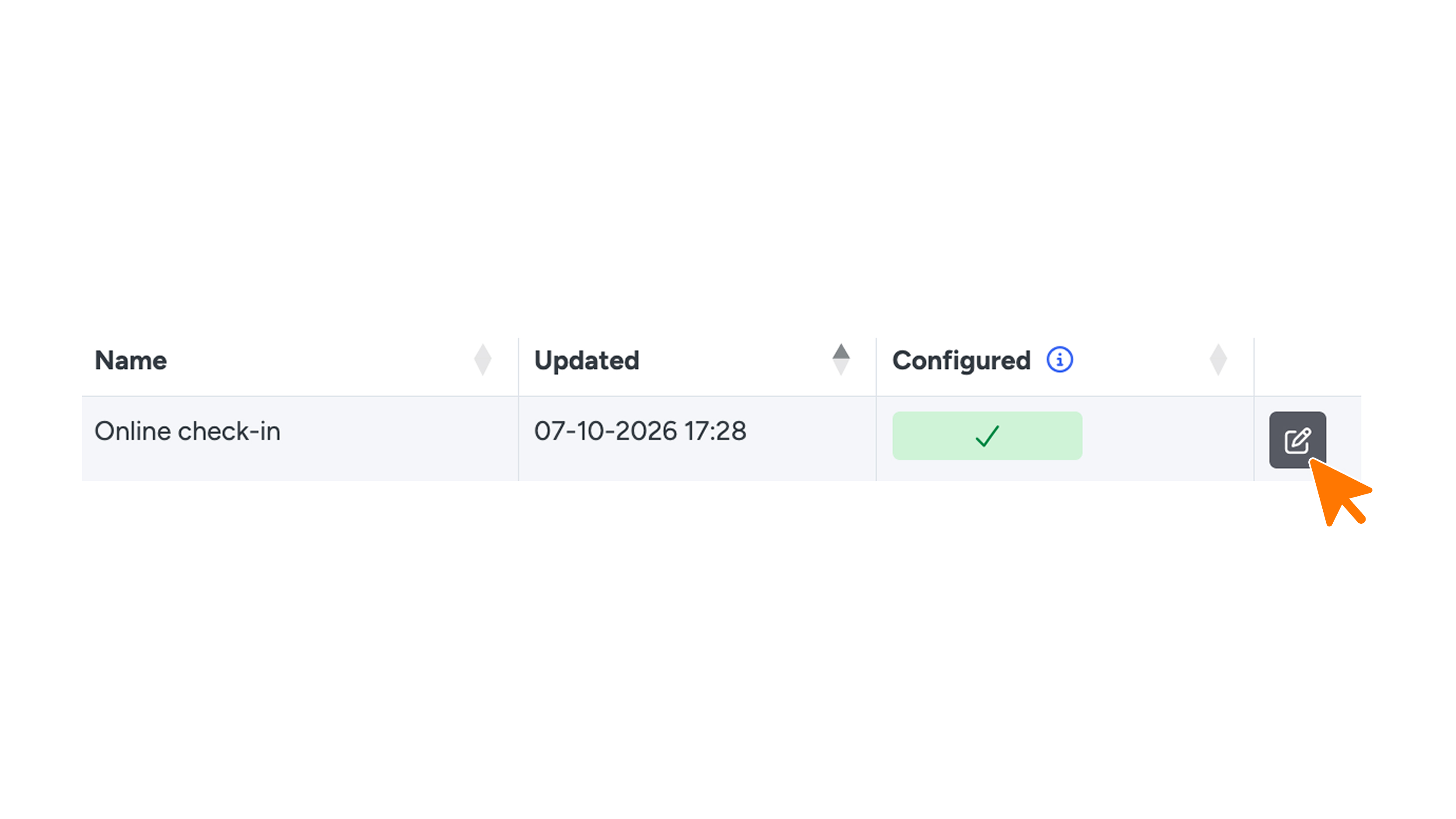
3. Find the Online Check-in template.
4. Save the template (and customize the text to match your brand style if needed).
Step 2: Add the message to your Flow Builder
1. In the menu, go to Flow Builder.
2. Open the desired Guest Journey in the builder.
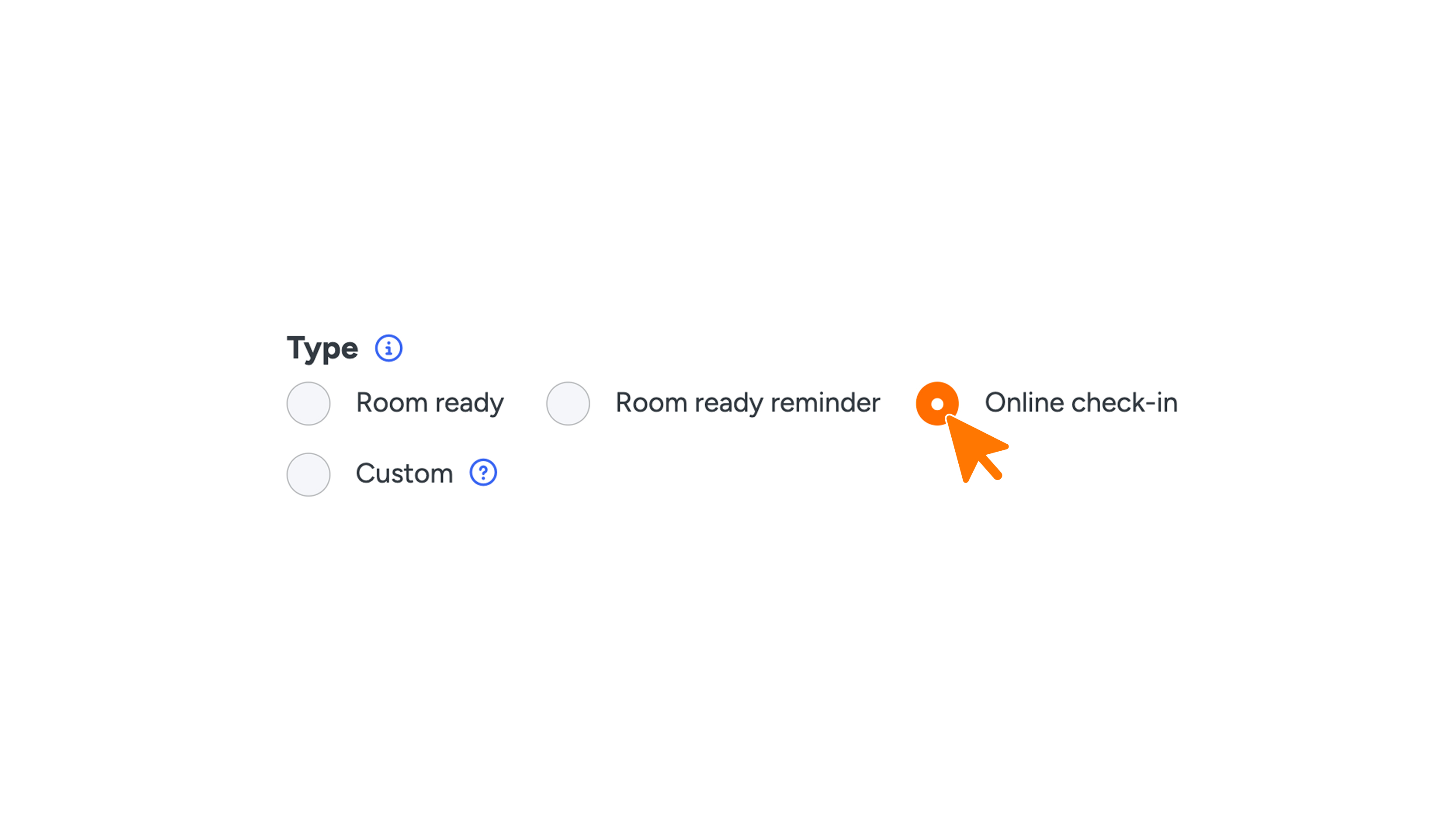
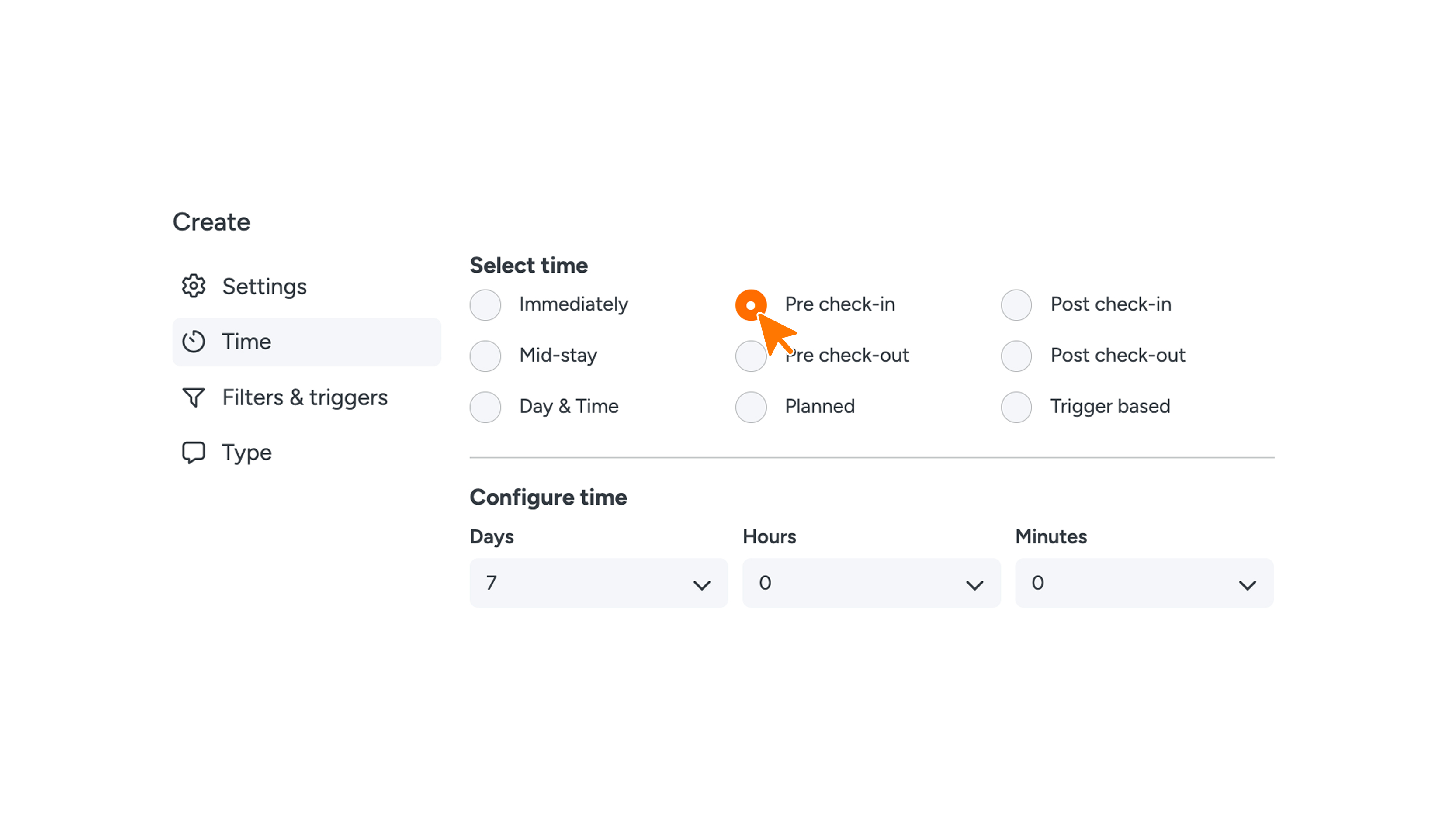
3. Under Type, select Online Check-in and choose the desired timing prior to arrival (for example, 3 to 7 days before the check-in date).
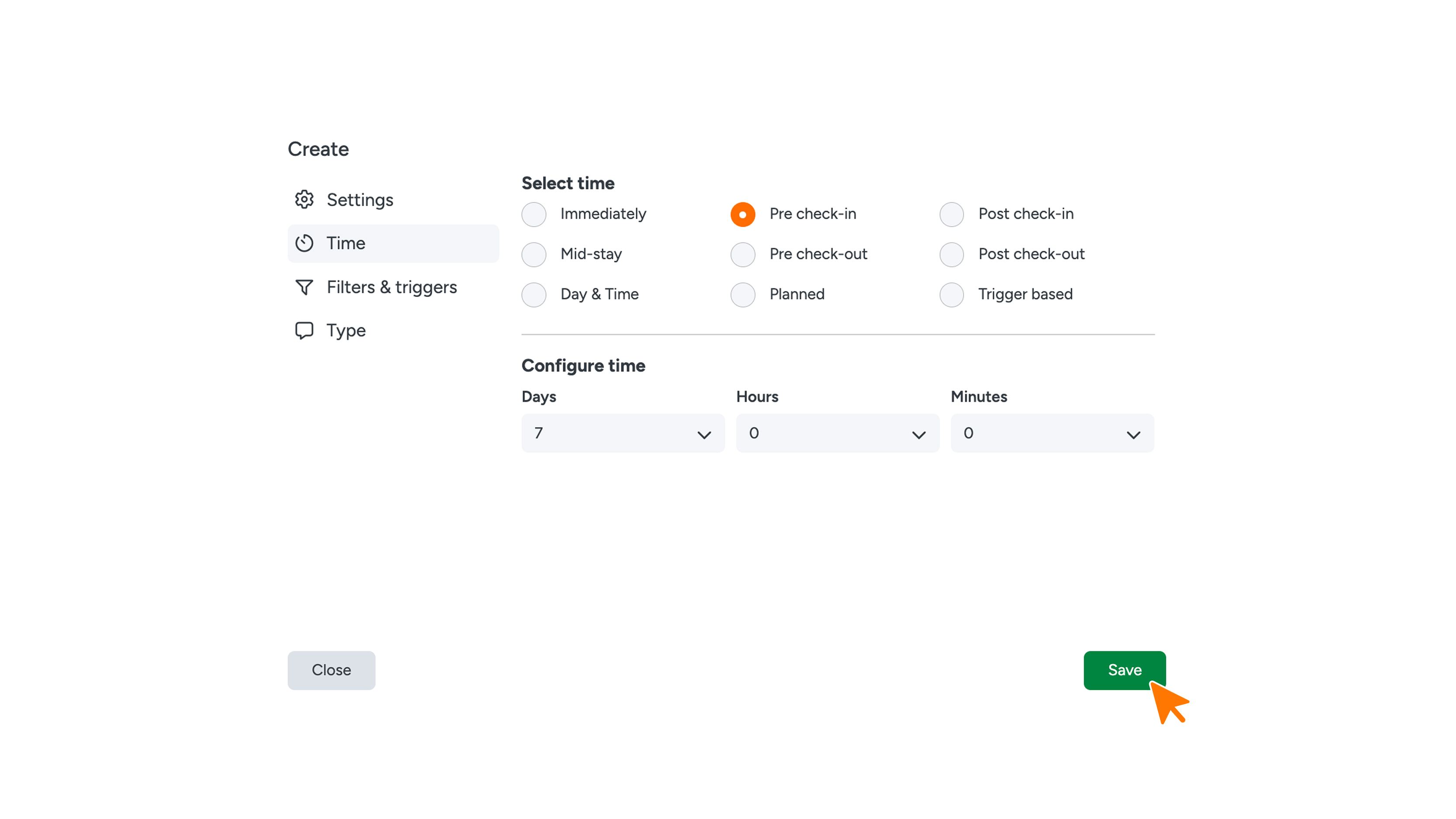
4. Save your changes by clicking the Save button.
Need help?
Need assistance or further support? Please reach out to our support team at support@guestcompass.nl
