Lock status
General
To open the Battery Status page, first click on Switches (Doors). Then click the blue Battery Status button.
On this page you can see the battery level of all locks and whether they are online.
Please note: to open Hotek locks via the web app, they must be online. If a lock is offline, it can still be opened using a key card.
On this page you can also see the type of lock. Based on the lock type, we determine when the battery level is displayed as green, orange, or red.
The information about online status and battery level is not a live view. At the top of the page, you can see when the data was last updated.
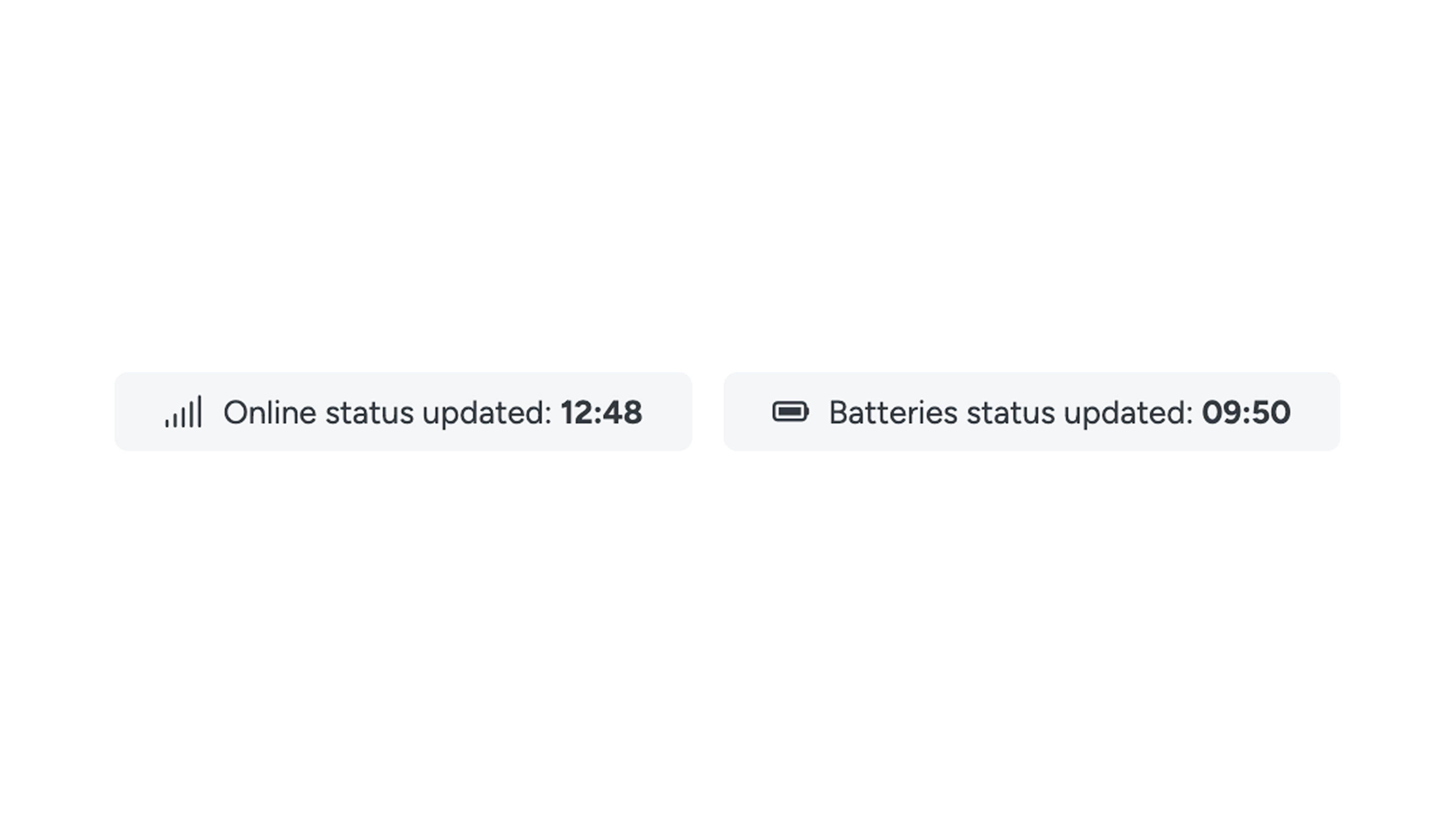
The online/offline status is updated approximately every hour, while the battery status is updated every six hours.
Would you like to retrieve the current status of one specific lock immediately? Click the sync button next to the online/offline status. This way you don’t have to wait for the next automatic update, for example after replacing batteries.
Battery levels for Classic locks
- When a Classic lock is fully charged, the voltage is 6.5 volts. The battery icon remains green as long as the voltage stays above 4.8 volts.
- When the voltage is between 4.7 and 4.5 volts, the icon turns orange as a warning that the battery is running low.
If the voltage drops to 4.5 volts or lower, the icon turns red. The lock will stop functioning once the voltage drops below 4.1 volts. - When the battery is completely empty (0 volts), an empty battery icon is shown. If the lock is offline, the N/A icon is displayed.
Battery levels for Mini / Small Line locks
- When a Mini or Small Line lock is fully charged, the voltage is 4.5 volts. The battery icon remains green as long as the voltage is above 3.5 volts.
- Between 3.5 and 3.3 volts, the icon turns orange as a low-battery warning. At 3.3 volts or lower, the icon turns red. The lock stops functioning once the voltage reaches 3.1 volts.
- At 0 volts, an empty battery icon is shown. If the lock is offline, an “N/A” icon is displayed instead of the battery status.
Which batteries should be used?
It is important to use high-quality batteries to ensure reliable operation of the locks. Hotek recommends the following brands:
- GP Industrial Alkaline
- Duracell Procell
- Varta Industrial
Locks with a power supply
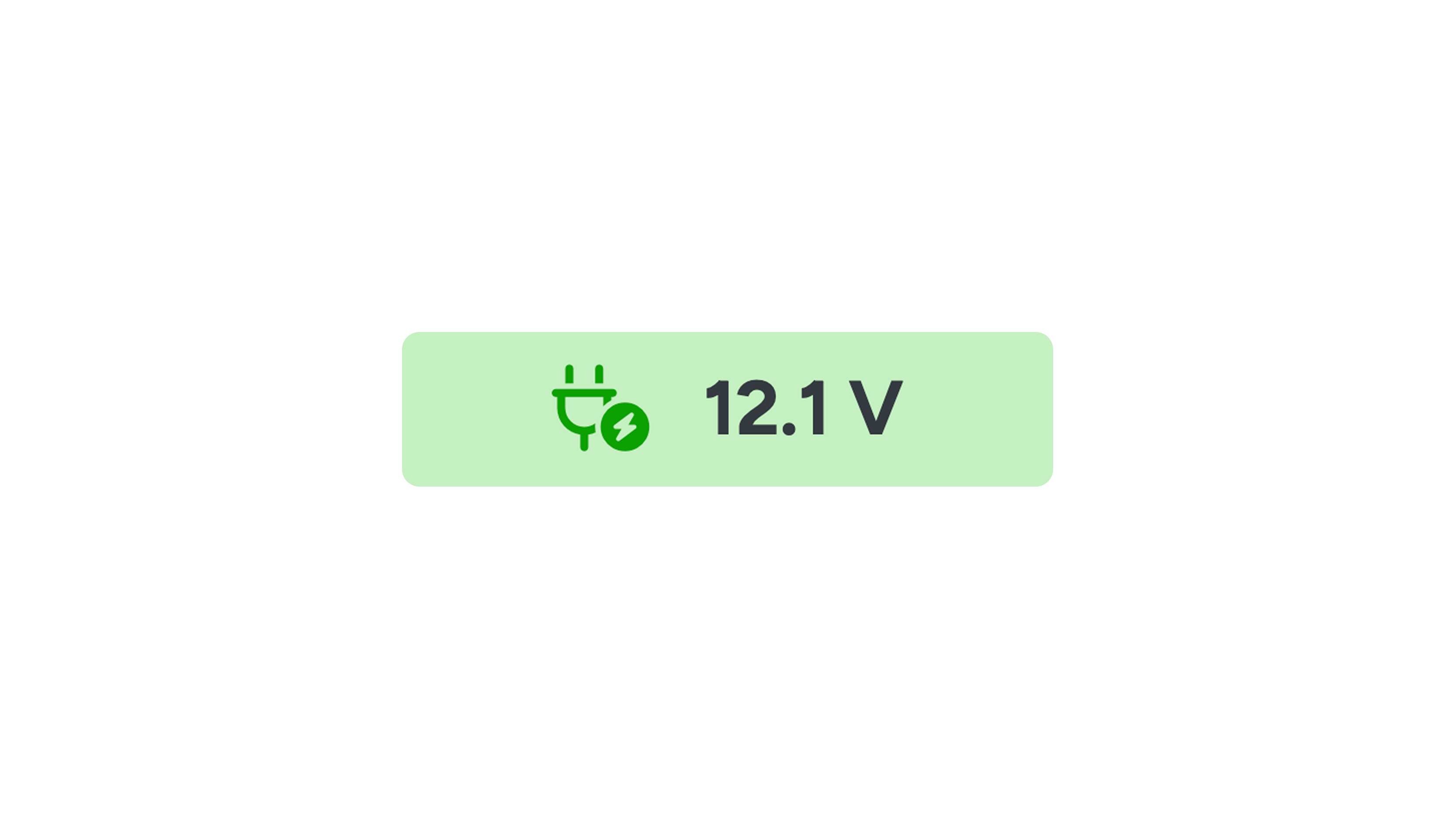
Locks connected to mains power are indicated with a plug icon and labeled as “powered”. These locks do not use batteries.
Online / Offline locks
An offline lock cannot be opened via the web app. When you try to use the slider, the lock will not respond.
To verify this, go to the side menu and navigate to Reception > History. In the status column, you will see the message “error” when attempting to open an offline lock.
Online / Offline locksp
An offline lock cannot be opened via the web app. When you try to use the slider, the lock will not respond.
To verify this, go to the side menu and navigate to Reception > History. In the status column, you will see the message “error” when attempting to open an offline lock.
If a lock is offline
If a lock is offline, you must first determine the cause. The most common causes are:
- The batteries are empty
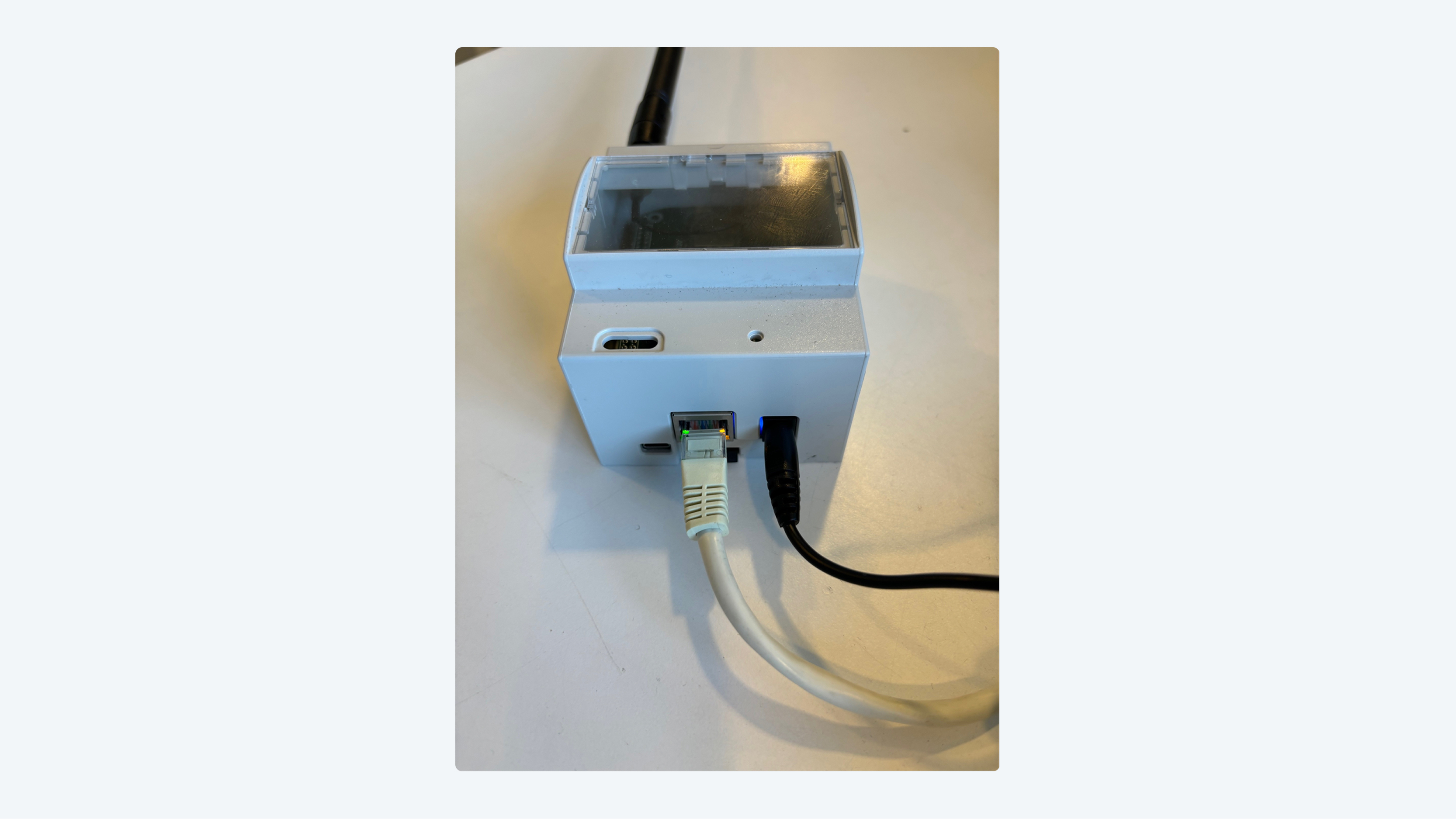
- The lock has no connection to the gateway (each lock communicates via a gateway, a small device connected to the internet)
- The gateway has no internet connection
If you have replaced the batteries or are sure they are still full, check the gateway the lock connects to. Briefly disconnect the power, or unplug the network cable if the gateway is powered via the network.
Please note: it can take up to 10 minutes for a gateway to reconnect to the lock after a restart. You can check the gateway’s status lights—all lights should be green. You can also briefly remove the batteries from the lock; this may help it reconnect faster.
To test whether the lock is back online, you can install a key on your phone and try to open the lock using the slider in the app. You can also press the sync button on the back of the lock to manually refresh the status.
If this does not resolve the issue, please contact Hotek. We will be happy to assist you further in investigating the problem.