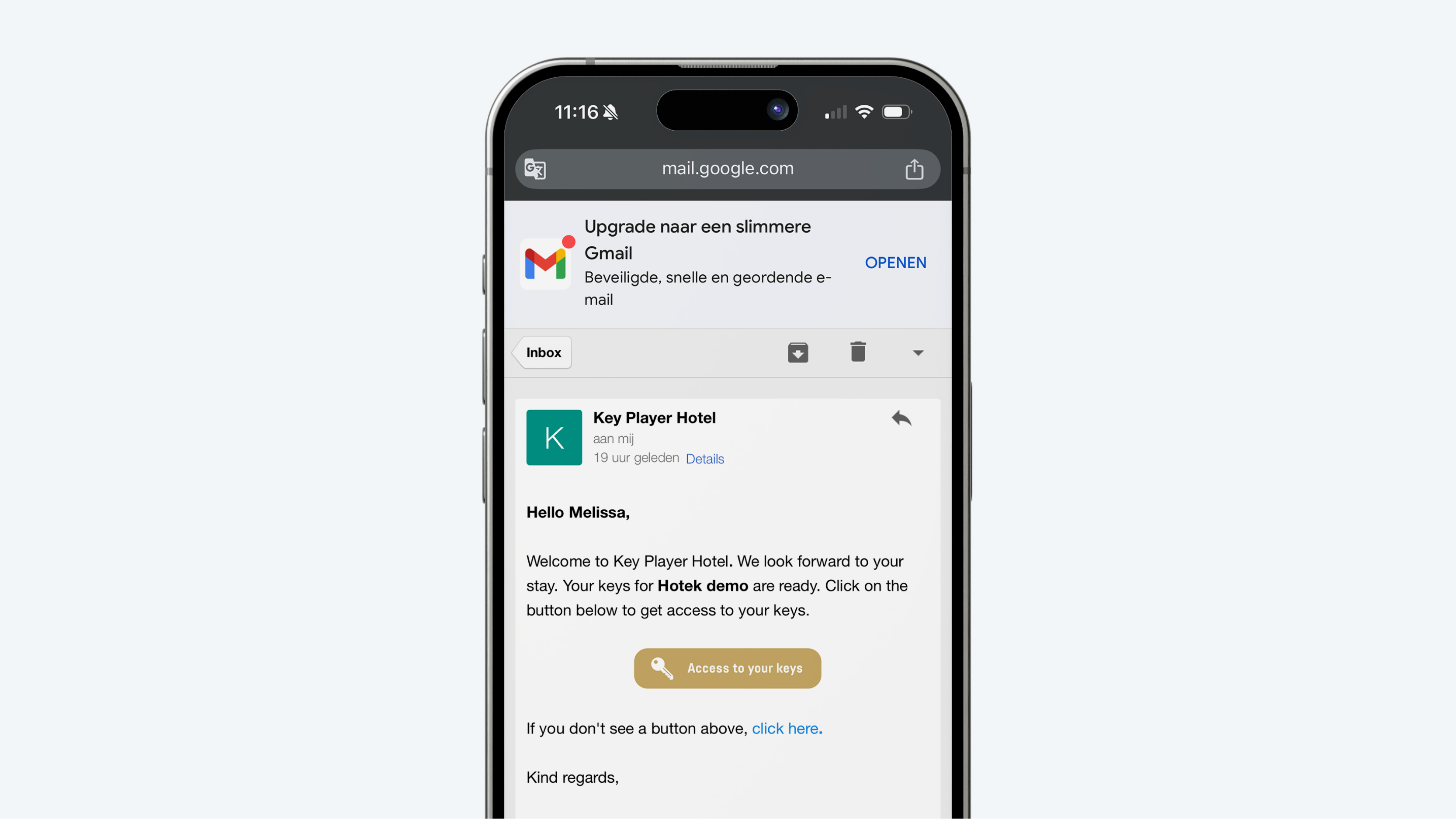
Sending keys from the system
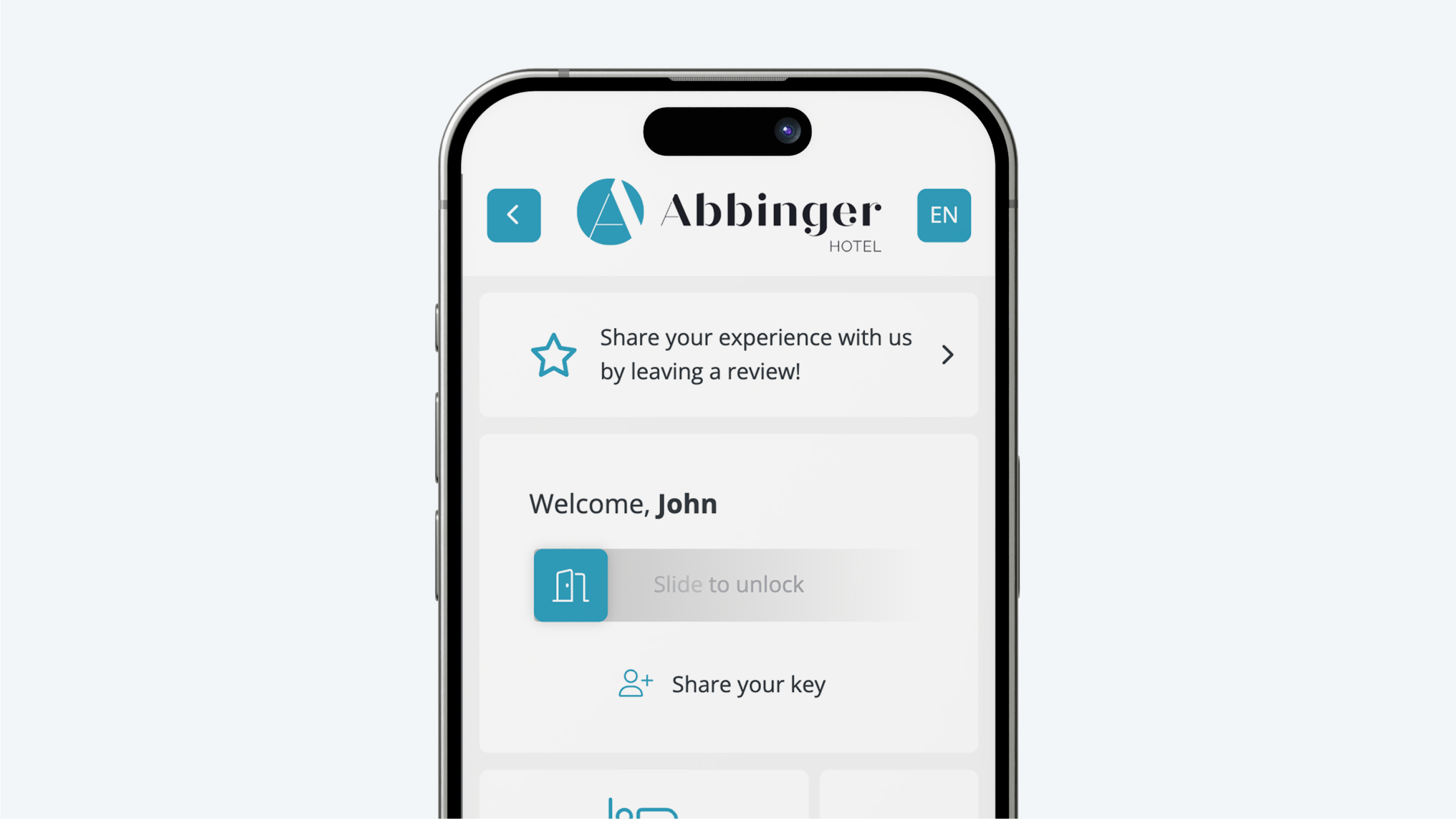
When you go to the (Web)App on your phone, you can see whether your keys are active. The “Locks” module should be visible in the app.
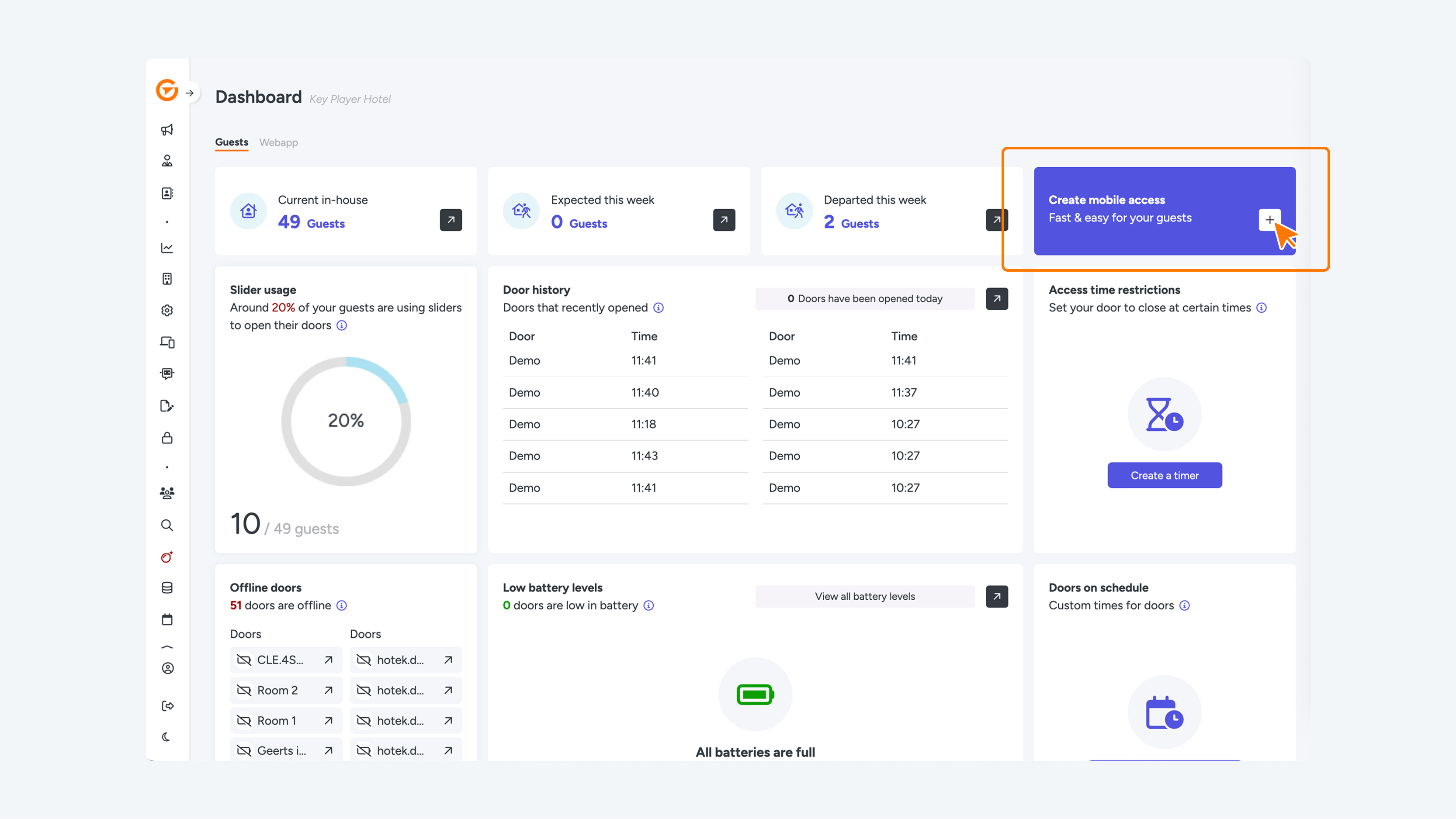
To create a digital key, go to the dashboard. Click on “Create an access here”. You will then be taken to a “New guest” page. Here you enter the following guest details:
- Room/area
- Check in now – Select this if you want to grant the guest access immediately
- Unlimited access – Select this if you want to give the guest unlimited access
- Key is active – Note: When you deactivate the key, access on the mobile device is immediately revoked
- Check-in (date and time)
- Check-out (date and time)
- Name of the guest
- Mobile phone number
- Email address
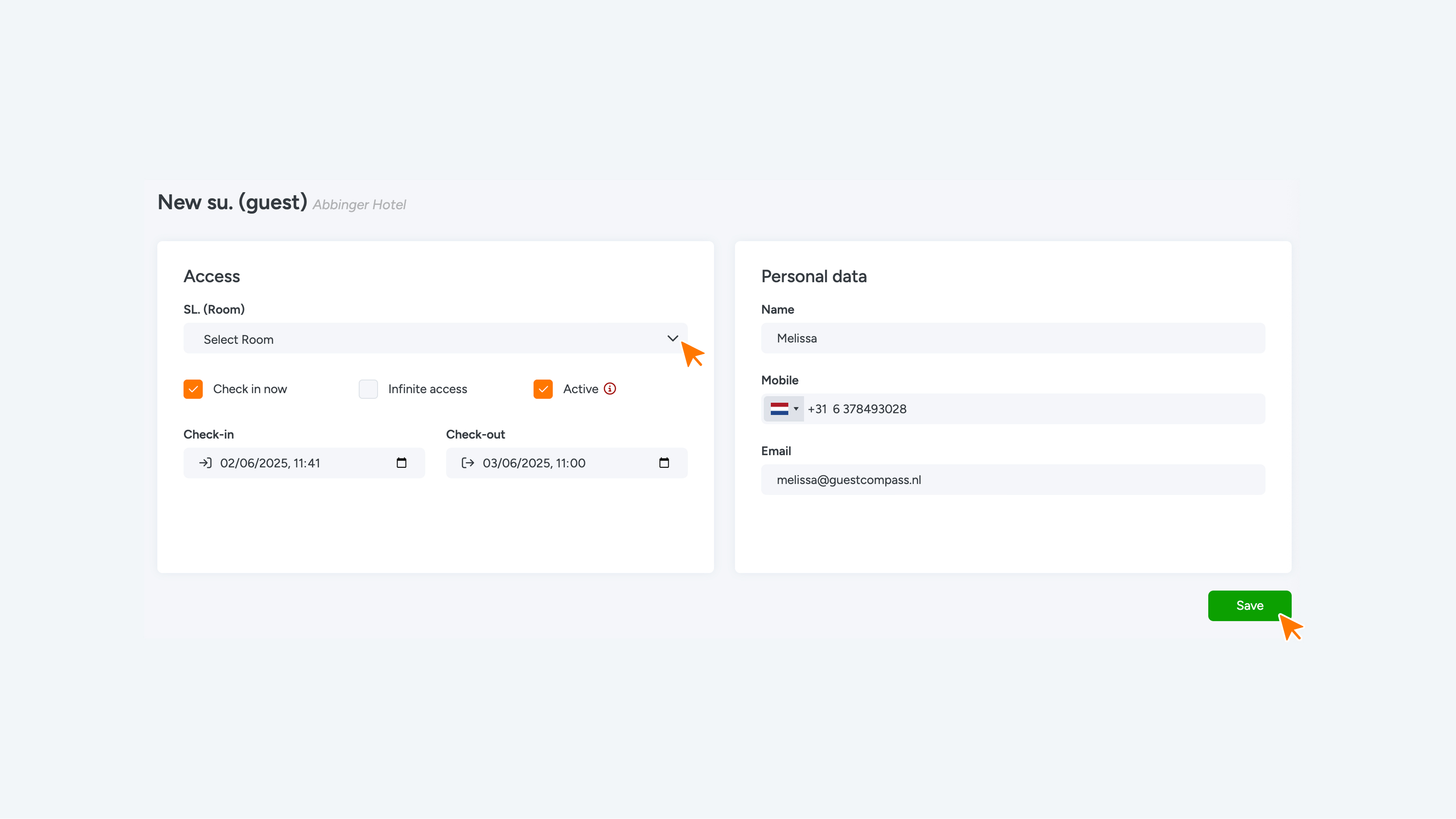
The dropdown contains additional fields that may be filled in by the PMS. These are not relevant when creating a new guest. Then click Save.
PLEASE NOTE! THE KEY HAS NOT YET BEEN SENT; IT HAS ONLY BEEN CREATED.
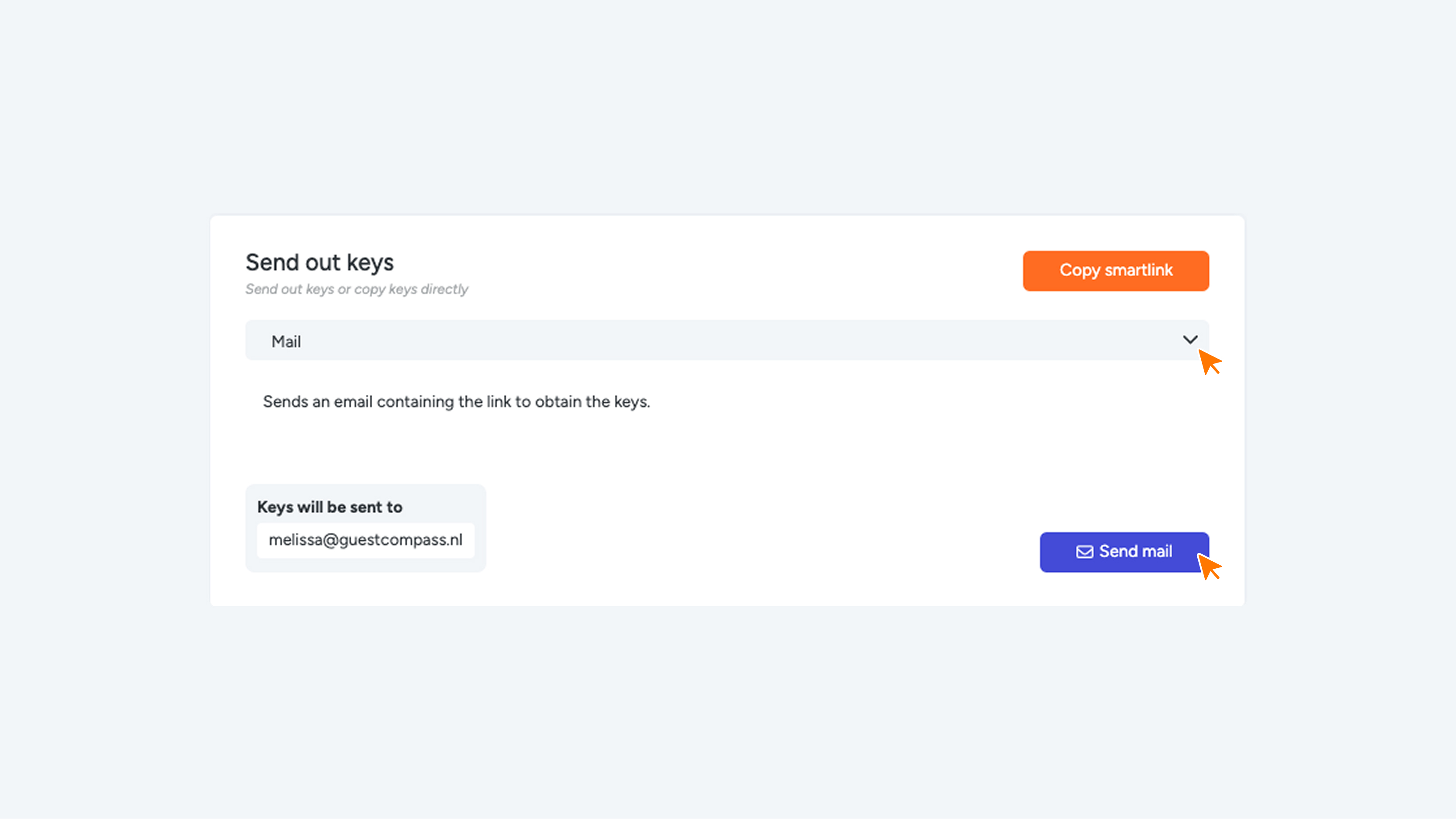
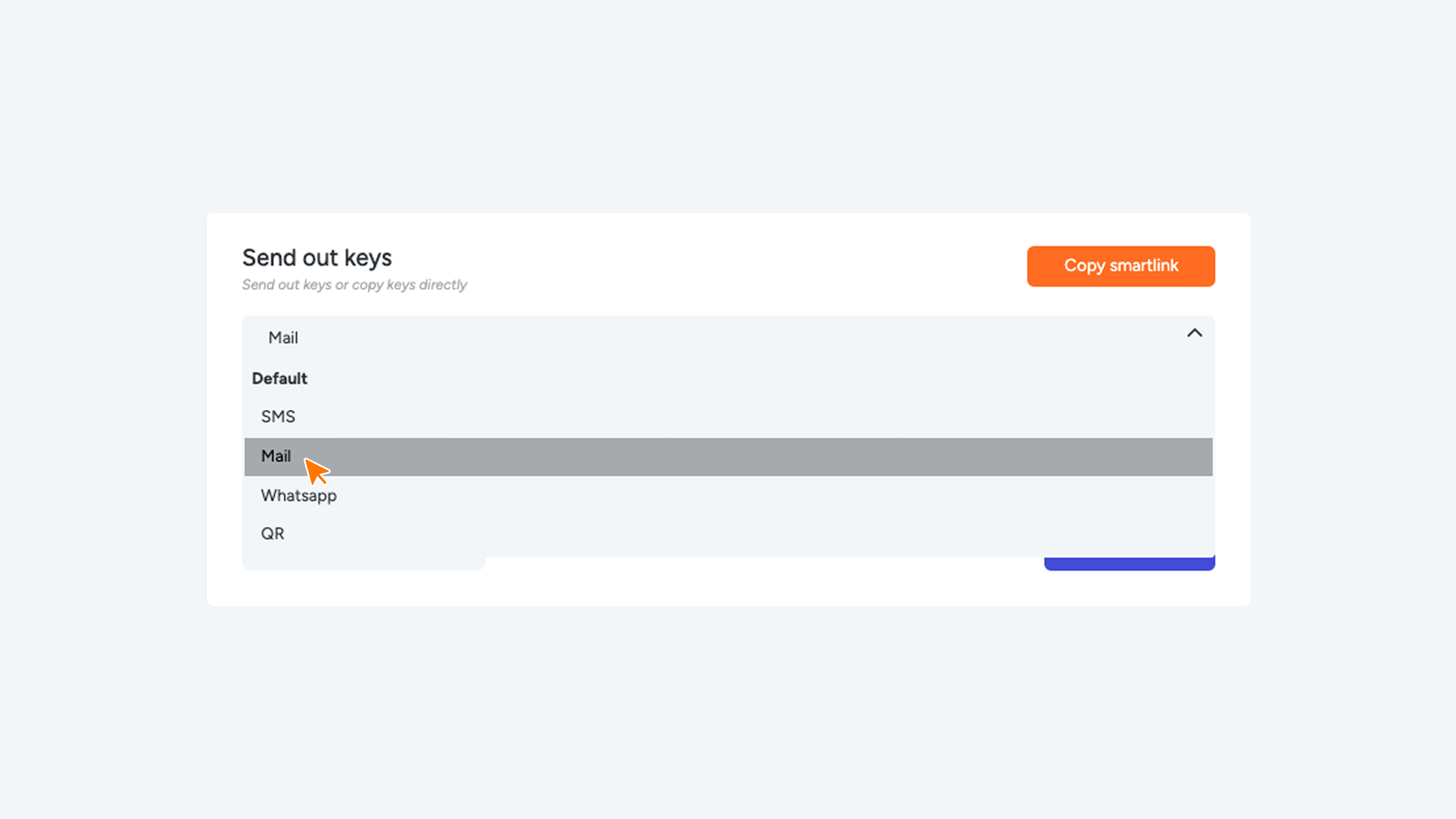
Go to the “Send out keys” section to send the keys to the guest. In the dropdown menu, you can choose the desired method to send the keys. You can choose between email, WhatsApp, or QR code. Click the blue “Send” button to send the key. You can also click the orange “Copy smartlink” button. The link with the cookie will then be copied, and you can send it to your guest in any way you prefer.
PLEASE NOTE! TO CREATE A NEW GUEST, RETURN TO THE DASHBOARD. DO NOT OVERWRITE THIS GUEST.
When the guest opens the link from the ‘Room ready’ email, WhatsApp, or QR code, they will see the “Locks” module with sliders in the (Web)App. The doors can be opened or shared using these controls.
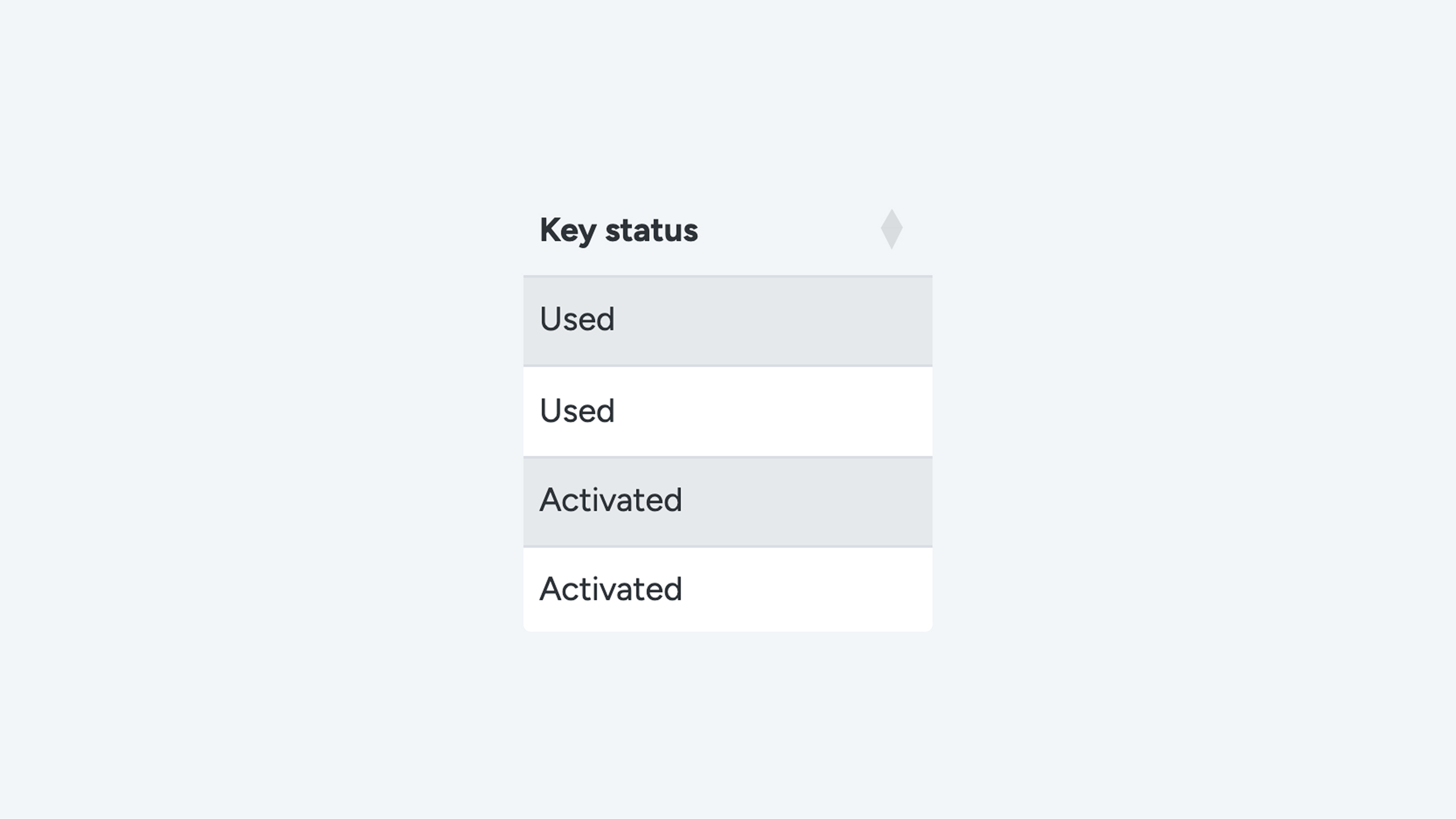
The dashboard shows the key’s activation status under “Key status.