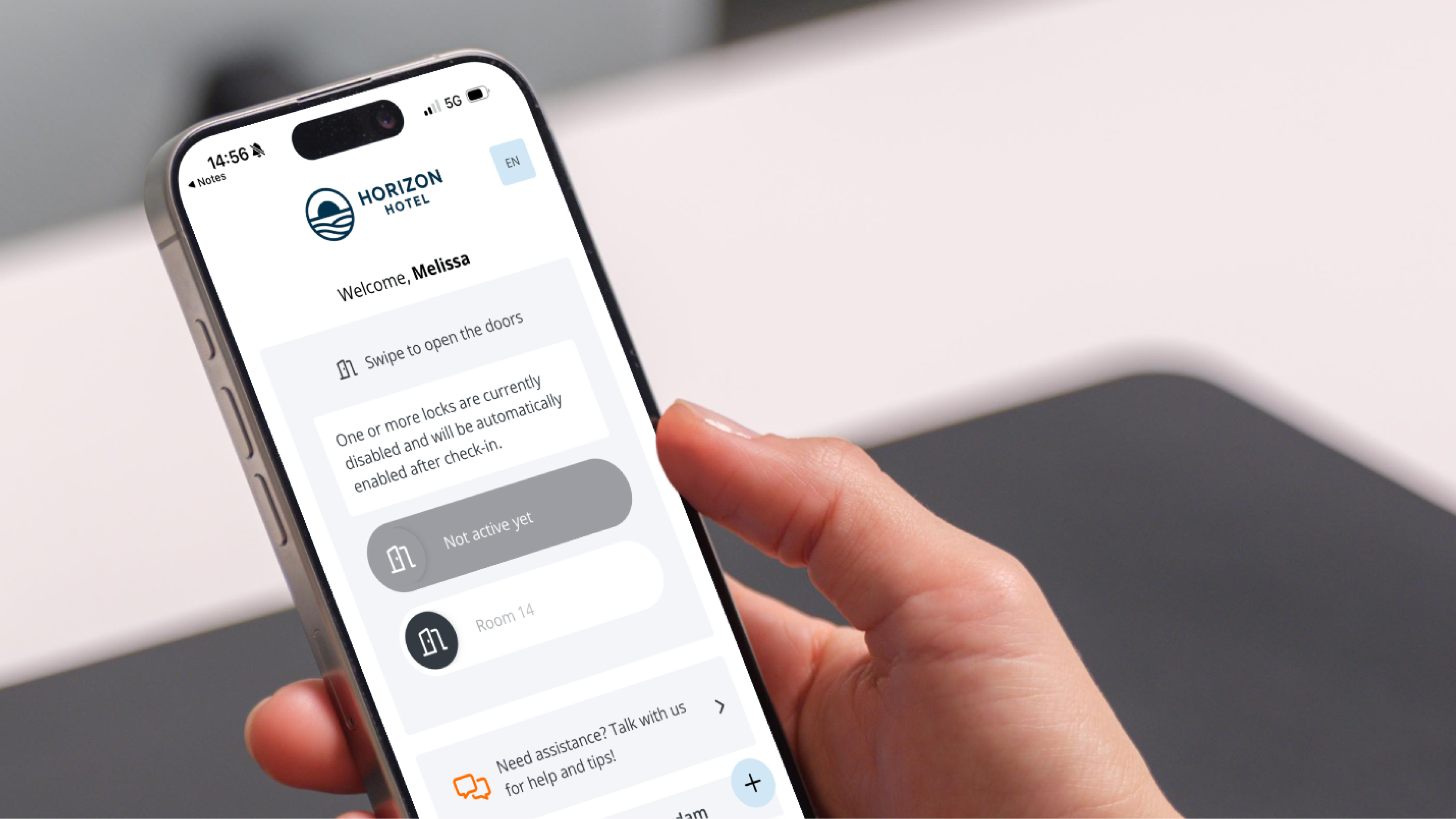
Extended Key Options
Key via the drop-up function
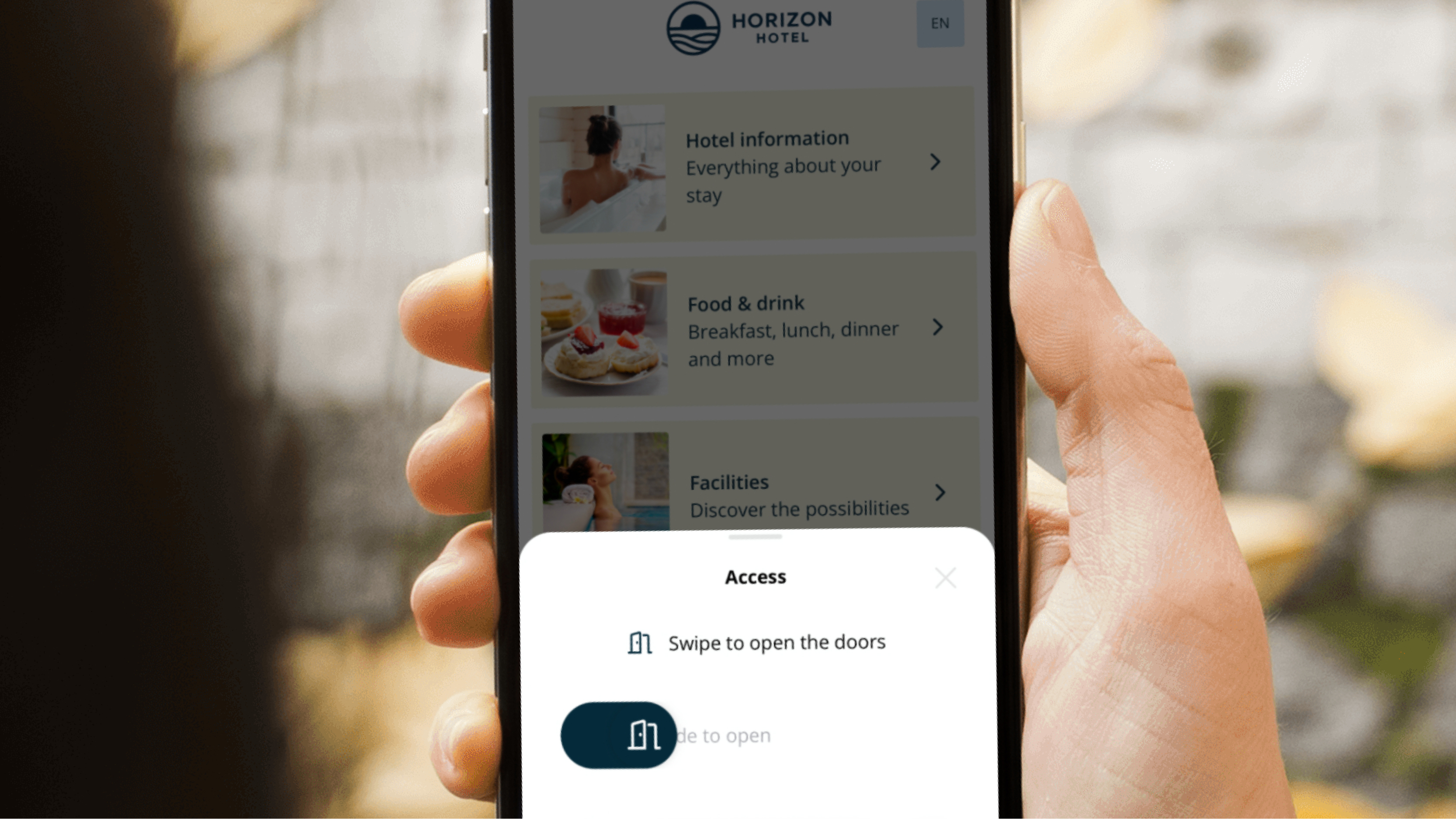
With the drop-up feature, you can easily open your doors. The drop-up appears on every page in the web app.
To set this up, follow the steps below in Connect:
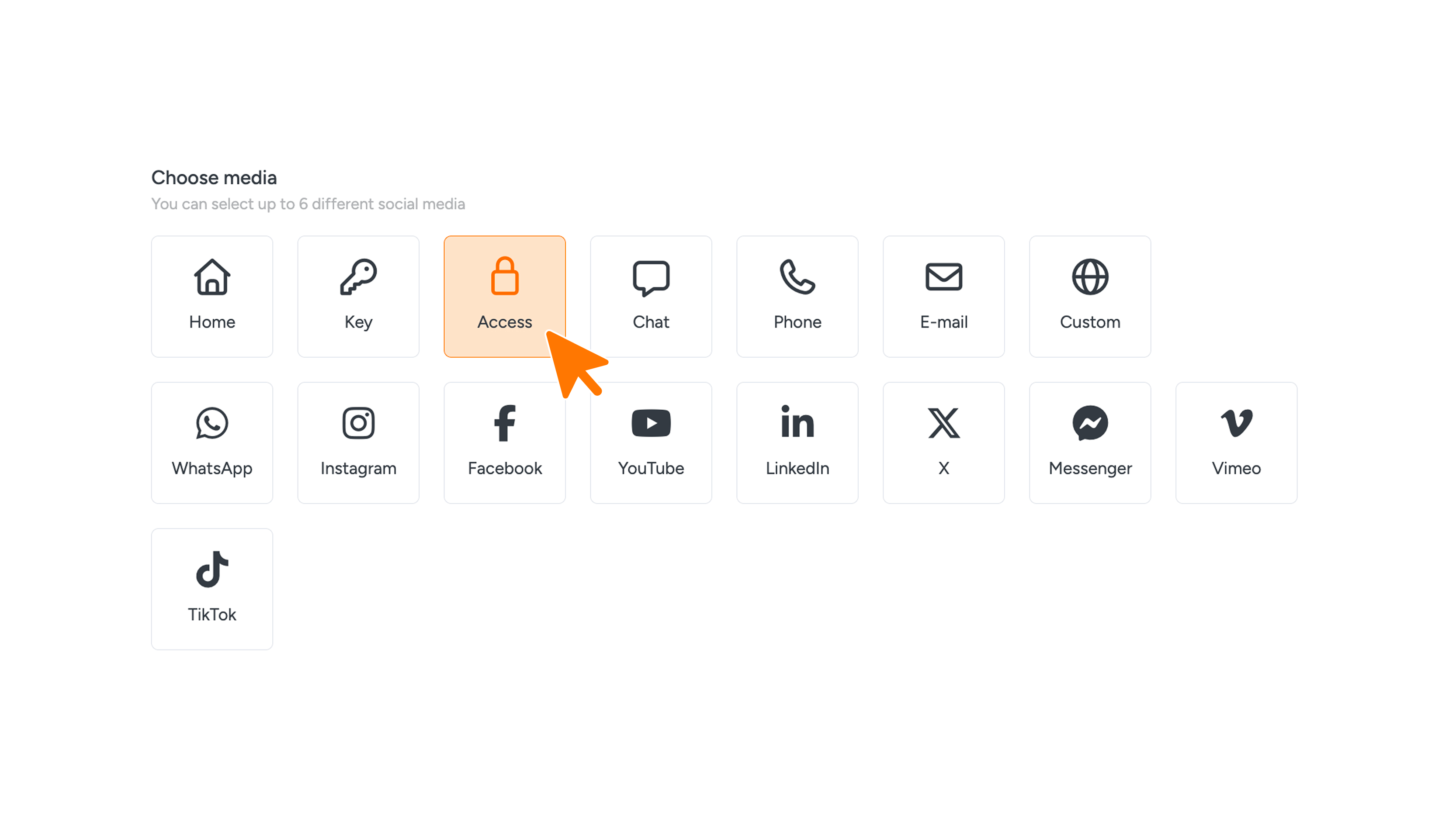
- First, go to the ‘WebApp’ tab and click ‘Social media’ in the menu.
- Then choose ‘Access’ under the ‘Media’ tab.
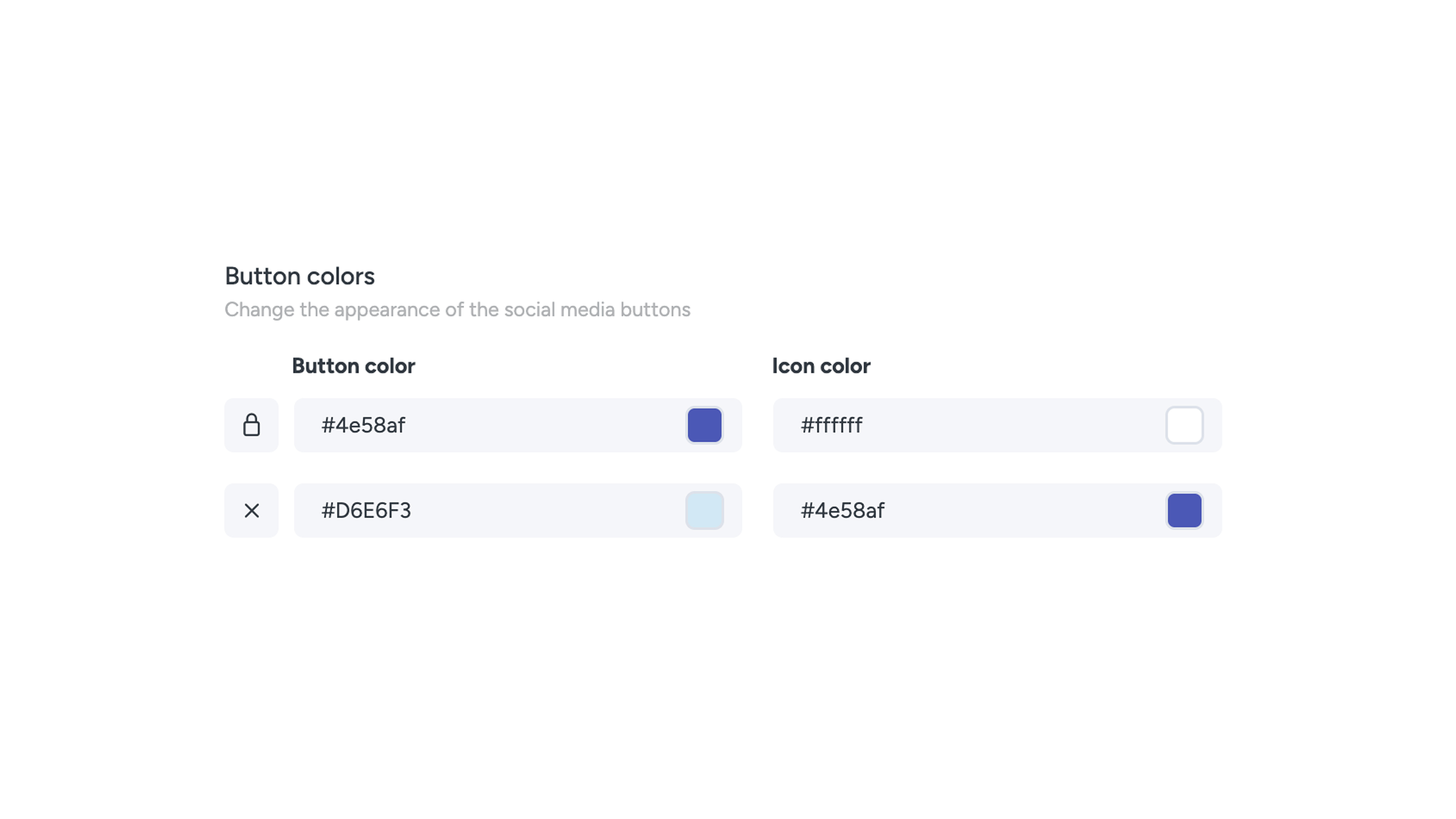
- After that, click Save.
Once a guest is registered, he or she will see the keys in the drop-up feature.
Entrance times
Offer Extra Flexibility with Adjustable Access Times
Provide your guests with more flexibility by using adjustable access times. You can configure the duration using the dropdown menus for days, hours, and minutes. This gives you complete control over your hospitality and the flow of movement within your property.
How it works in practice
For example, you can set the main entrance to open three hours before the official check-in time. This allows guests to enter the building early and check in via a Mews kiosk. Once the check-in is complete, their room lock is automatically activated.
After check-out, it works the other way around: guests will no longer have access to their room, but can still open the luggage storage or the main entrance.
The Benefits
- Smoother Arrival: Guests feel welcome the moment they arrive.
- No Queues: Reduces crowding at the reception desk.
- Complete Control: Manage access before, during, and after the stay.
How to set this up
- Click 'Reception' or 'Management' in the menu.
- Navigate to the desired door.
- Select the time in the top right corner.
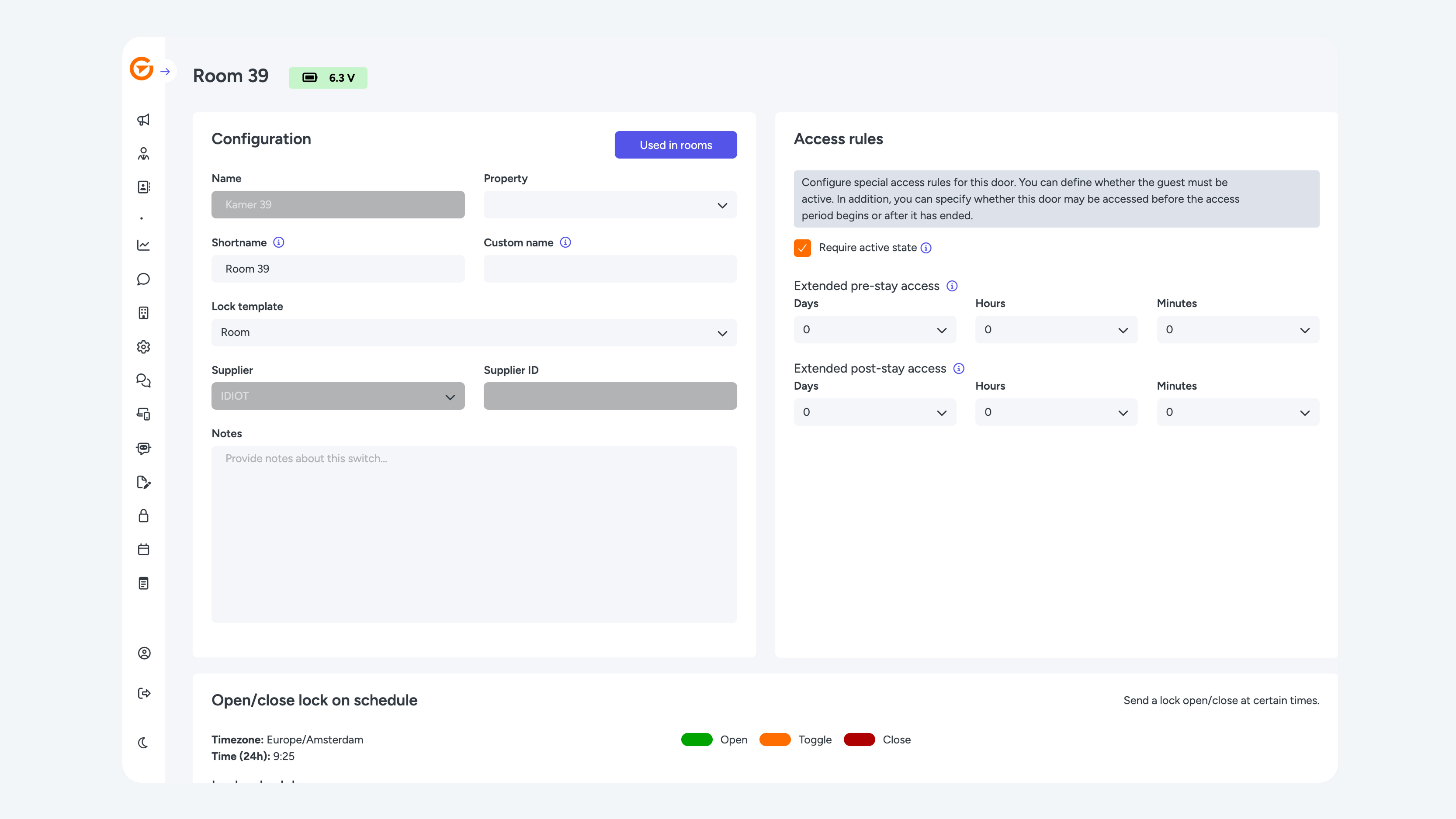
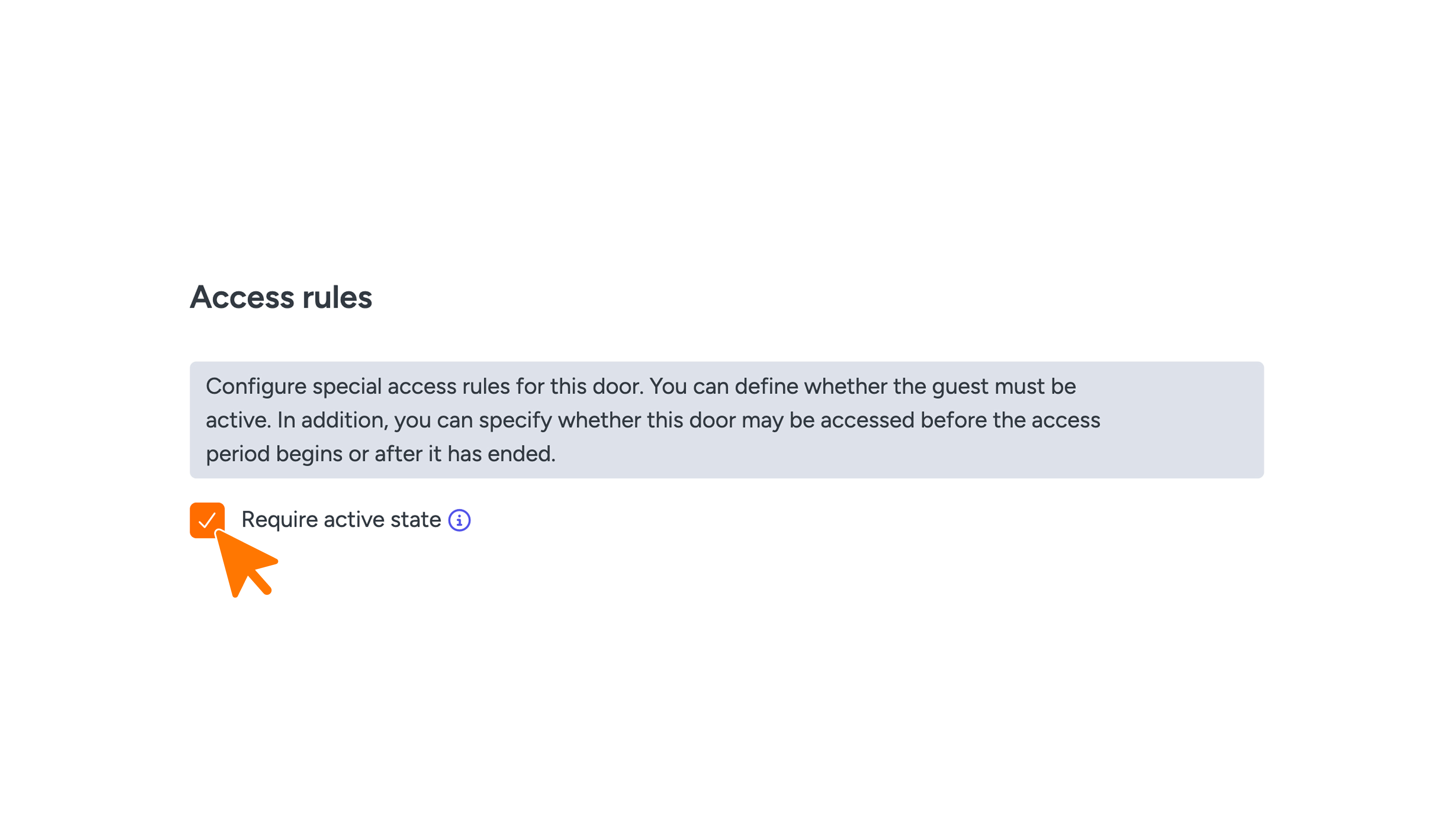
Require active state
If this option is enabled, the lock can only be opened with a key that is active at that moment. Active usually means that the key has been checked in.
Extended pre-stay access
Here you set how much time before arrival a lock may already be opened. For example: 3 = the lock can be opened 3 hours before check-in.
Note: This setting works together with ‘Require active state’. This means the lock may be visible during those 3 hours in advance, but it cannot be opened as long as the key is not yet active.
Extended post-stay access
Works the same as above, but for the period after check-out.