Module – Keyfriends (iLOQ)
Adding to the app
With a Keyfriend, you can set up a spare key for the duration of your stay. You can add both internal Keyfriends—such as neighbors or co-residents within the same building—and external Keyfriends, for example your parents, partner, or other family members.
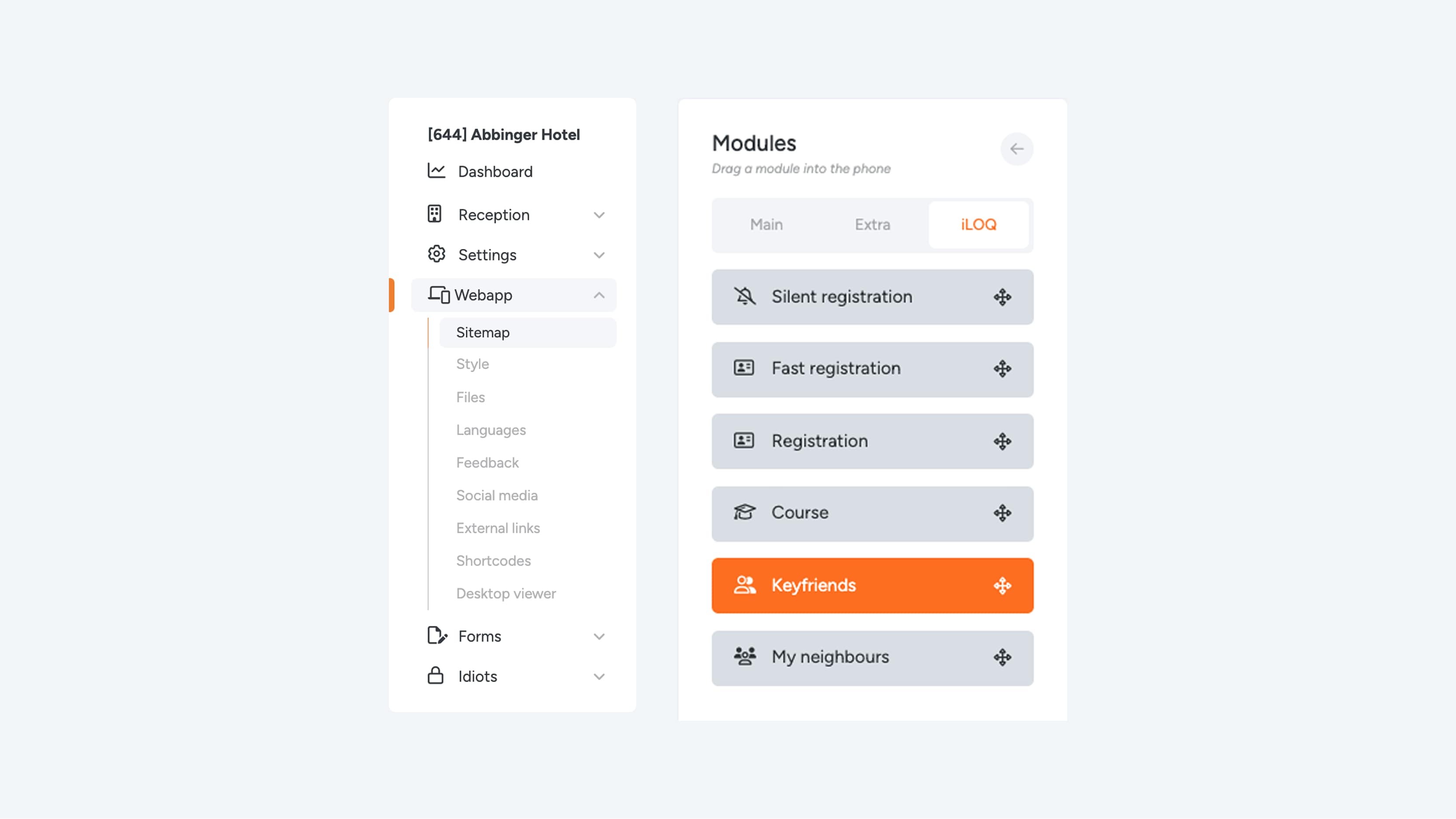
Go to the “iLOQ” tab to find the “Keyfriends” module. Drag the module to the phone view; it will then be saved automatically.
Please note: no separate settings page appears when adding this module.
Inviting a Keyfriend
Are you registered in the app? Then you can easily add a Keyfriend—someone who receives the same access rights as you on their smartphone. This is useful, for example, if you accidentally lock yourself out or want to let someone into your room without being there yourself.
How to invite a Keyfriend:
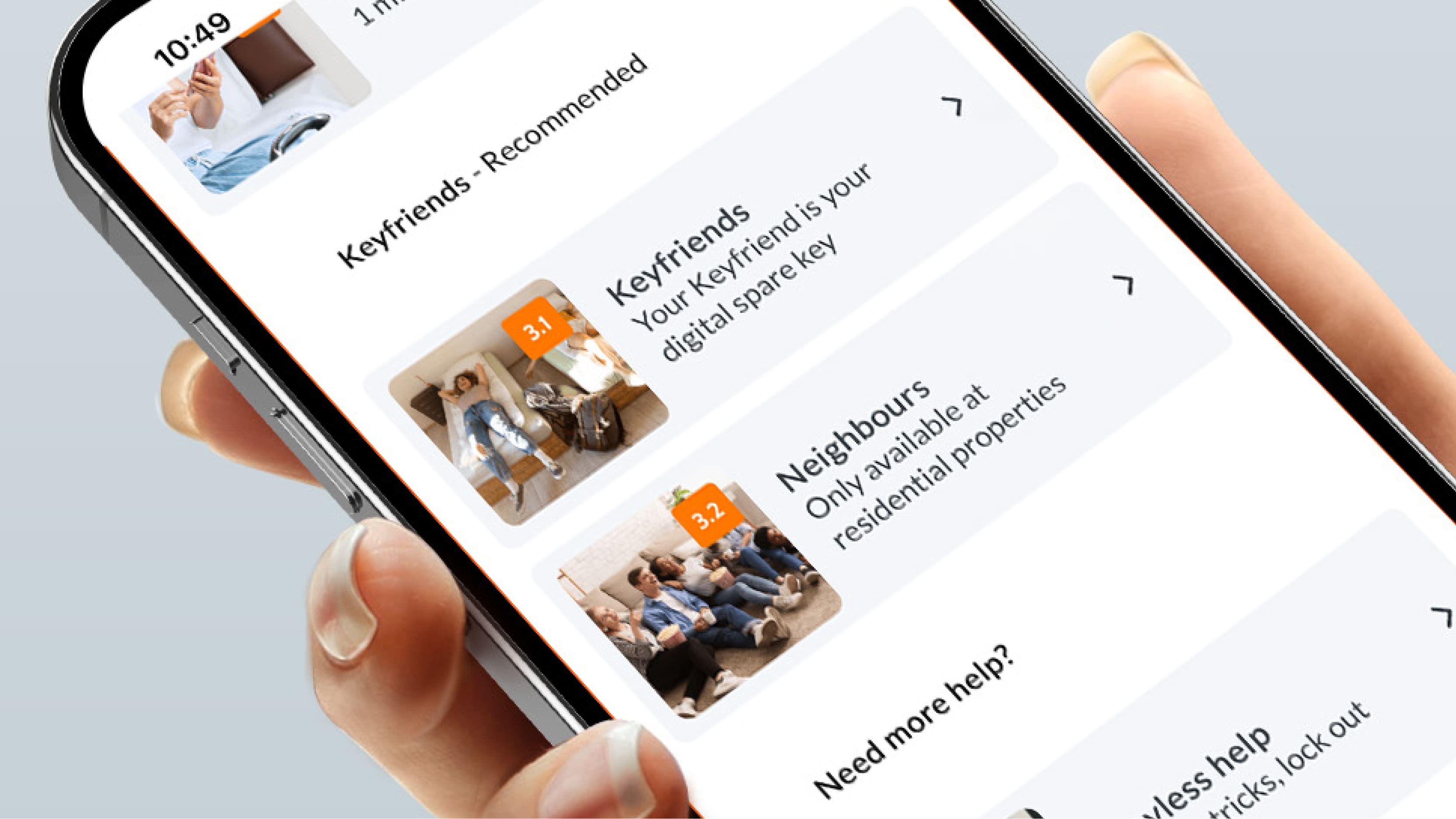
- Open the app and go to the “Digital Key” page.
- Navigate to the “Keyfriends” section.
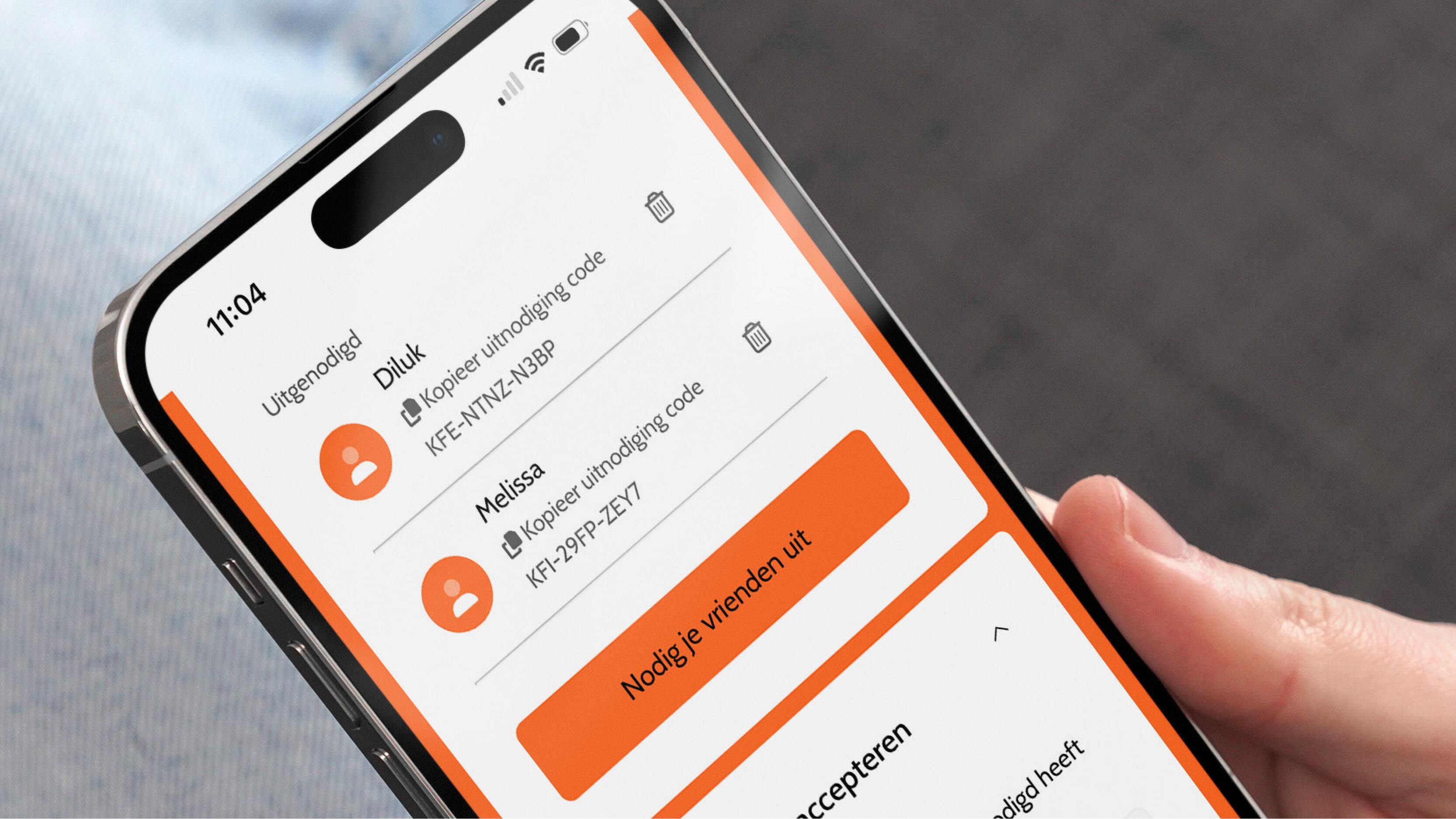
- Tap the “Invite your friends” button.
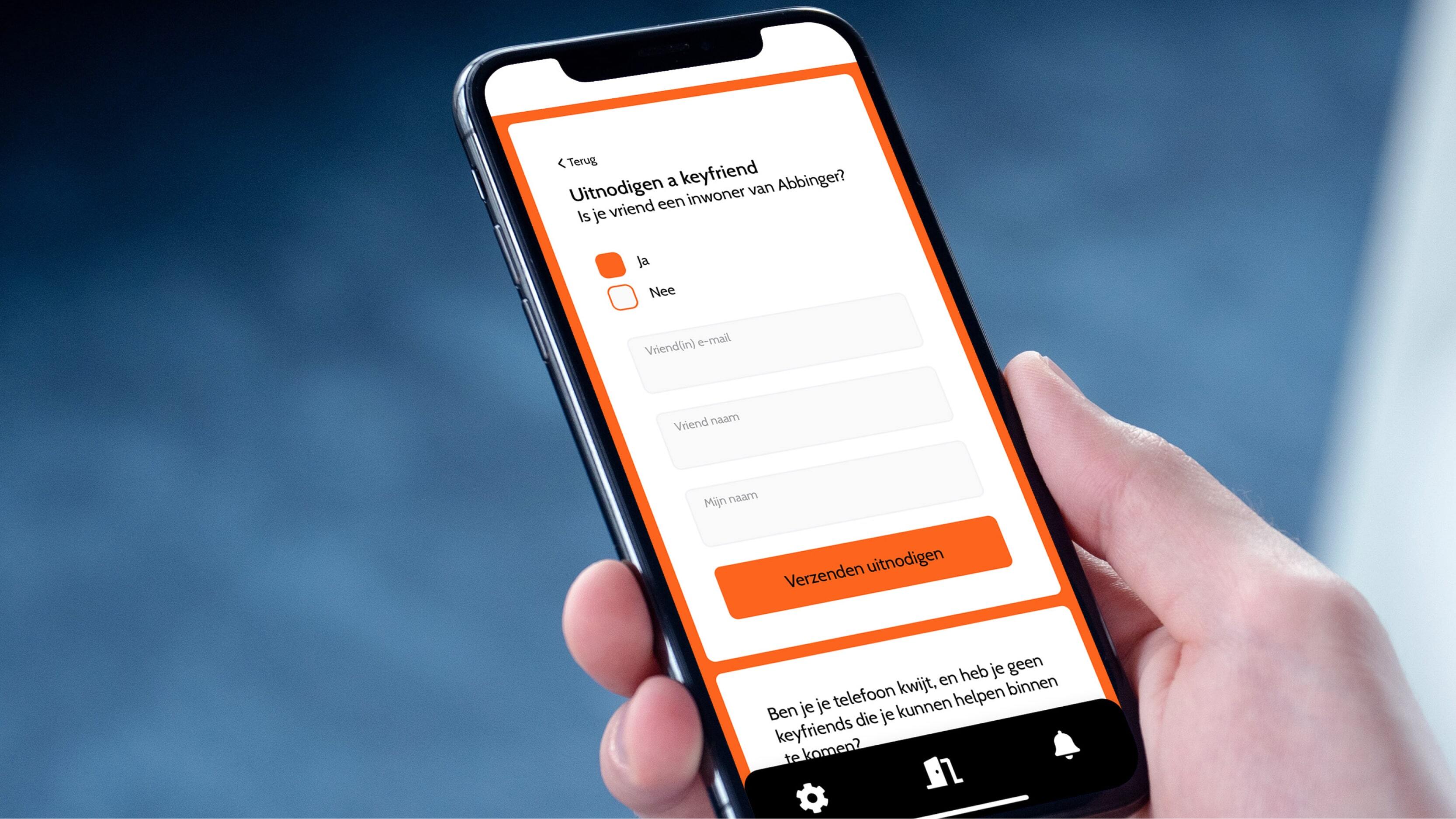
You will then be asked:
“Is your friend a resident of …?”
Make a choice:
- Yes → Invite an Internal Keyfriend
- No → Invite an External Keyfriend
Then enter the following details:
- Your friend’s email address
- Your friend’s name (this will be visible in your Keyfriends overview)
- Your own name (this will be mentioned in the invitation)
Click Send. Your friend will receive an email invitation with further instructions.
Invitation Email
Once you have filled in all the details and sent the invitation, your friend will receive an email with the following English instructions:
Subject: You've been invited as a Keyfriend
Hi (friend’s name),
You have been invited by (resident’s name) to access his/her apartment. Please follow the steps below to activate your access on your phone:
- Open the app
- Go to the Manage Keyfriends page
- Copy and paste the invite code you received in this email
The app will now synchronize—once it’s complete, you’ll be able to open the door.
Your invite code:
(code)
Accepting the Invitation (for the recipient)
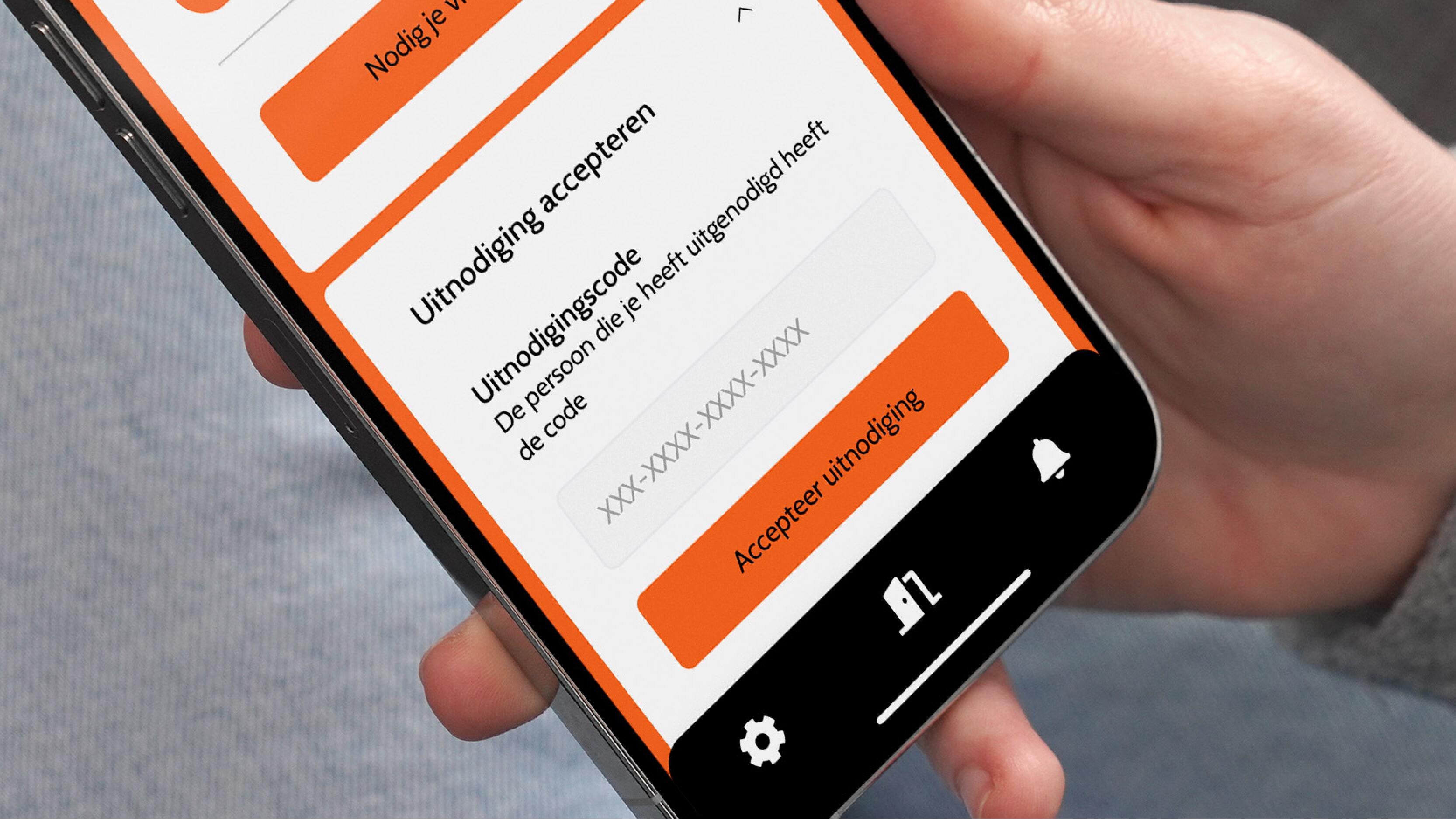
Copy the code from the email and, in the app, go to “My Keyfriends”, which can be found via the “My Digital Key” page.
Paste the code under “Accept invitation.”
Your friend is now added as a Keyfriend and has the same access rights as you.
Note: If you want access to your friend’s room, he or she must invite you separately. Each access works with its own individual invitation.
Removing a Keyfriend
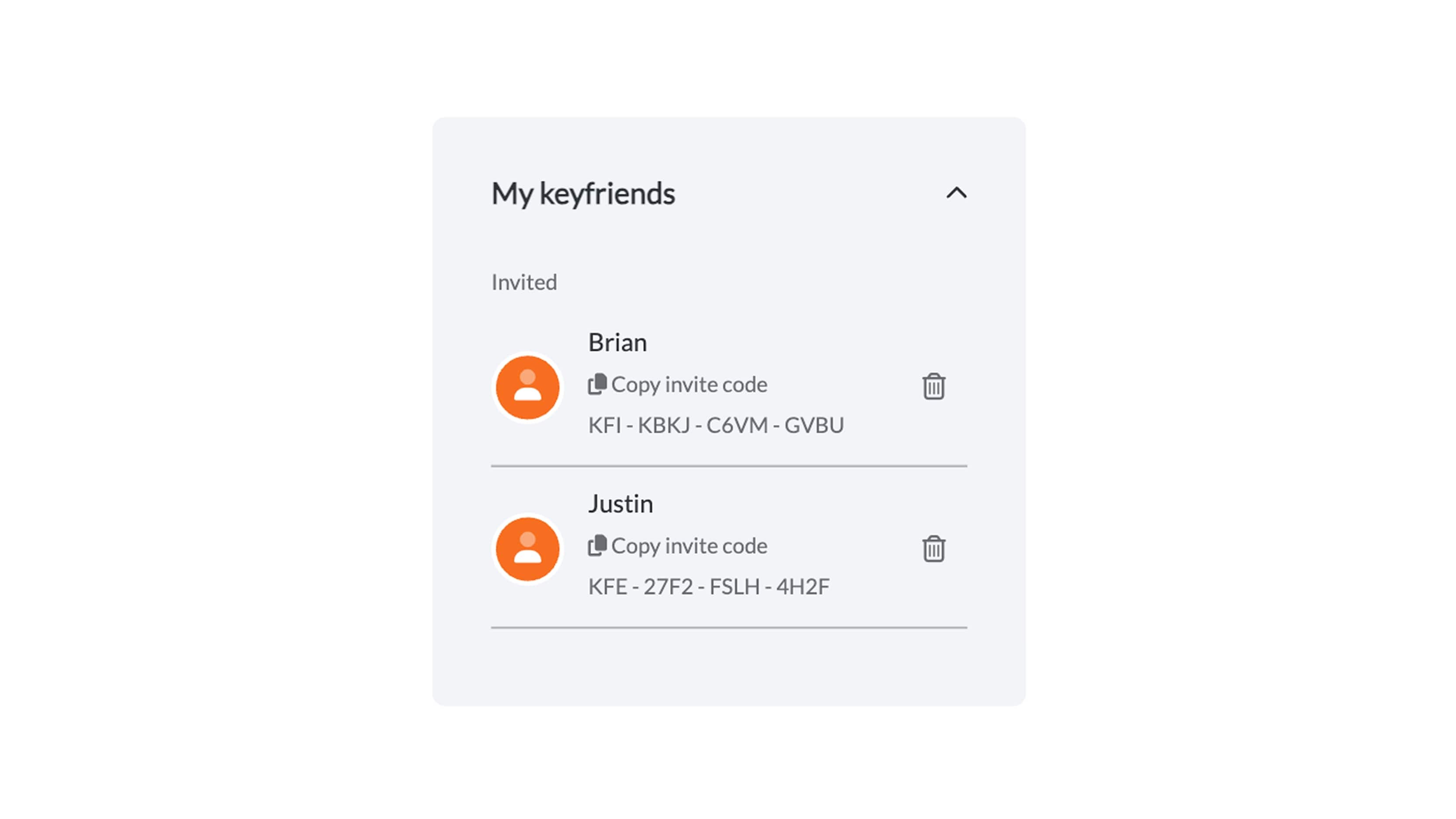
Do you want to remove a Keyfriend? Go to your “My Keyfriends” overview and click the trash icon next to the relevant name. Here you will see a list of all invited friends.
When you remove someone as a Keyfriend, that person does not receive a notification.
