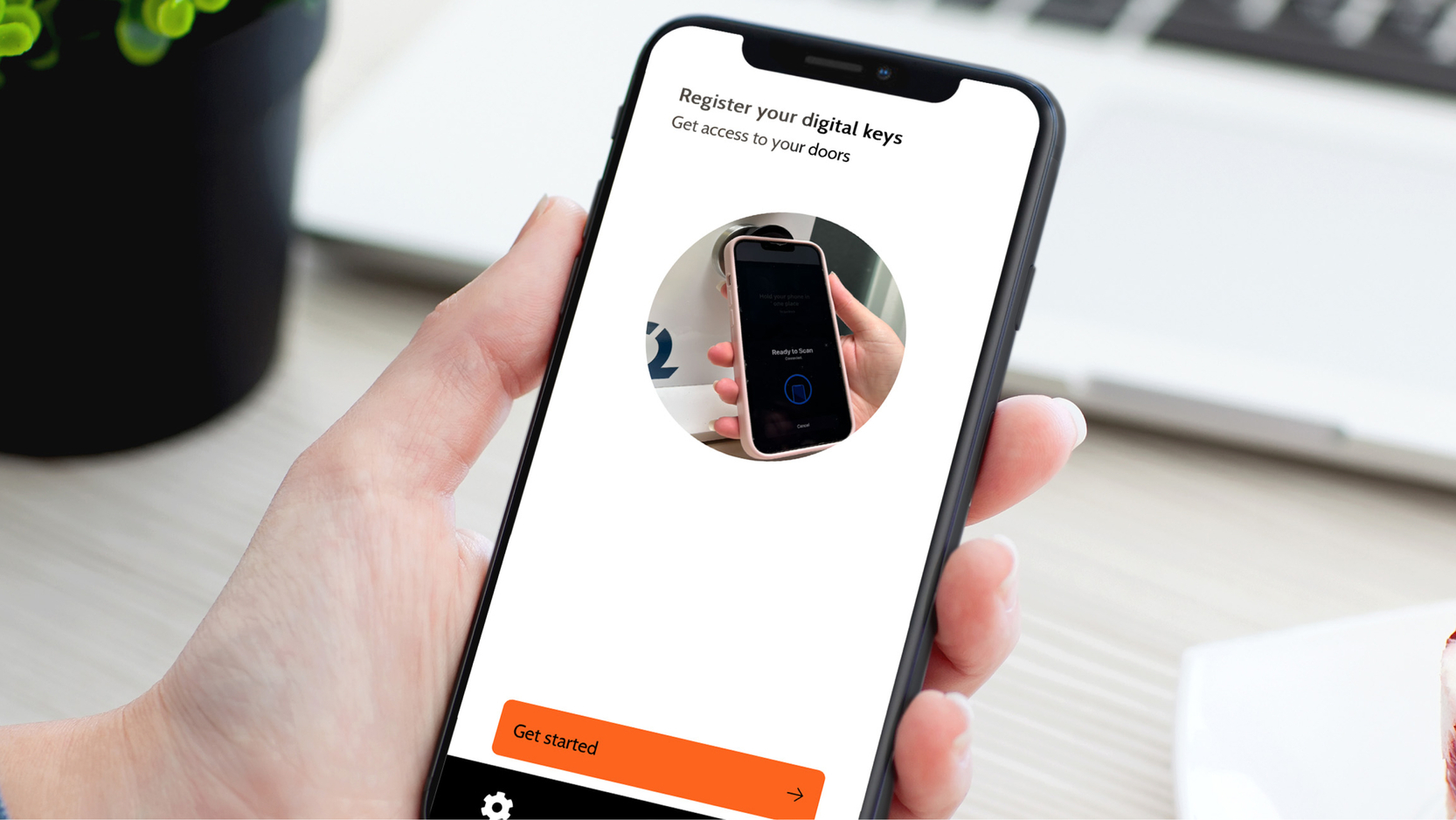
Module – Registration (iLOQ)
The registration module can only be added to an empty page.
Drag the “Registration” module to the phone view. Once you have done this, the module is automatically saved.
Please note: no automatic settings page appears when adding this module.
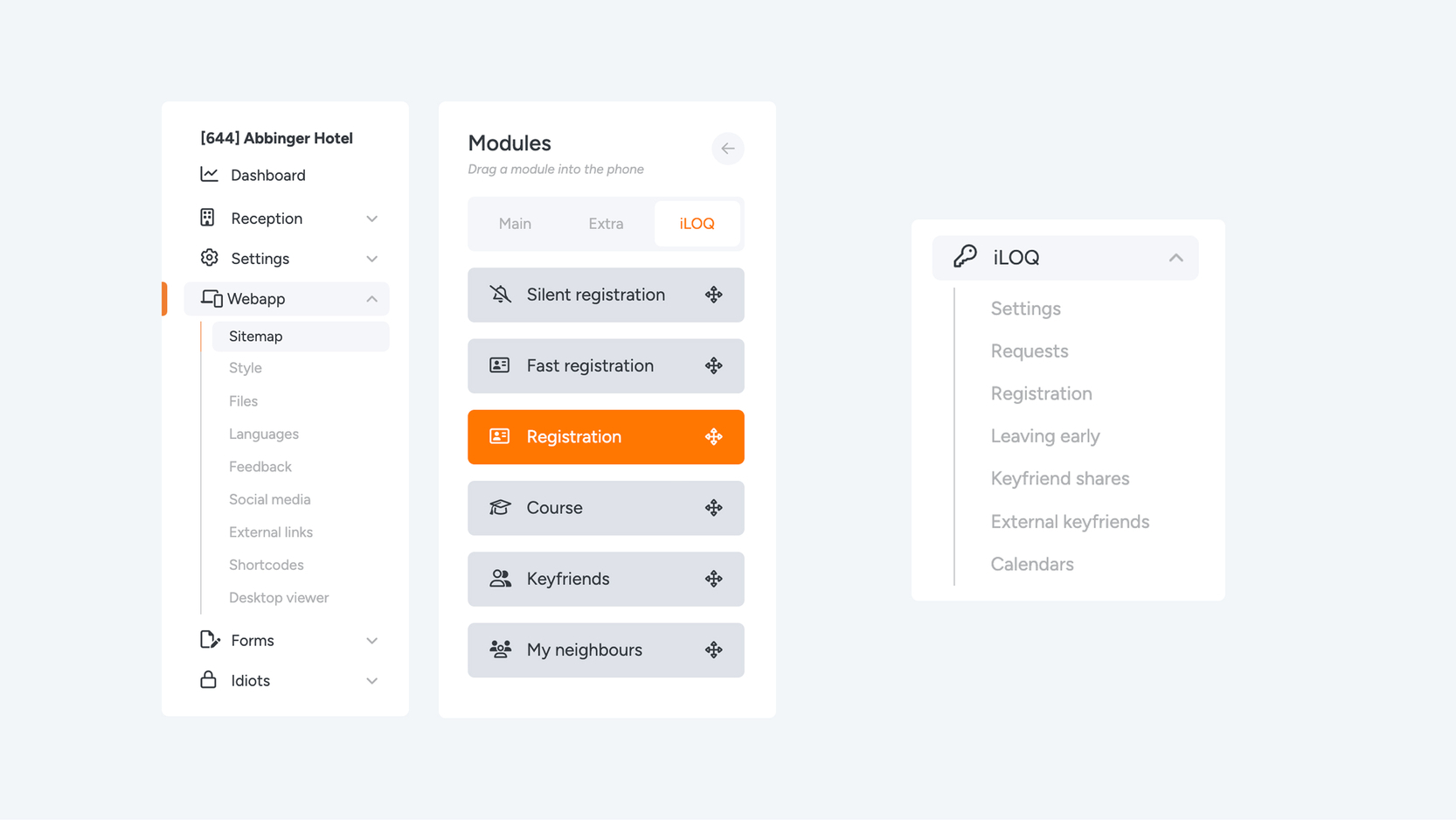

To set up registration, go to “iLOQ” via the menu and then select “Registration”. Here you can configure the iLOQ registration flow.
Tab 1 – Options
Under “Options”, you configure the registration fields. You can choose from the following fields:
- Email address
- Date of birth
- Phone number
- Code
- Fast Code
For each field, you can manually set the desired value.
Note: Some fields are mandatory. You must enter either a Fast Code or a combination of contract number / date of birth.
In addition, it is possible to add translations via the “Translate” button in the top-right corner of the screen.
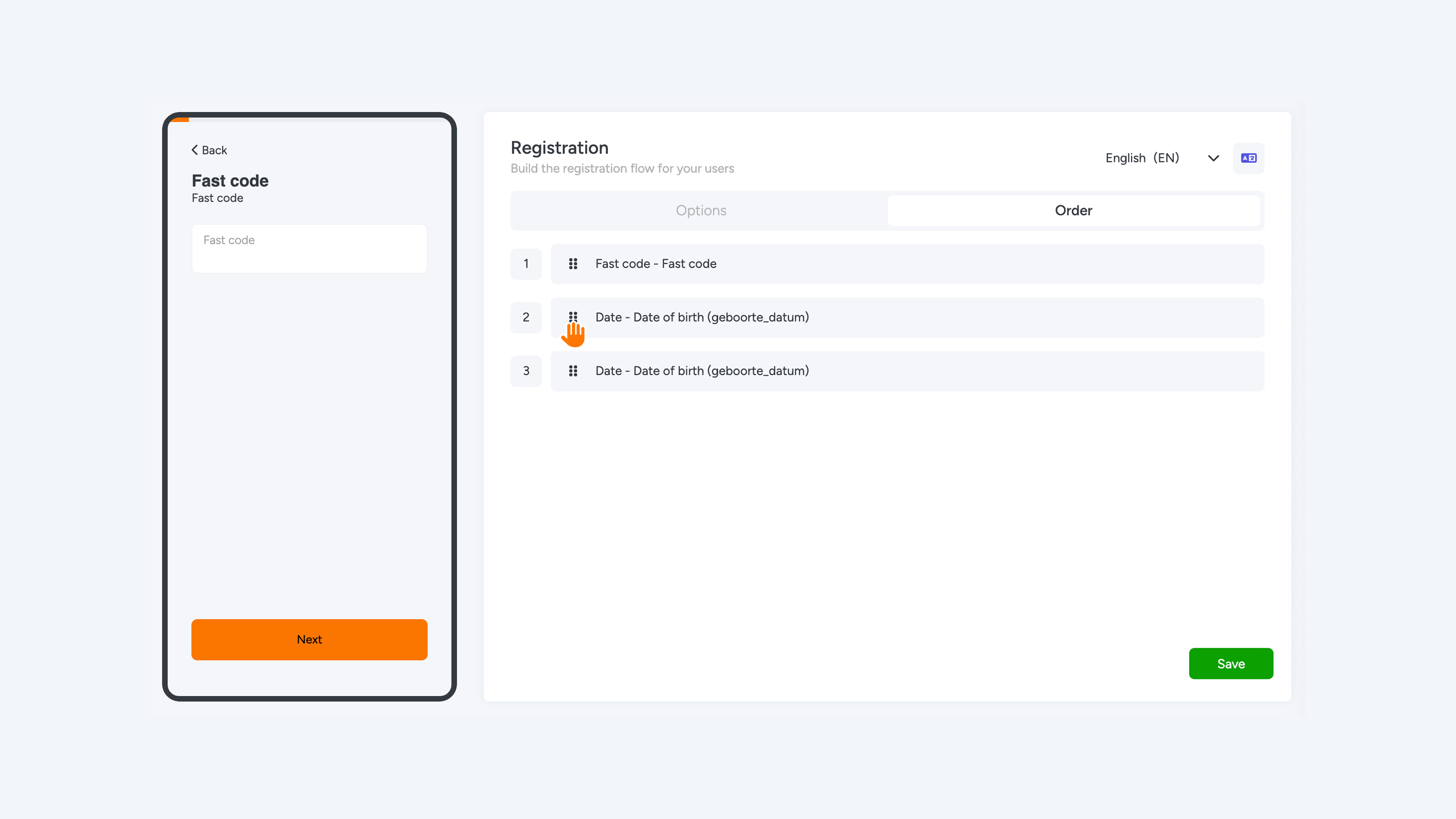
Tab 2 – Order
In this tab, you can easily change the order of the registration fields by dragging and dropping them using the drag-and-drop icon.