Revoking/Disabling Keys and Removing Guests
Ending Access Before the Check-Out Date
It is possible to end a guest’s access before the scheduled check-out date. You have several options:
1. Temporarily Deactivate a User
If you want to temporarily suspend access, follow these steps:
- Search the guest in the system.
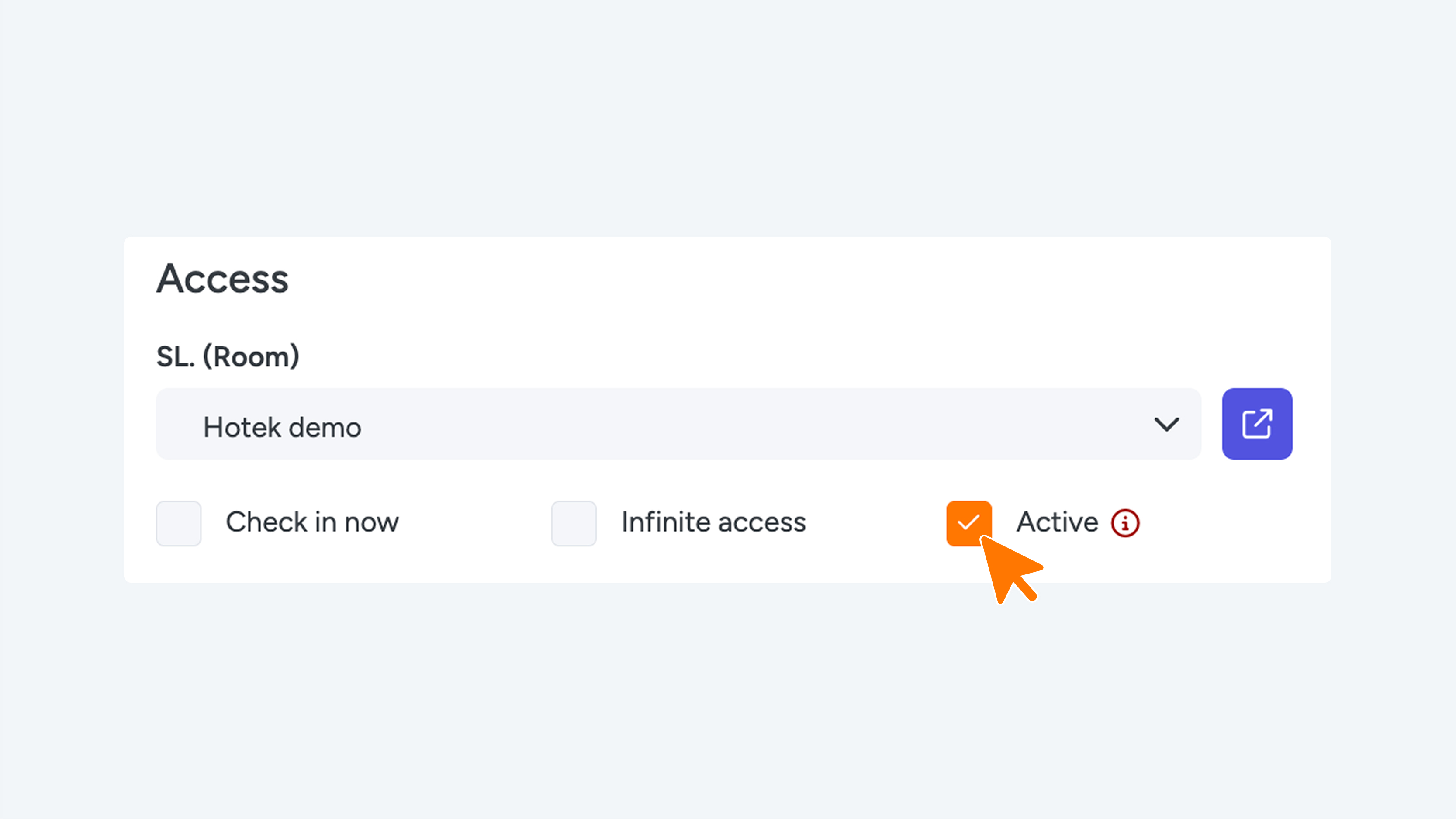
- Navigate to the settings and deselect the “Active” option.
- Click the “Update” button (top right or bottom right on page).
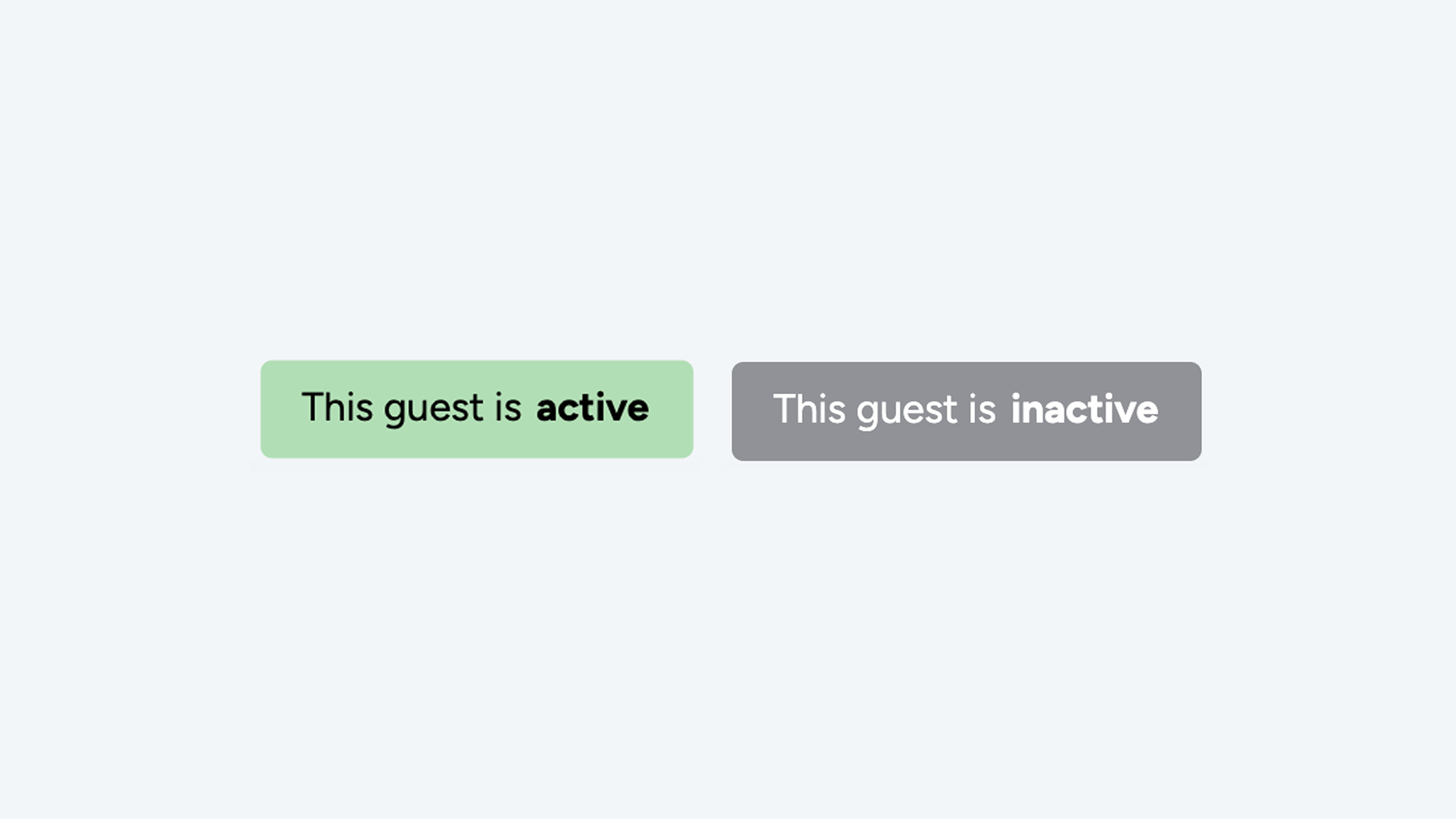
- The label will change from “This guest is active” to “This guest is inactive.”
- The guest will immediately lose access to the doors.
Important: If you deactivate a key and then make changes in the PMS, the key may be automatically reactivated.
2. Permanently Remove a User
If you want to completely remove the guest from the platform:
- Locate the guest in the system and open the settings.
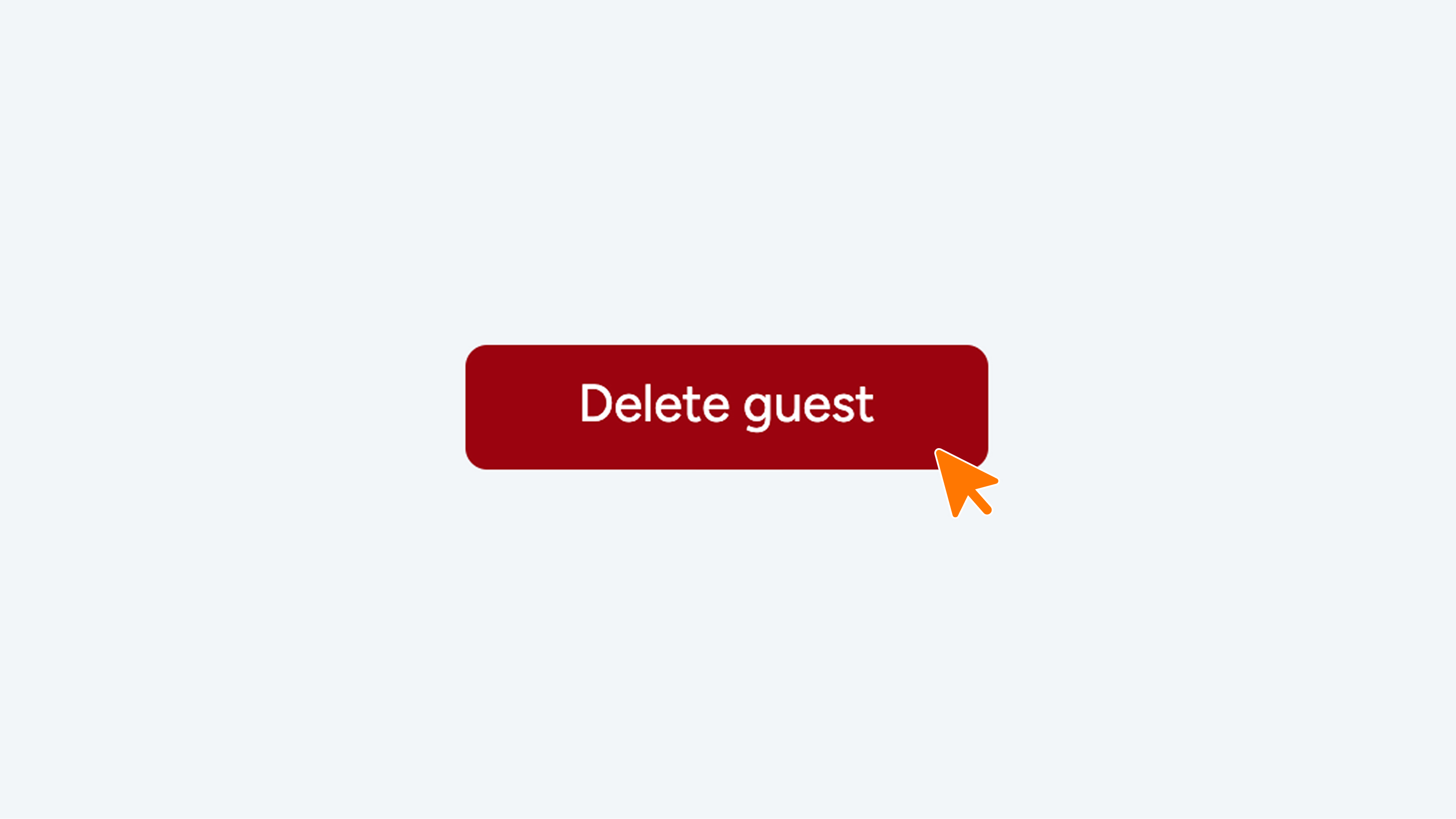
- Scroll down and click the red “Delete guest” button.
- The guest will be permanently removed and will no longer have access to the doors.
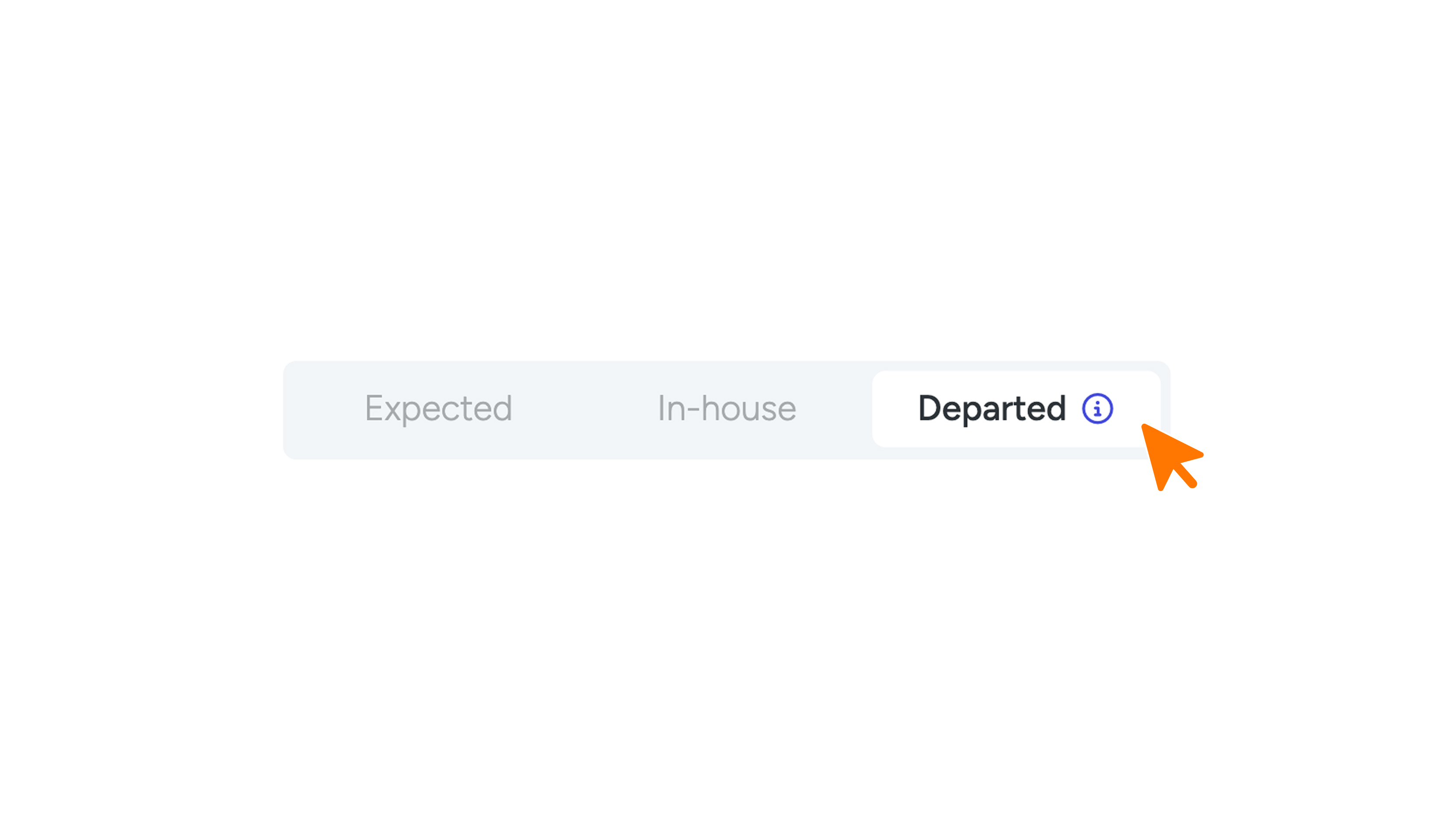
- The user will also no longer appear under “Departed” in the “SU. Guests” menu item.
Important: If you delete a key and then make changes in the PMS, the key may be automatically recreated.