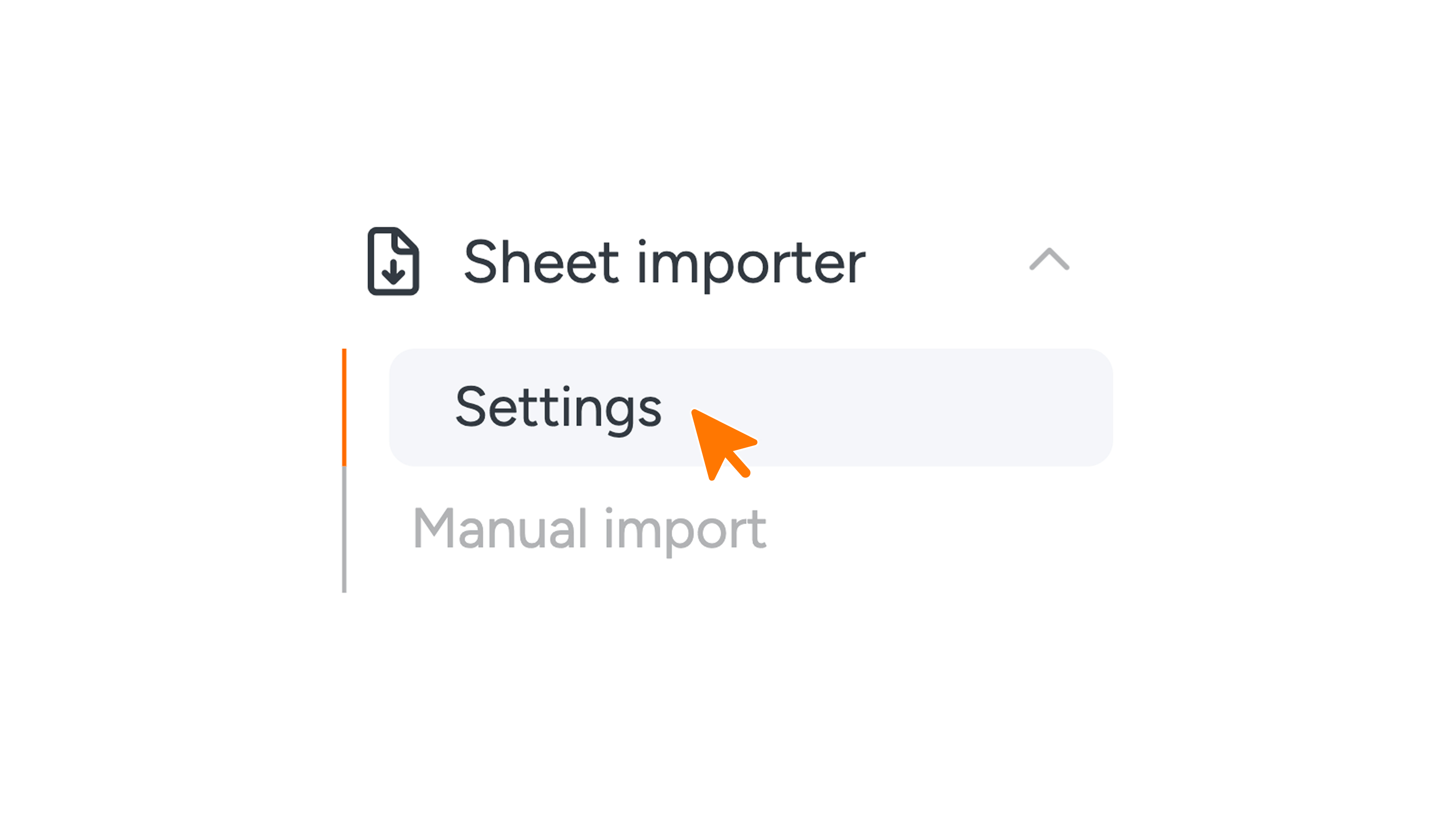
Sheet Importer settings
Please note: These settings are only available to Connect admins. Have any questions? Feel free to reach out to support@guestcompass.nl.
The importer lets you add guest data to Connect in one go, so you don’t have to enter it guest by guest. You can do this automatically through a fixed connection with the SFTP server, or manually by uploading a file yourself.
This page explains how to set up the importer: which file format to use, where the file is located, which column maps to which field, and what happens when a guest moves.
Importer
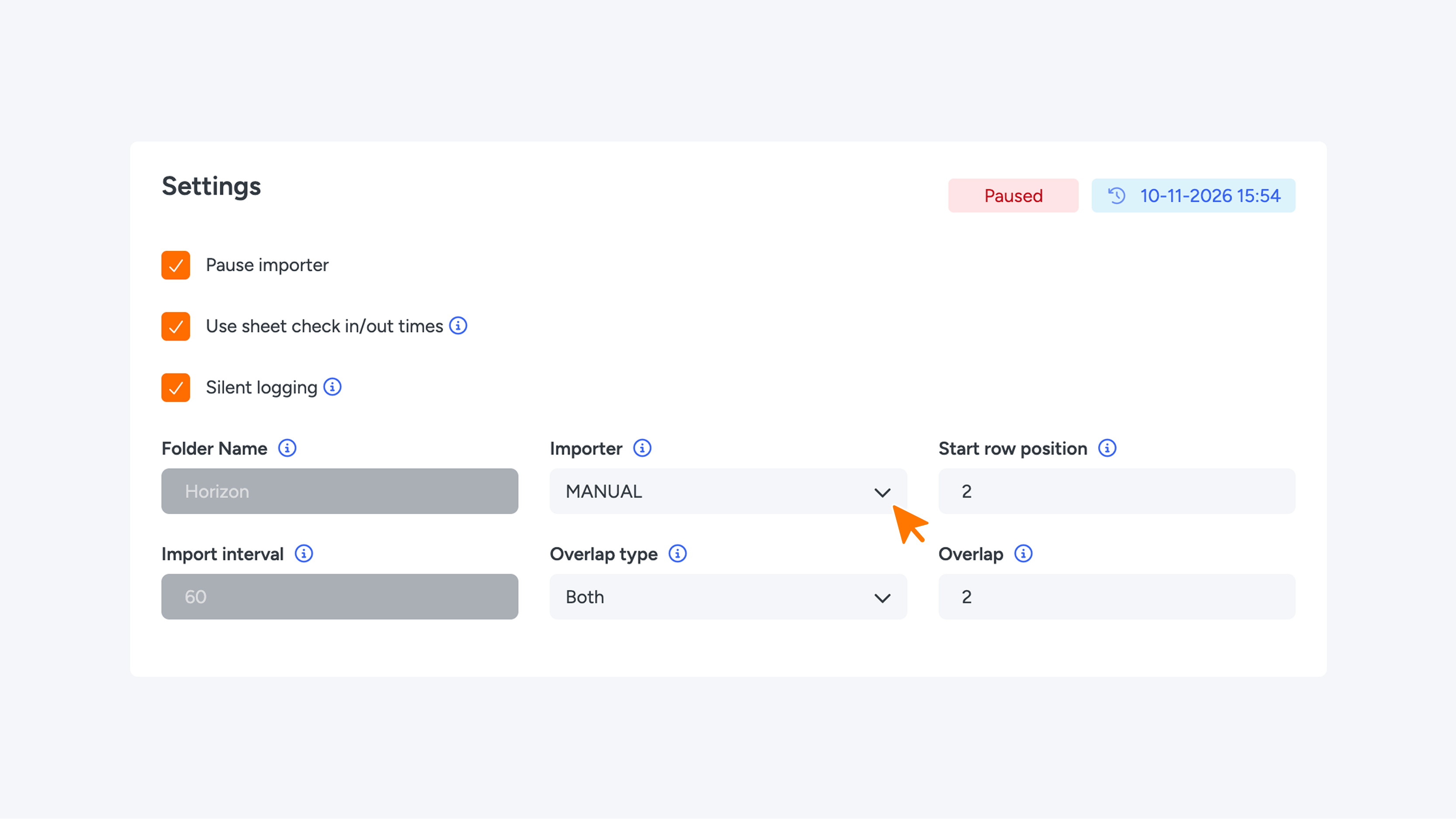
This is where you specify which external system the file is imported from. When you choose an importer, empty fields are automatically filled with that importer’s default values.
- TL1: imports a TL1 export (tblMieter.csv). The system fetches this file from the SFTP server at set times. Guests are identified by the contract number column. Because you choose what data goes into this column, we recommend using an ID that always stays the same for each guest.
- MANUAL: you upload an .xlsx or .csv file yourself. Nothing is fetched automatically. Each guest is identified by their contract number.
1. SFTP settings
With MANUAL, these fields are greyed out and can’t be filled in.
Folder name
This is the Company’s main folder on the SFTP server. The importer looks for the file at /<folder name>/upload/<file name>.
Import interval
This sets how many minutes the importer waits between two imports.
Pause importer
While this is checked, scheduled imports won’t run. You can only turn the importer on once the importer type, folder name and interval are filled in and at least one column has been mapped. Want to upload a file yourself? Pause the importer first.
2. Column mapping
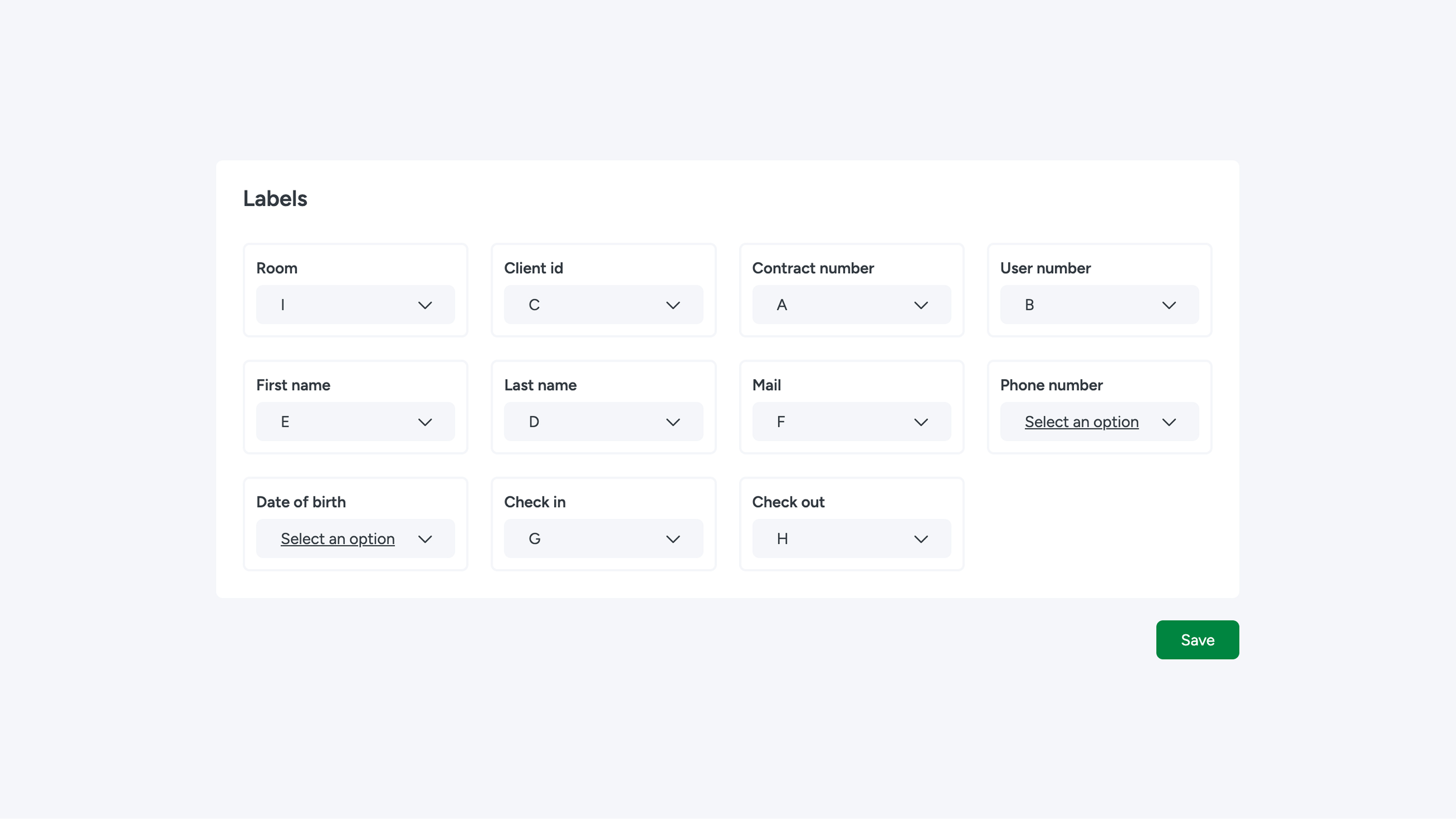
For each guest field, choose the column (A–Z) where that field appears in the file. If a field isn’t in the file, leave it empty. You can only use each column once.
3. Import behaviour
Start row
This is the first row that contains guest data. Enter 2 if row 1 contains column headers.
Overlap type and overlap (in days)
This determines what happens when a guest moves to a different room or apartment. The overlap is a period around the move. As long as today falls within that period, the guest has access to both the old and the new room or apartment.
- Before: the period runs from X days before the new check-in up to the new check-in.
- After: the period runs from the old check-out until X days after it.
- Both: the period runs from X days before to X days after the old check-out.
If you choose an overlap type, you also need to enter the number of days.
Use check-in and check-out times from file
- Off: every check-in and check-out gets the company’s default times.
- On: if the file contains a time, that time is used. A date without a time still gets the company’s default time.
Silent logging
When this is on, regular log messages are no longer written to the log. Errors and warnings about rows that couldn’t be imported are always logged.
