Locks templates
Locks are first added to our system and then styled using a template. Click the orange New button to create a new template.
Within Lock Templates, you can customize the following elements:
Tab 1 – Settings
- Lock template name
- Slider placeholders (cannot be modified)
- Lock type (with or without GPS)
- Button icon (visible in the slider)
- Icon color
- Button color
- Text color
- Background color
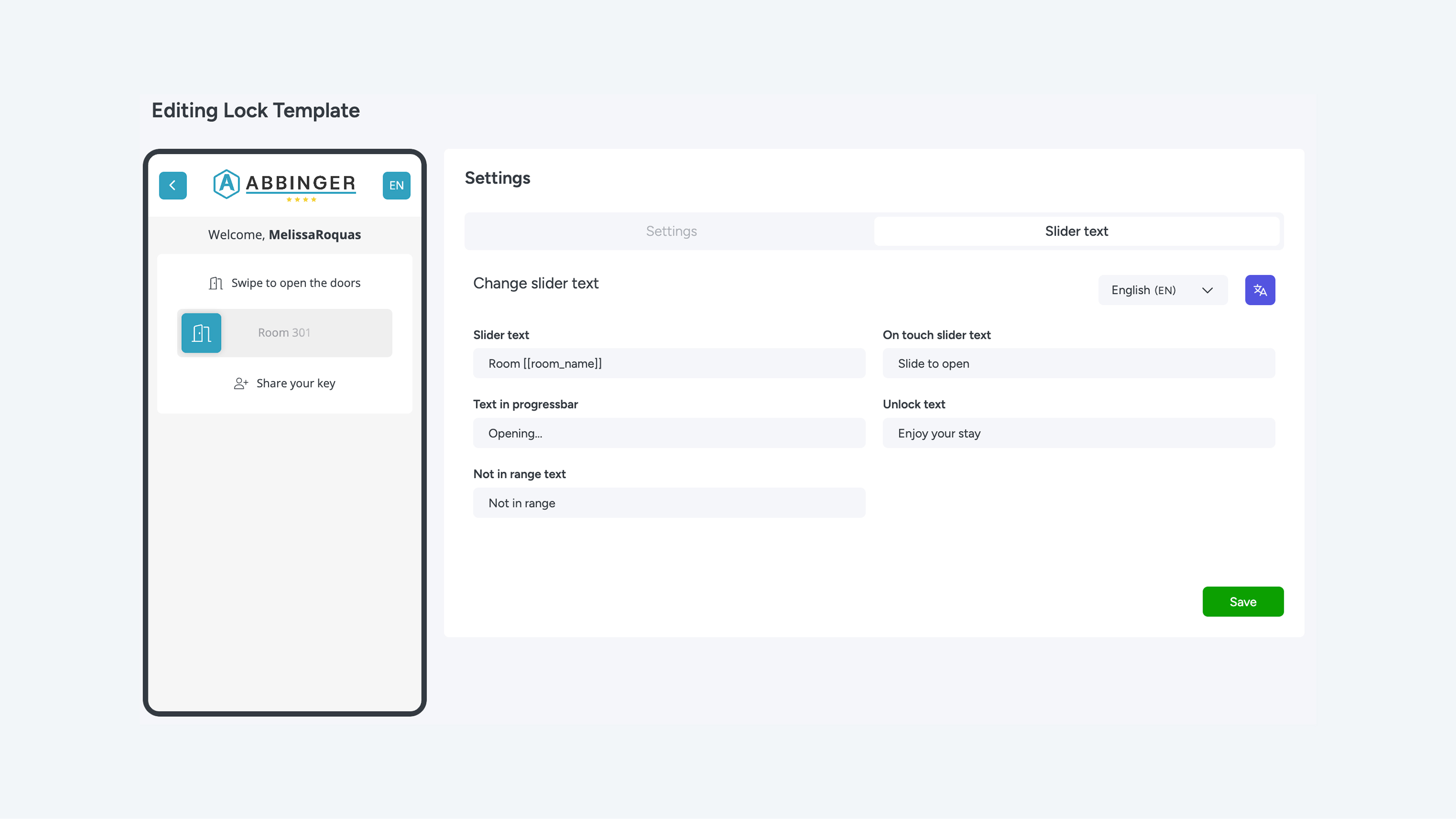
Tab 2 – Slider Text
- Slider text
- On-touch slider text
- Text in progress bar
- Unlock text
- Not in range text
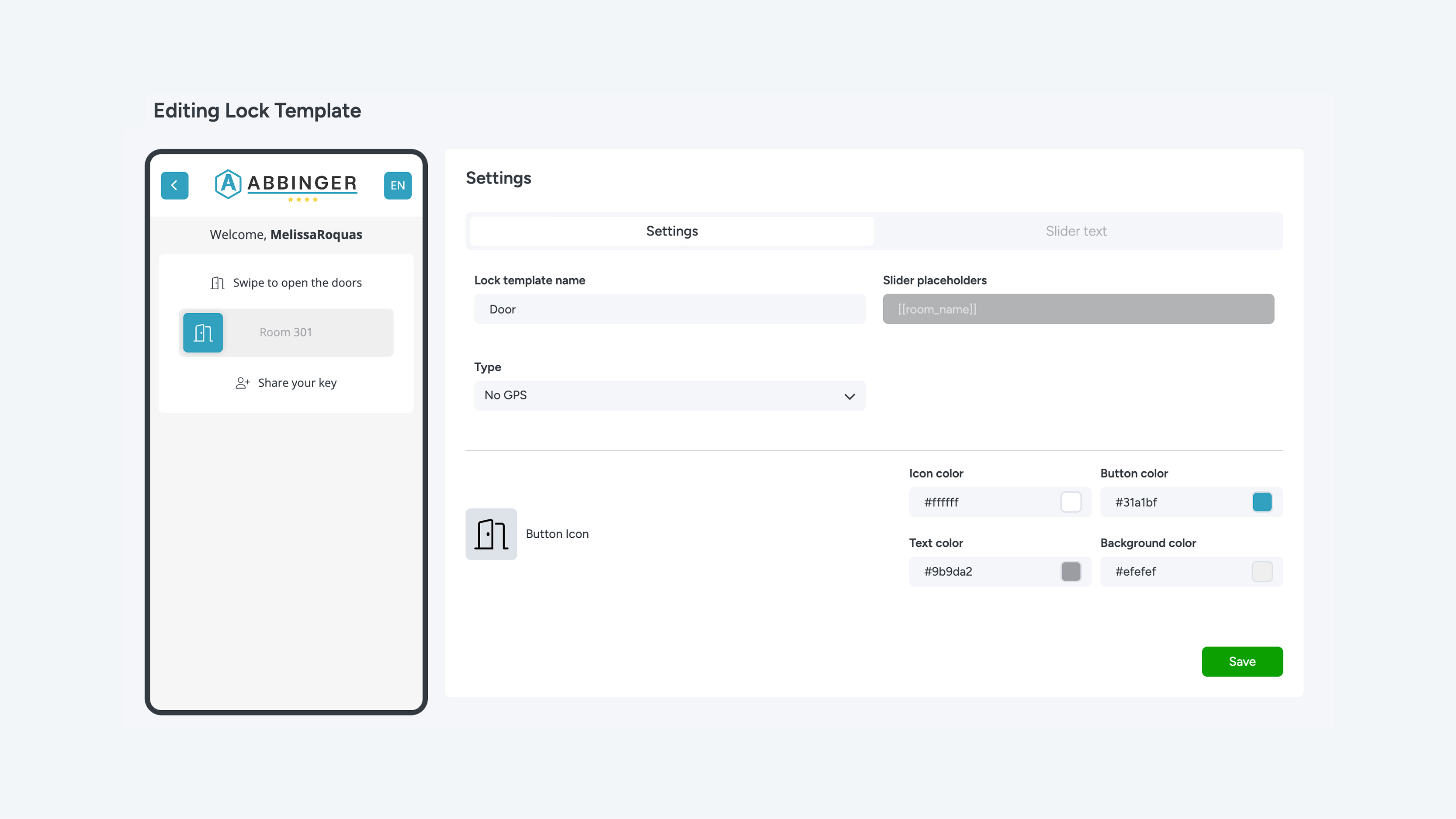
Locks are first added to our system and then styled using a template. Click the orange New button to create a new template. Within Lock Templates, you can customize the following elements: Any changes you make are immediately shown on the left in the preview. In addition to visual styling, you can also edit the texts in the template. Please keep in mind that some texts are fixed and that placeholders such as [[room_name]] must be used correctly.
Using the dropdown menu on the right, you can edit the texts per language. Would you like to translate everything at once? Use the language button to automatically apply all translations. Once you are satisfied with all settings, click the green Save button to store your changes.