Open / Close Schedule
When a guest or hotel owner moves the slider, a lock is “toggled.” This means the lock will buzz for 3 seconds and can be opened during that time. After those 3 seconds, the lock stops buzzing and the door can no longer be opened.
With the Open/Close lock on schedule feature, you can send a command at specific times to open the lock. The lock will then remain open. At another time, you can send a command to close it again. This can be useful, for example, for a meeting room that should be open to everyone during the day.
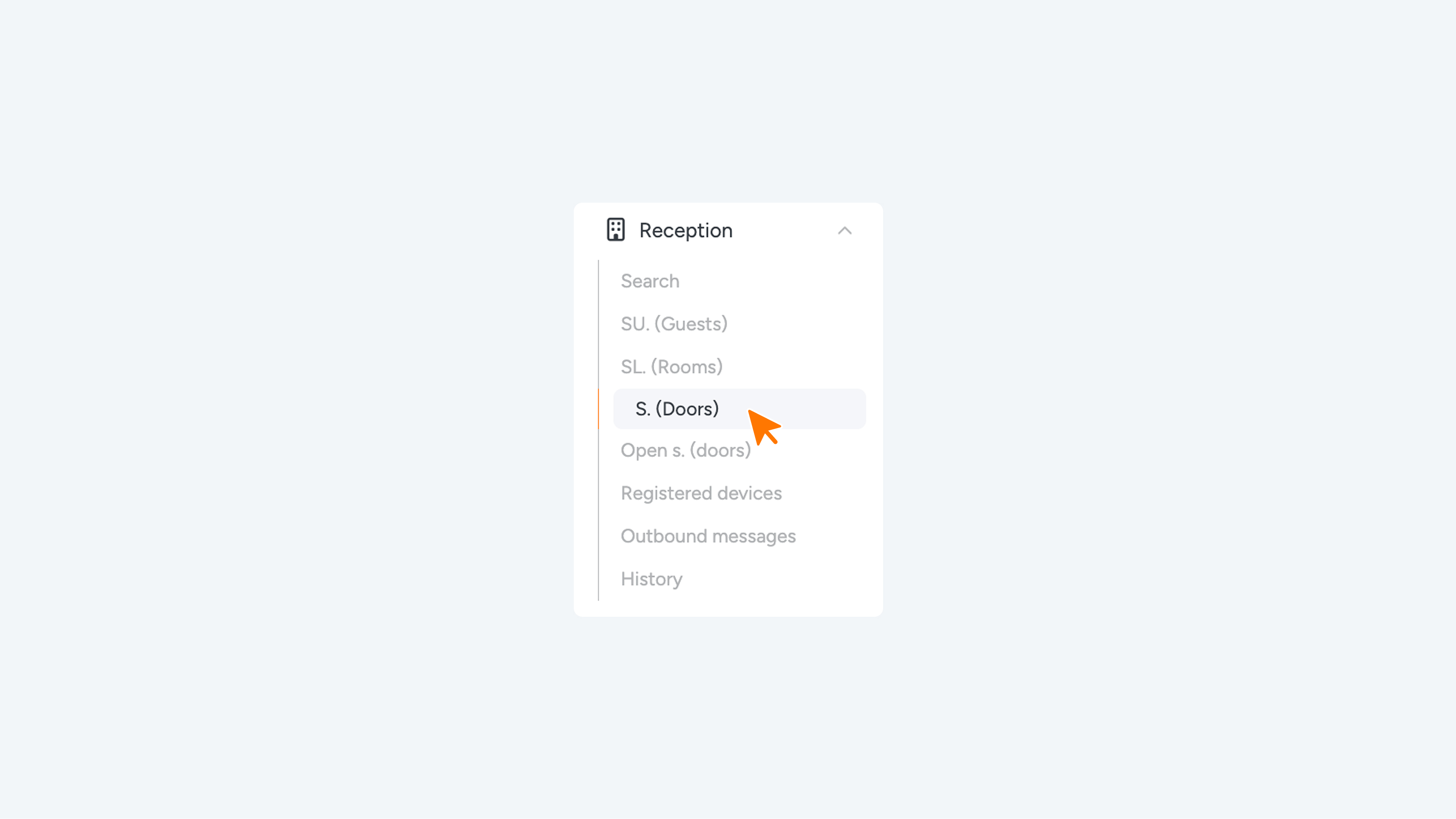
You can find the Open/Close schedule under 'Reception' > 'S. (Doors)'.
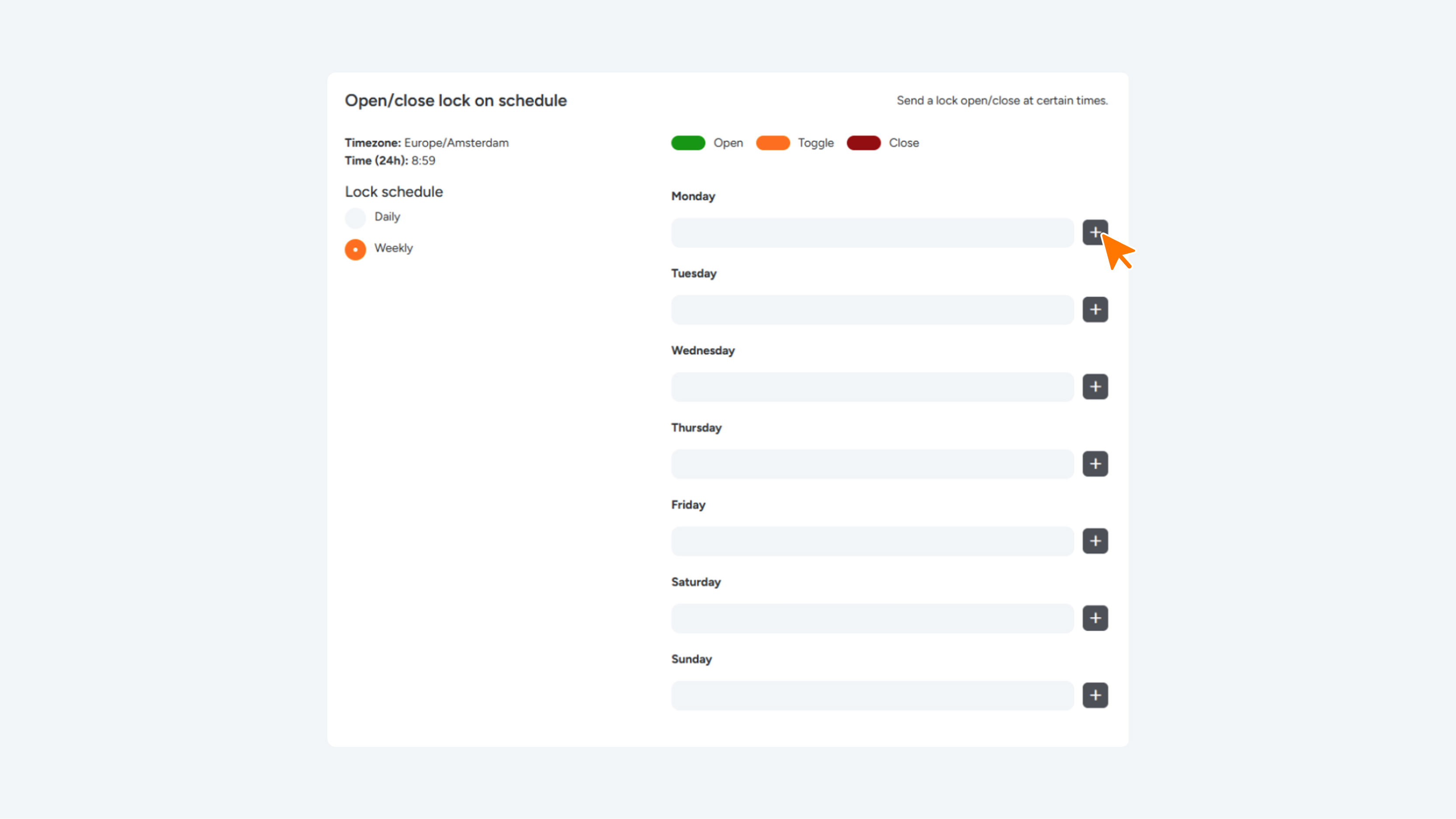
First, choose whether you want to use a daily or weekly schedule. Then, using the plus icon, you can set when the lock should receive an “open” or a “closed” command.
Once a schedule is set, the lock will automatically receive commands to open or close at the configured times.
Note 1: If someone toggles the lock in the meantime (for example, using a card or the slider), the lock will revert to the closed state.
Note 2: For doors that are controlled via a relay, this feature does not work on all doors; this depends on how the lock is wired. If it does not work, please contact the installer to check whether the lock can be connected differently.
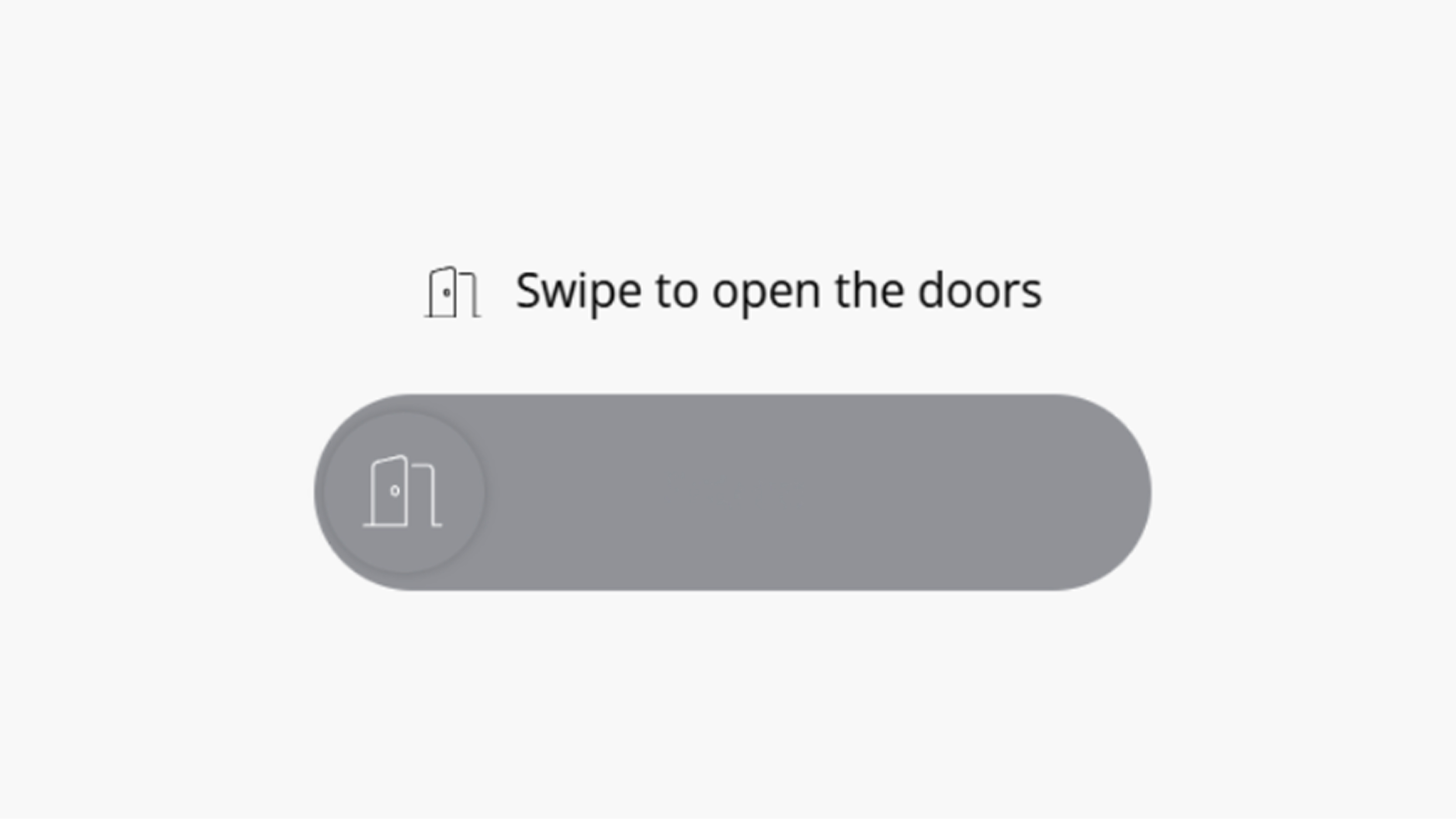
Tip: If guests have access to this door via their phone, you can prevent them from toggling the lock during periods when it should remain open by setting the Access time restriction for the lock below. The slider will then turn gray and cannot be used.
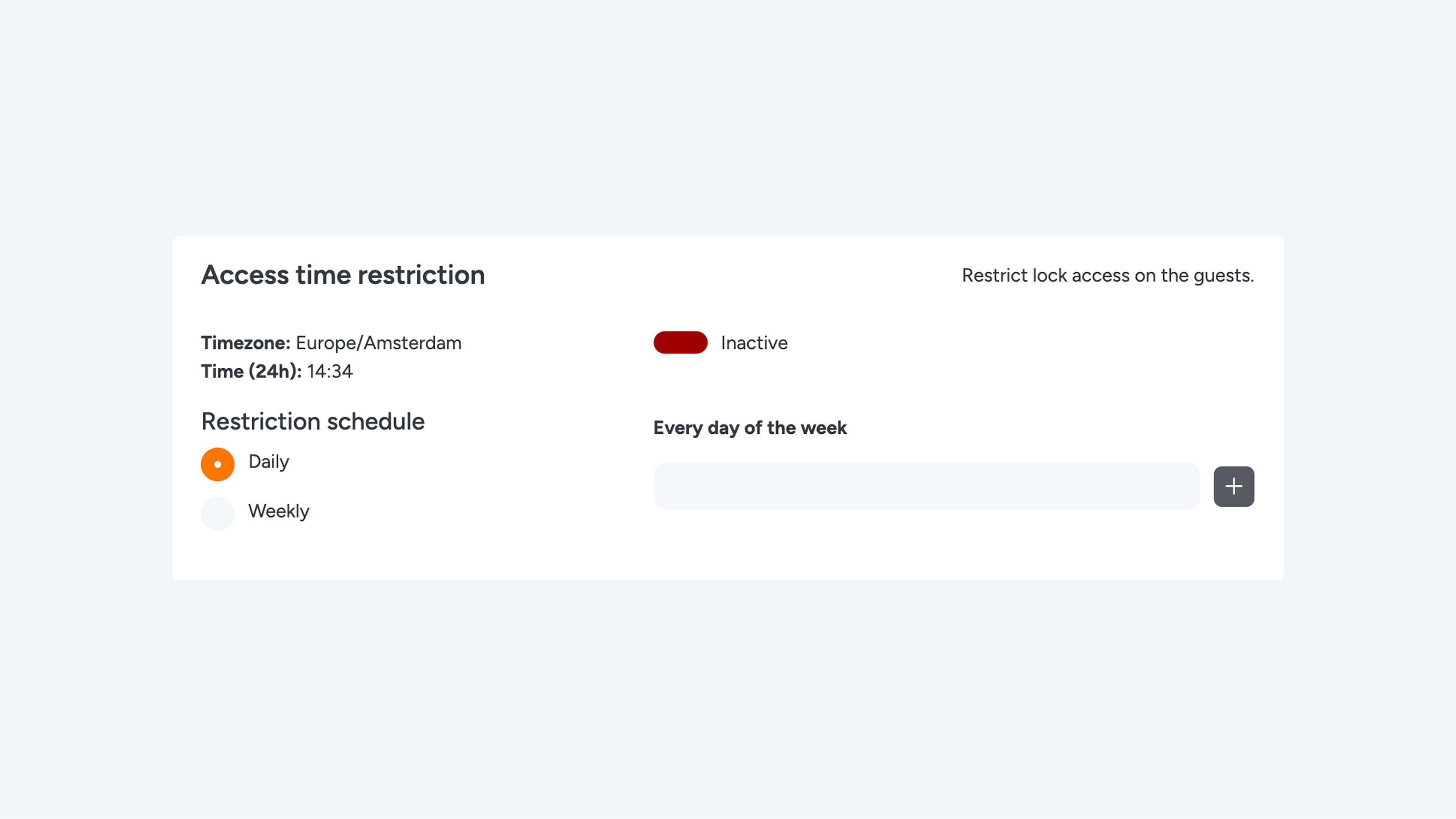
Access time restriction
With the Access time restriction, you can limit access to a door for the phone slider. You can configure restrictions per lock on a daily or weekly basis. For example, you can set a lock so that it cannot be opened between 10:00 PM and 8:00 AM.
Hotel owners can still open the doors using a key card or via the Open Doors function in the backend.
The slider will turn gray and display a message indicating when the door can be opened again.