Revoking/Disabling Keys and Removing Guests
Ending Access Before the Check-Out Date
It is possible to end a guest’s access before the scheduled check-out date. You have several options:
1. Temporarily Deactivate a User
If you want to temporarily suspend access, follow these steps:
- Search the guest in the system.
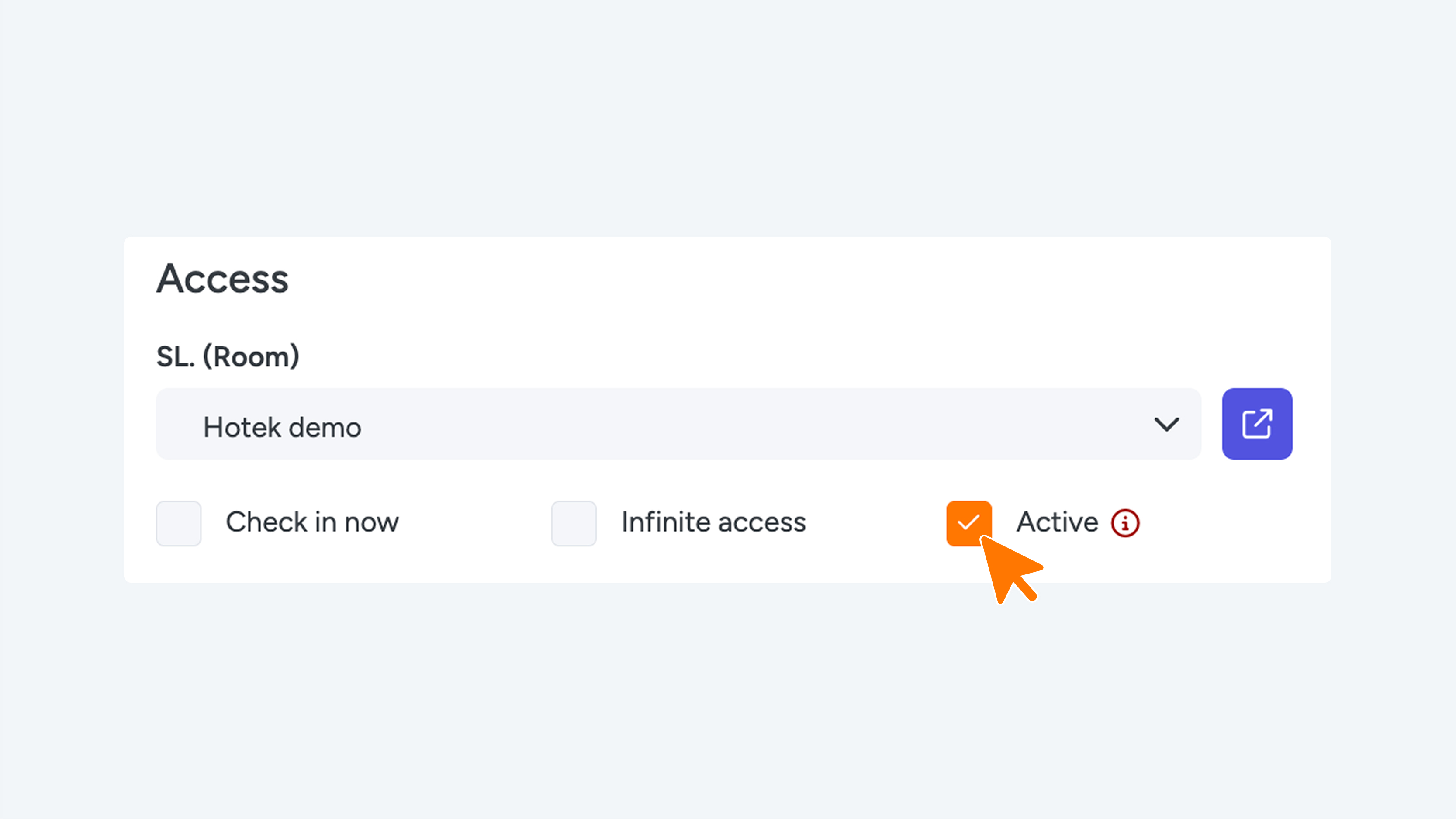
- Navigate to the settings and deselect the “Active” option.
- Click the “Update” button (top right or bottom right on page).
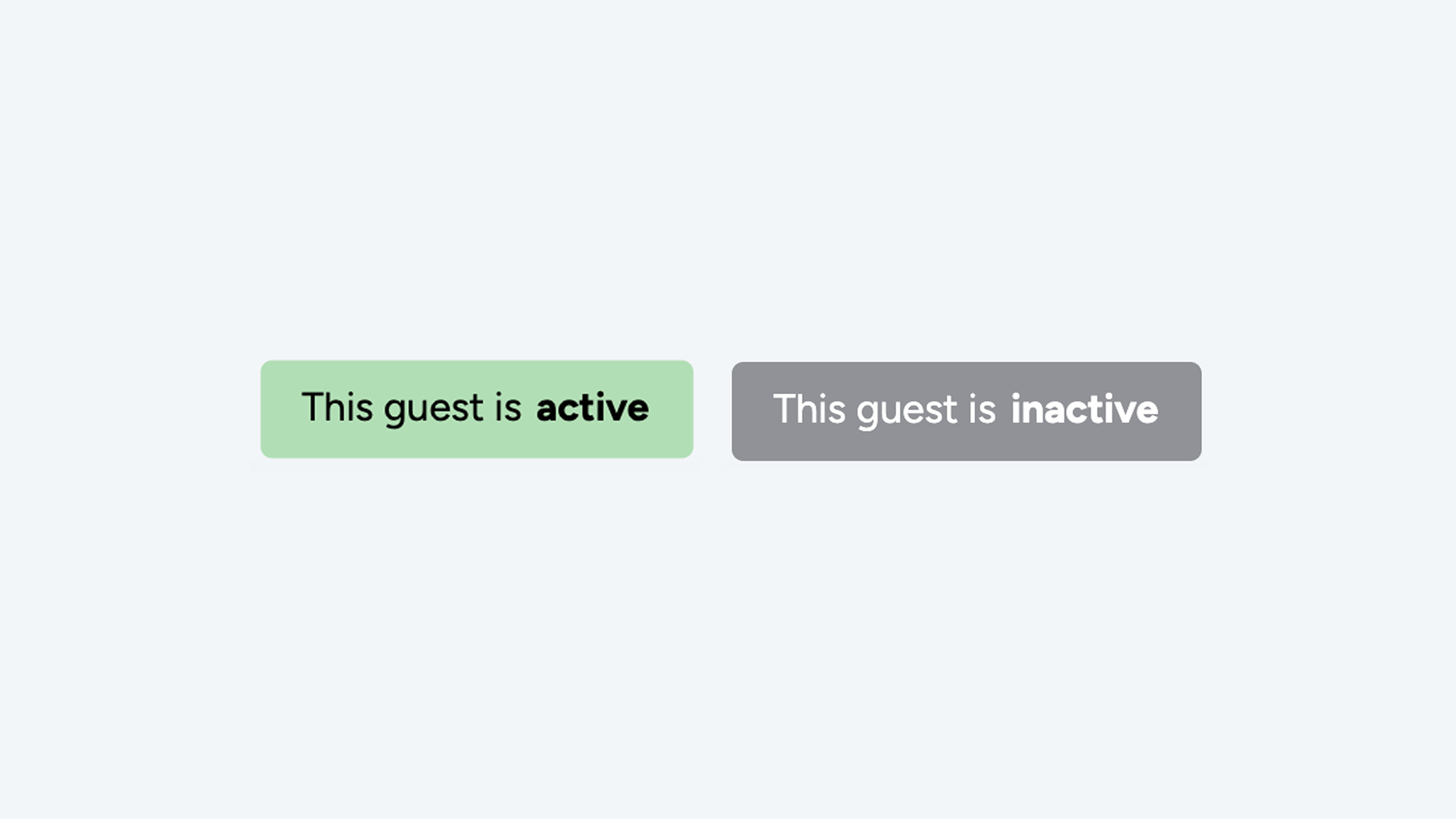
- The label will change from “This guest is active” to “This guest is inactive.”
- The guest will immediately lose access to the doors.
Important: If you deactivate a key and then make changes in the PMS, the key may be automatically reactivated.
2. Permanently Remove a User
If you want to completely remove the guest from the platform:
- Locate the guest in the system and open the settings.
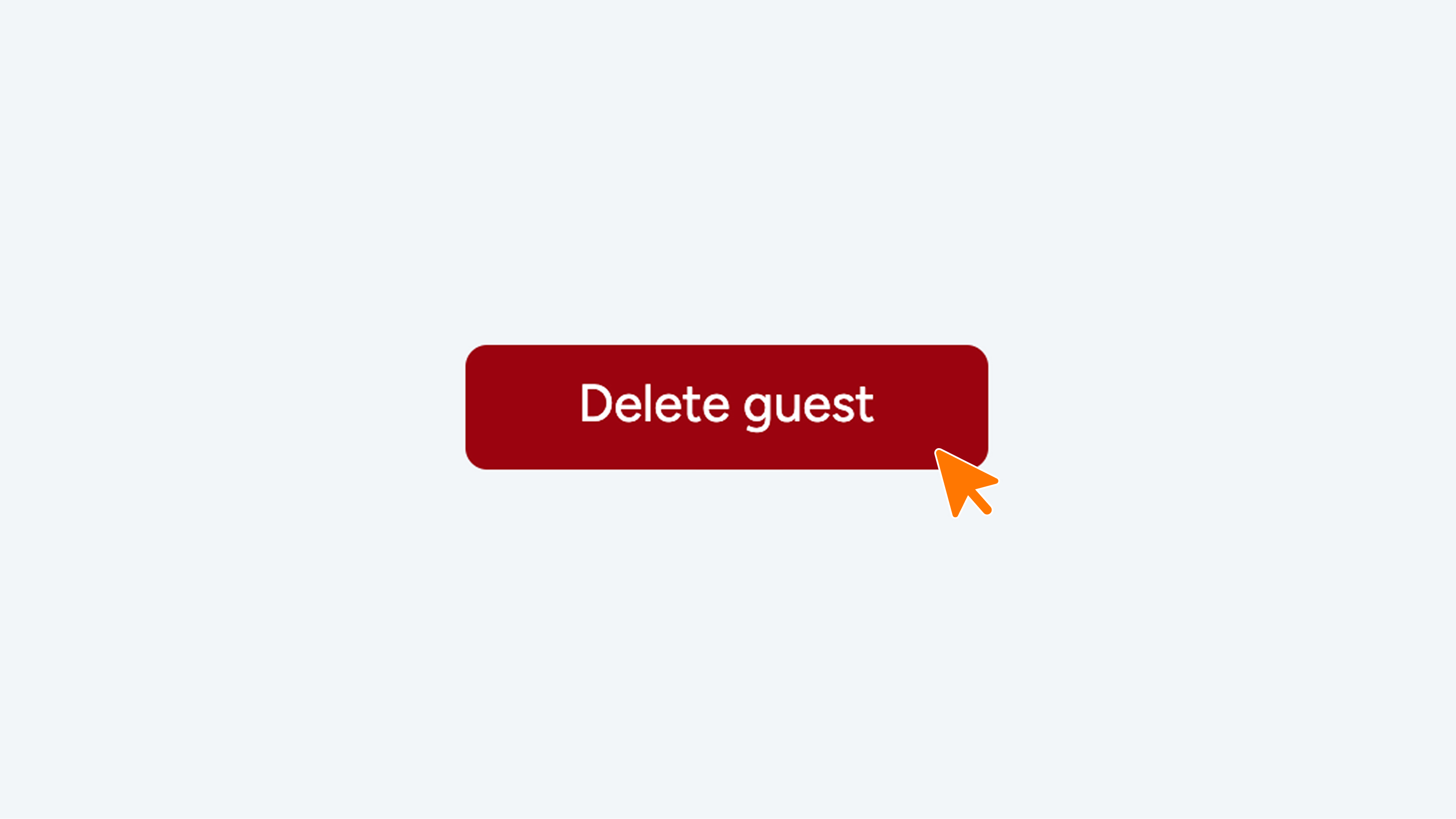
- Scroll down and click the red “Delete guest” button.
- The guest will be permanently removed and will no longer have access to the doors.
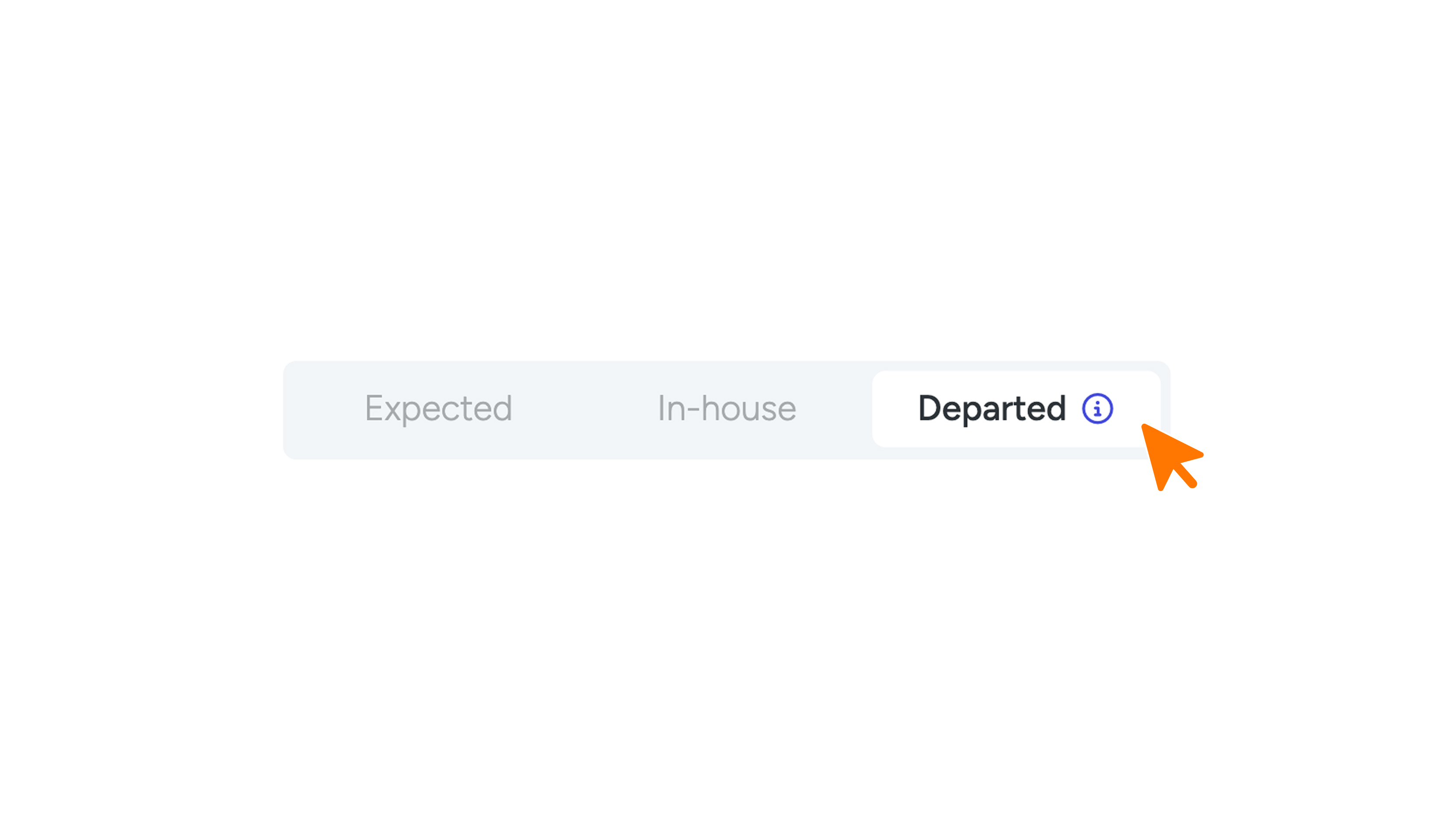
- The user will also no longer appear under “Departed” in the “SU. Guests” menu item.
Important: If you delete a key and then make changes in the PMS, the key may be automatically recreated.
3. Completely Disable Keys
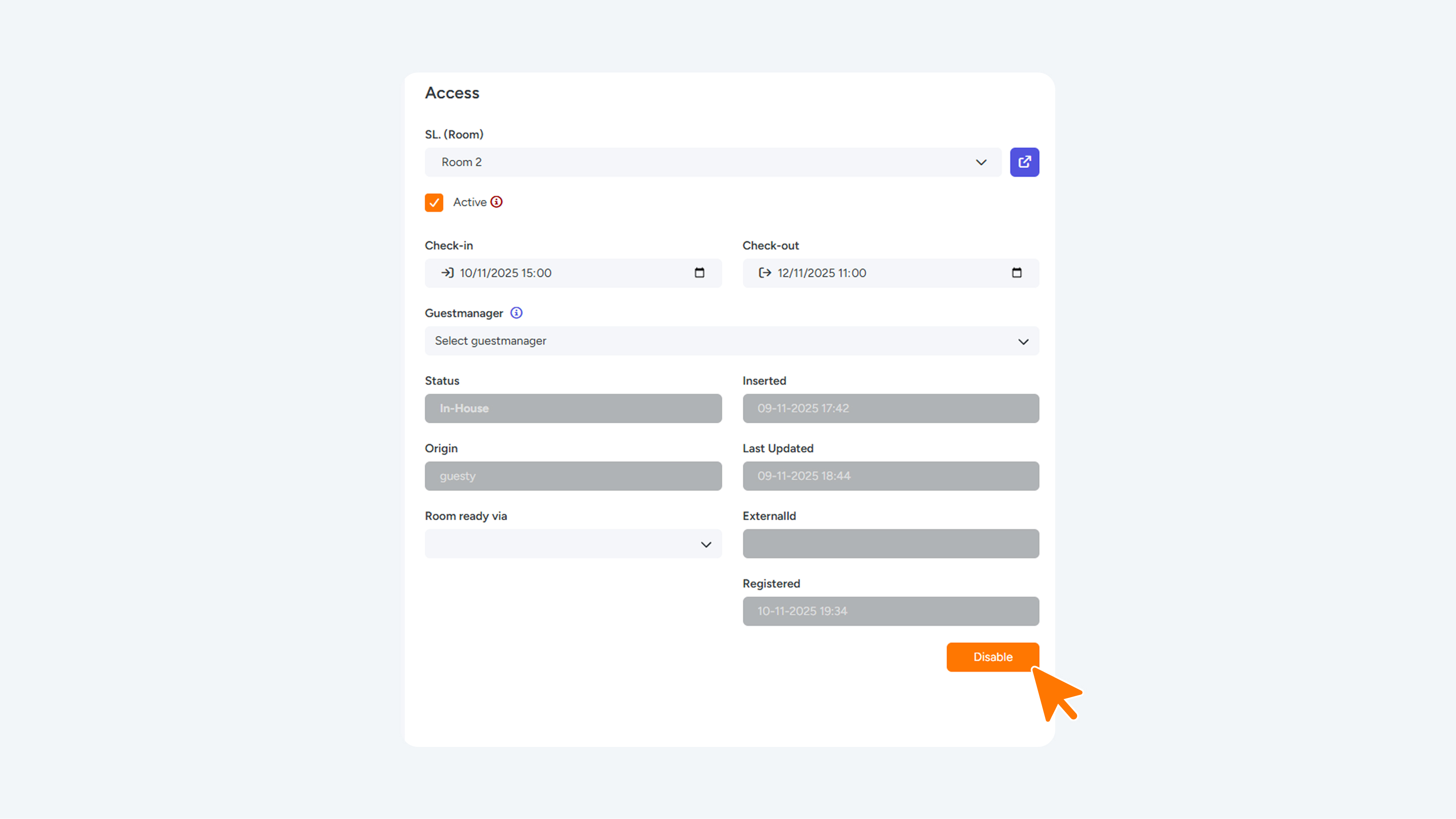
At the bottom right, you will find the button to disable a key (see image 5). When a key is disabled, the following happens:
- Existing links remain active, but no longer function as keys
If a smart link was sent before the key was disabled, the link will still open your web app, but registering a key through that link is no longer possible.
- No automatic messages
No automatic emails or SMS messages will be sent to the linked email address or mobile number.
- Registered keys become unusable and hidden
If the key was already registered, it will no longer work in the web app and will no longer be displayed.
Why This Is Useful
If you encounter a suspicious or unwanted key, you can disable it to ensure it can no longer be used.
When a key is disabled, changes made in the PMS are still applied to the key, but it remains inactive. This is the correct method if you want to prevent the key from being reactivated after a PMS update.