Cloudbeds
Settings
- Guest import: 24 hours before arrival by default.
- Message sending: 3 hours before check-in by default.
- We can set keys to activate only after check-in in Cloudbeds.
- We can also require the reservation to be paid in full before keys are activated.
At go-live, we import the existing reservations from Cloudbeds once. After that, new and updated reservations come in automatically, and guests appear in the Expected tab as soon as their import time is reached.
Setup
- The hotel creates an app in Cloudbeds via Account -> Apps & Marketplace -> API Credentials, with the following details:
- Name: GuestCompass (or Hotek for Hotek customers)
- Integration Type: Access Management & Door Locks
- Redirect URI: https://connect.guestcompass.nl
- Once saved, the app appears in the overview. In the API KEY column, click Create to generate the API key.
- The hotel sends the API key to GuestCompass.
- GuestCompass enters the API key. The integration automatically detects the property and subscribes to the required webhooks itself.
- GuestCompass imports the rooms from Cloudbeds and sets them up.
Note: each API key belongs to one property. If the hotel has multiple properties in Cloudbeds, each property needs its own integration.
Digital keys
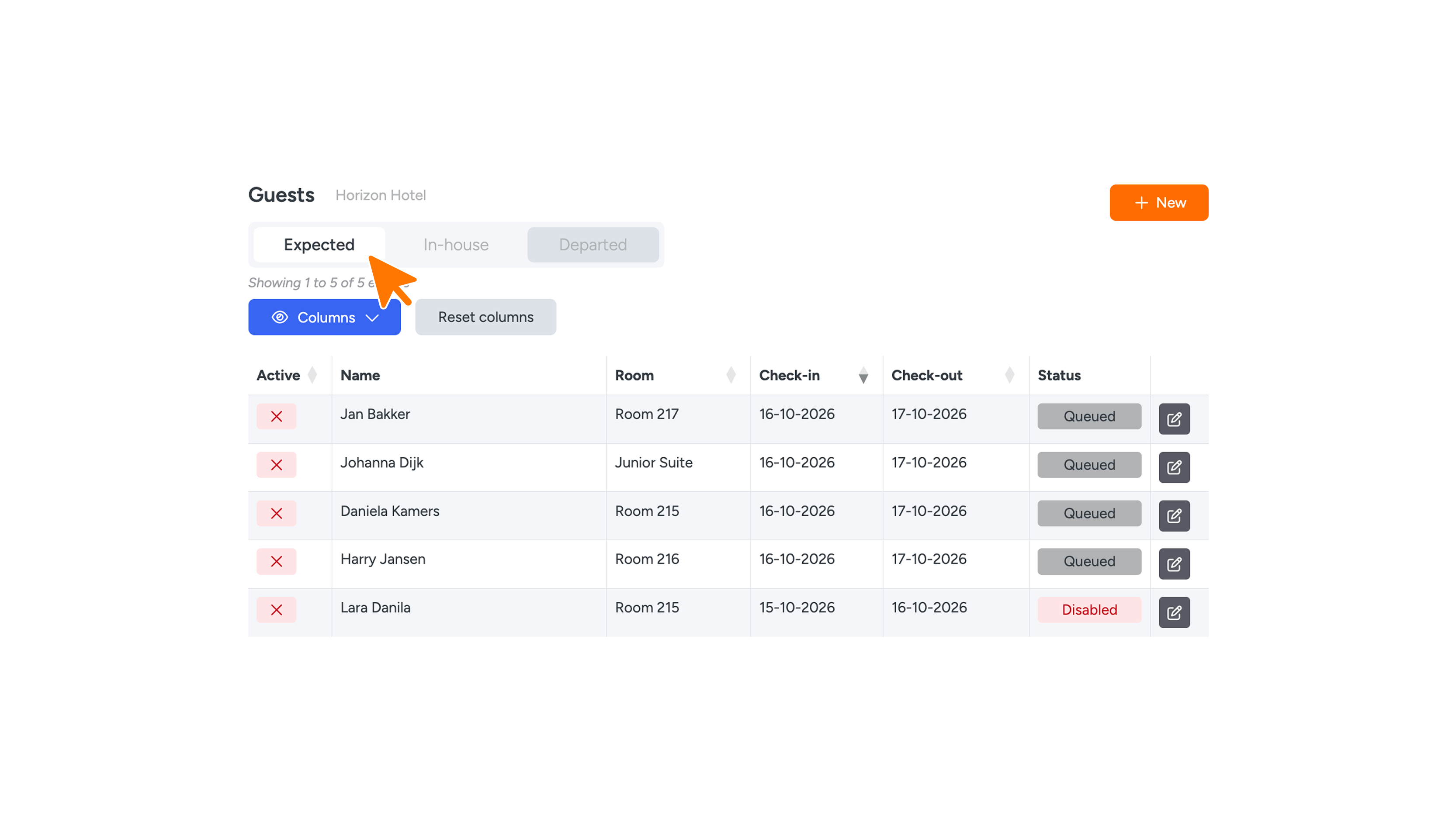
The Expected tab shows upcoming guests. By default, we import guests 24 hours before arrival. We can also import them 48 or 72 hours ahead if you want to message them earlier. You decide when we send keys to the guest. By default, we do this 3 hours before check-in, but it can be earlier or later. Every guest on a reservation gets their own key. If a reservation has multiple guests, each of them gets a key for the room they’re assigned to in Cloudbeds. The Active column in the overviews shows right away whether a key works. If “active after check-in” is turned on, the key isn’t active before check-in. With digital locks, the guest can already see the door sliders, but they only work after check-in in Cloudbeds.
If a reservation is cancelled or deleted in Cloudbeds, its keys are revoked automatically.
Room Unknown
If you see ‘Room Unknown’, the reservation doesn’t have a room assigned yet. Assign the room in the PMS.