17. Desktop viewer
Background and QR Code Settings
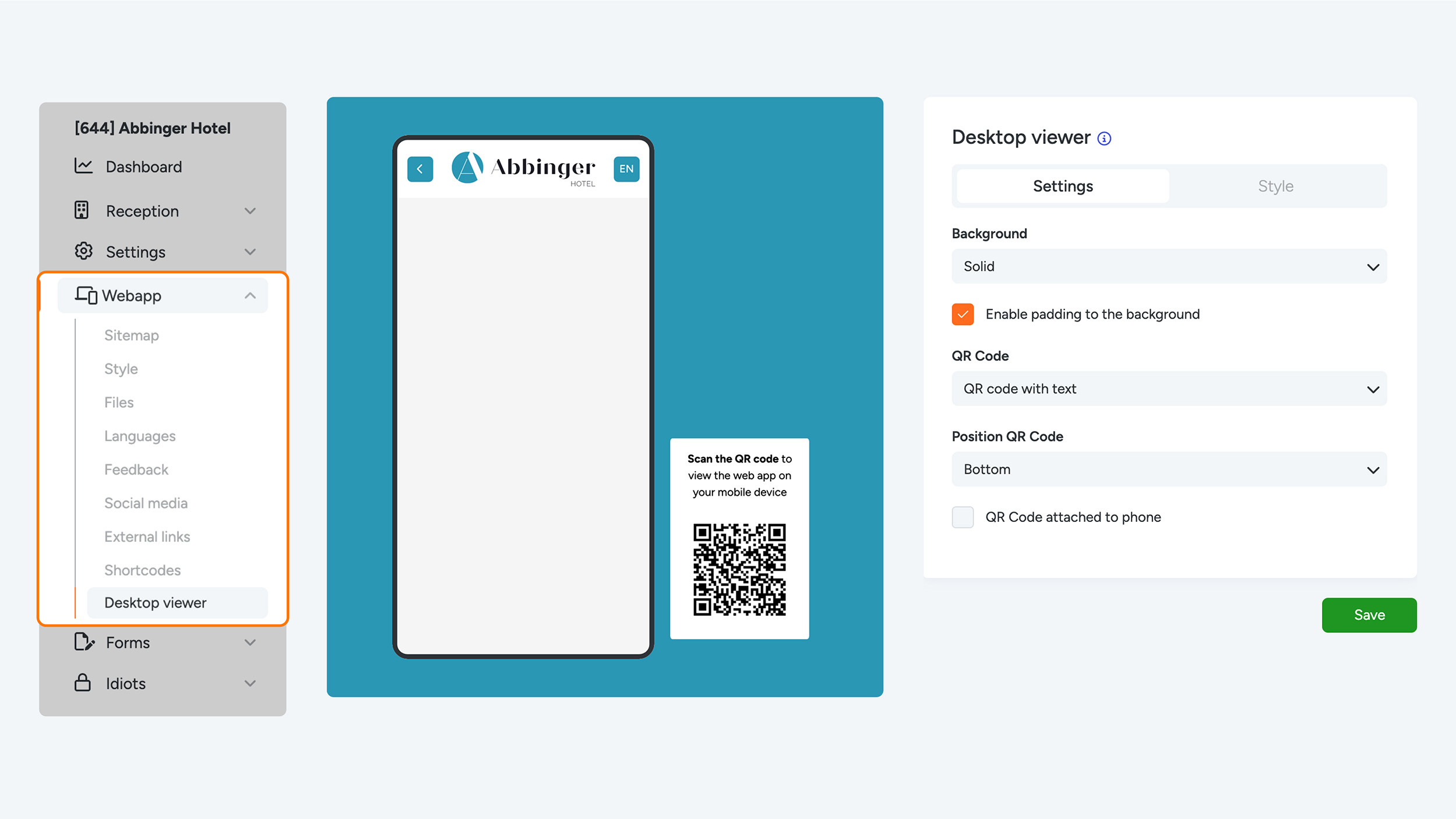
You can choose an image, a (gradient) color transition, or a solid color as a background. In addition to the background options, you can add a QR code that is displayed next to the phone on the page. This QR code contains a link to the live version of your (Web)App. By scanning the QR code with their smartphone, users can open the page instantly without having to manually enter the URL. This provides a convenient and efficient way to access the (Web)App.
Tab 1 – Settings
In this tab, you can choose several options that determine how the background looks, as well as how the QR code and text are displayed.
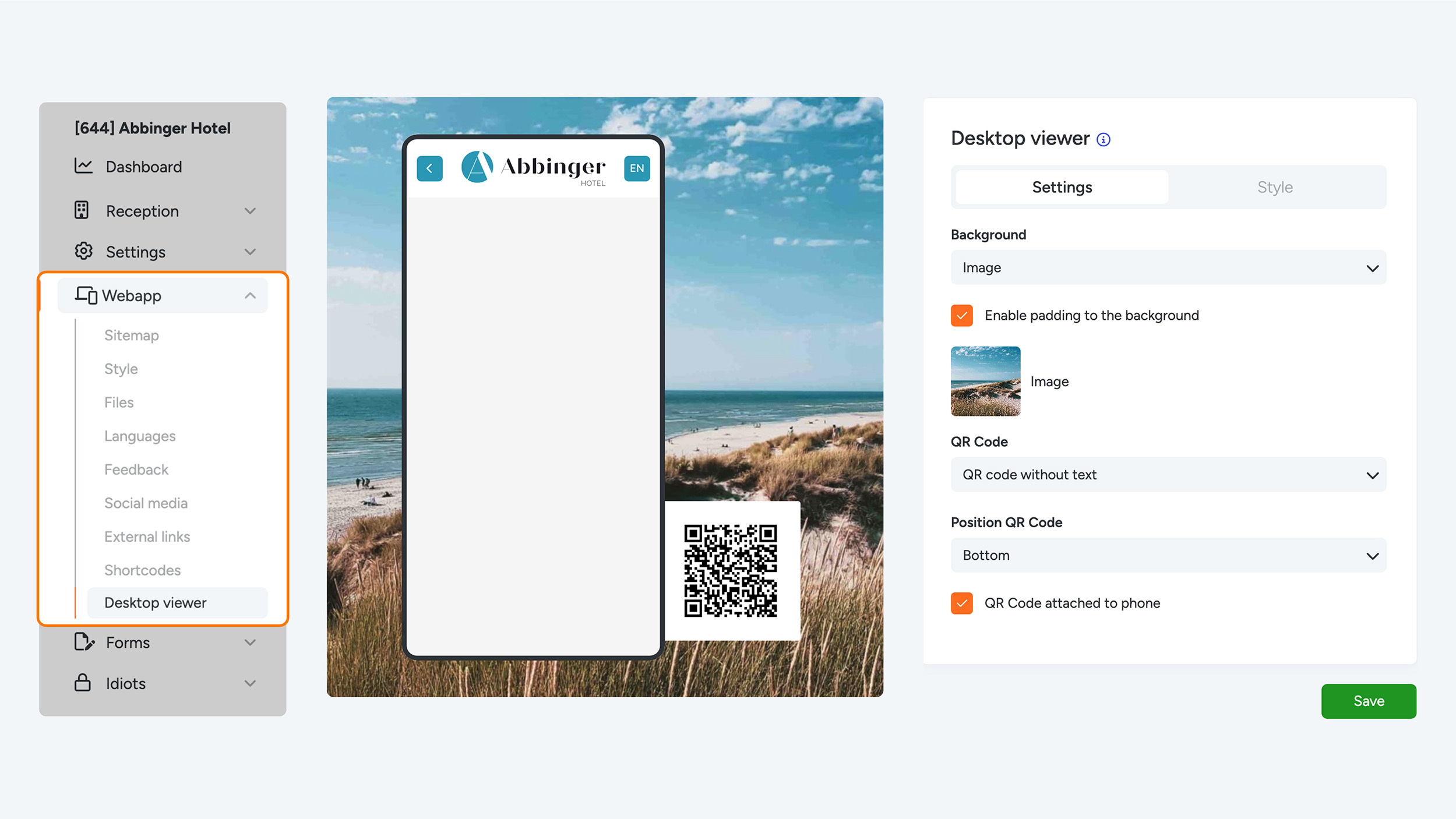
Image:
Choose an image that fits well with the WebApp. Make sure the image is sharp and no larger than 300 KB for fast loading times.
Gradient:
Choose a gradient background. This can be horizontal or vertical, depending on the effect you want to achieve.
Solid color:
Choose a single color as the background. This can be a neutral color that supports the rest of the WebApp or a vibrant color that immediately draws attention.
Enable padding to the background:
You can add padding around your background image or colors so the background does not completely fill the screen.
QR Code Next to the Phone
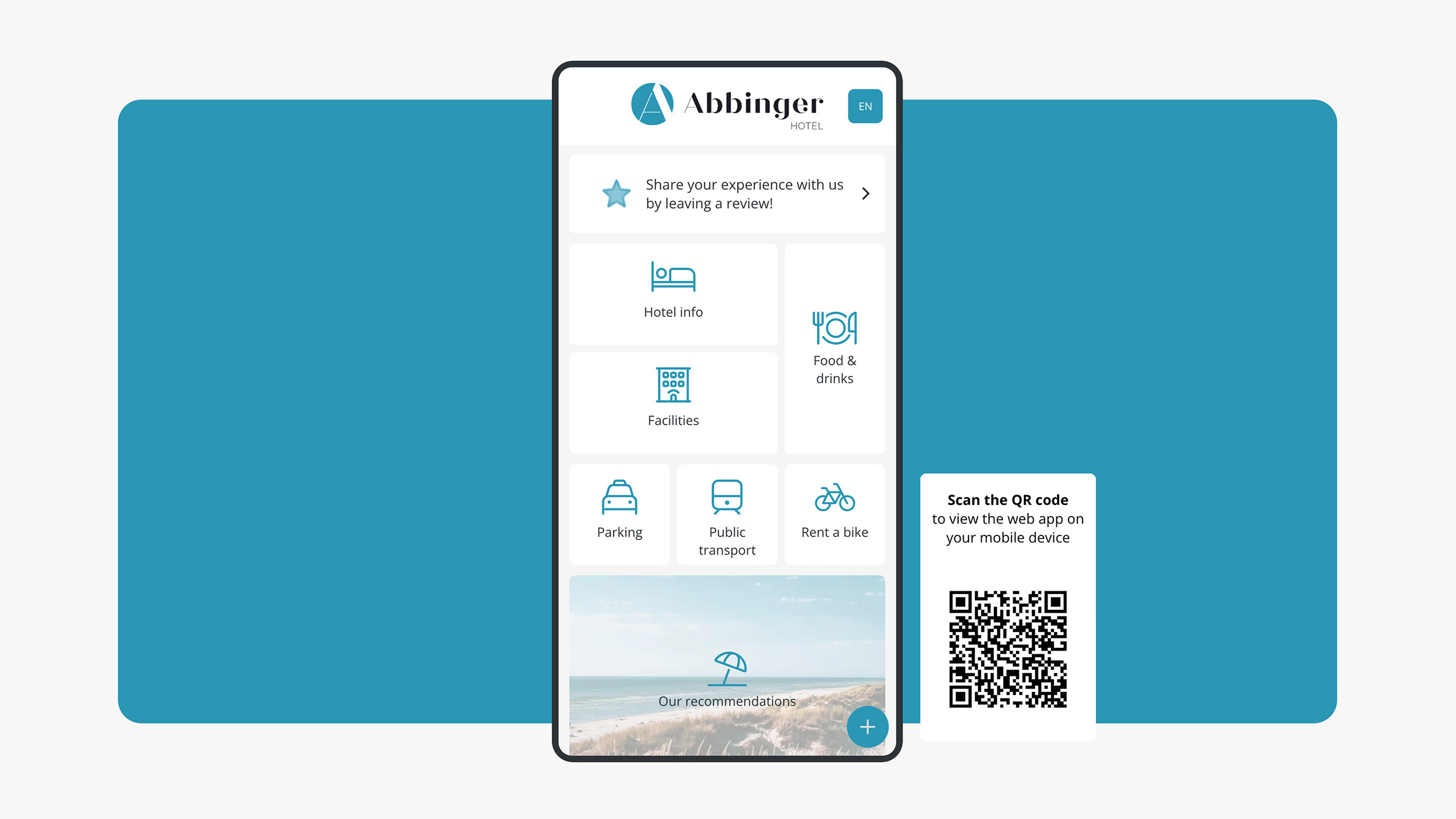
You can choose to add a QR code next to the WebApp displayed on the phone. It is recommended to add a QR code with text, as this allows users to quickly scan the code and go directly to the WebApp without having to enter the URL manually. This makes access faster and more user-friendly.
If you choose to display the QR code next to the phone, you can also add an explanatory text next to the code. This text helps users understand what the QR code is for and how to use it. Adding clear instructions improves the overall user experience. The QR code itself cannot be customized, but it is automatically adapted to the language of the WebApp.
QR Code Position
You can choose where the QR code is positioned on the screen:
- Bottom
- Middle
- Top
Attach QR Code to the Phone
Finally, you can choose to attach the QR code to the phone so it stays fixed in position.

Tab 2 – Style
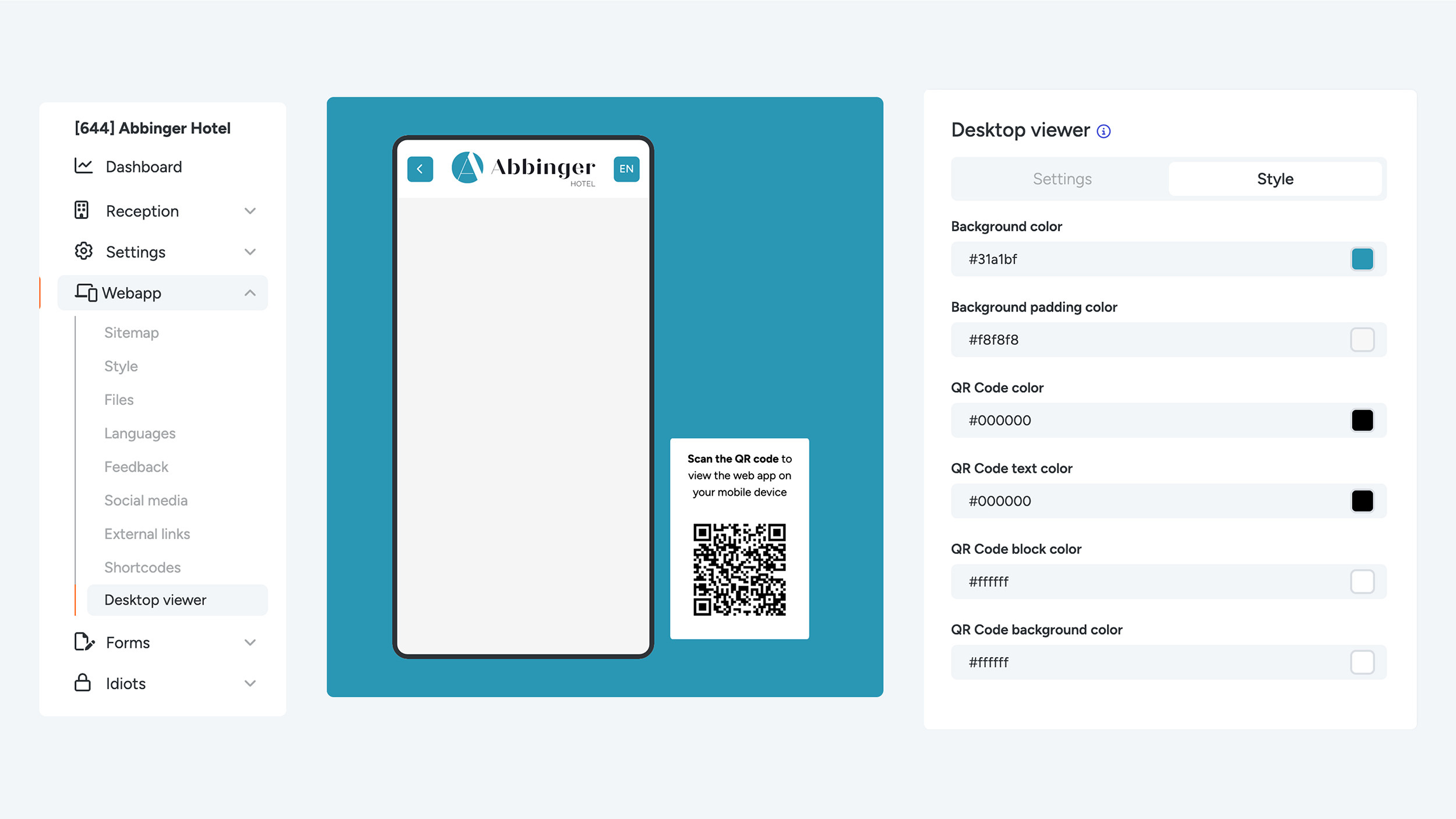
In this tab, you can customize the styling of the desktop viewer. You can adjust the following options using color codes:
- Background color
- Background padding color
- QR code color
- QR code text color
- QR code block color
- QR code background color
Click the preview button in the top right to view the desktop viewer live. Don’t forget to click the Save button if you want to store your desktop viewer settings.