12. Feedback
Collecting valuable guest experiences.
Collecting valuable guest experiences becomes much easier with the Feedback Tool. This tool is fully integrated into our platform, allowing you to easily monitor and track guest feedback via the dashboard. This enables you to see how guests think and feel about their stay in real time, so you can respond quickly and improve their experience.
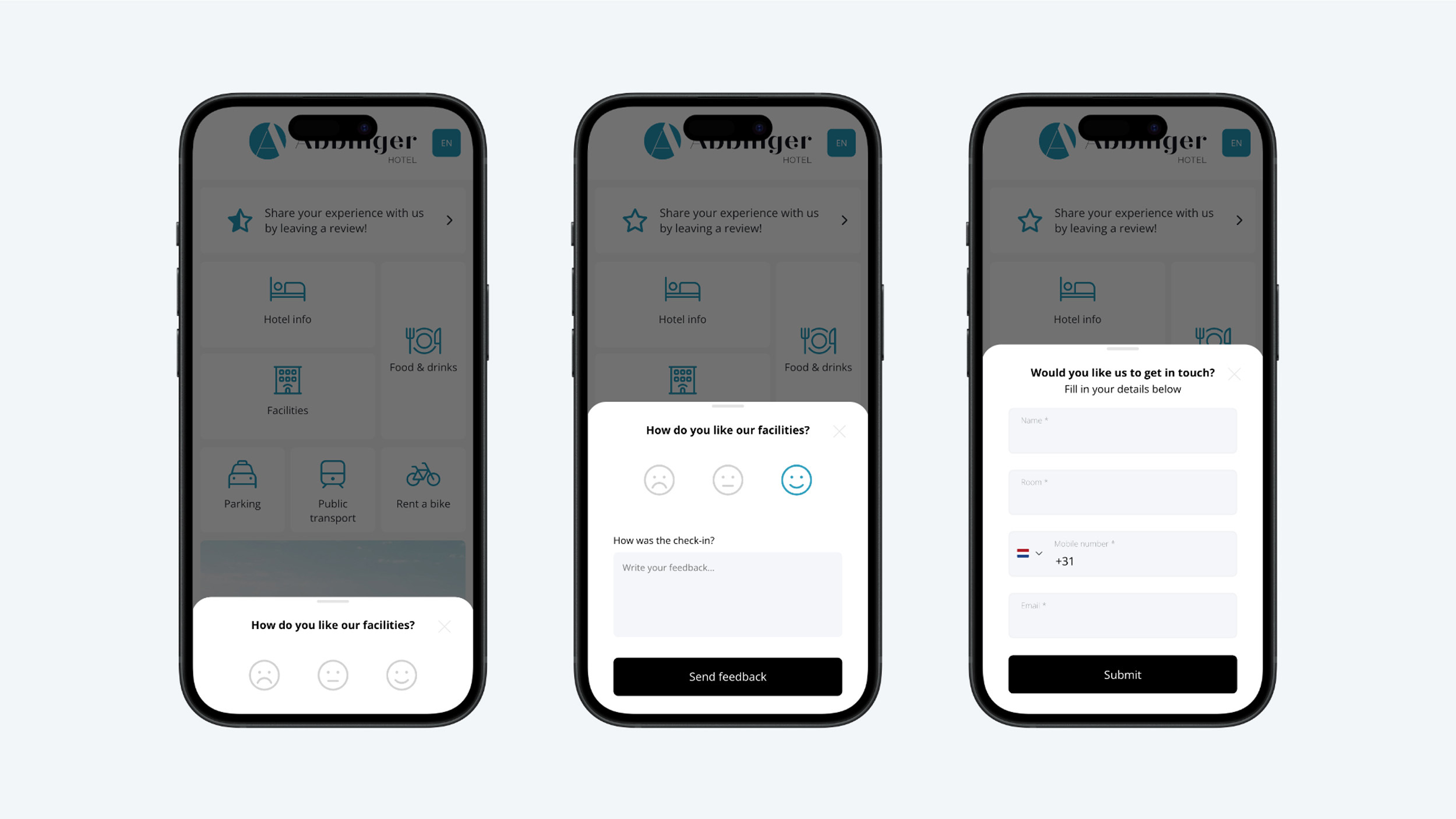
Our Feedback Tool offers guests multiple ways to share their opinions, making the process both simple and enjoyable. Guests can provide feedback using a star rating system (1 star = poor, 5 stars = perfect), smileys, or text fields. This allows you to collect both quantitative and qualitative feedback, which you can then analyze to improve your services.
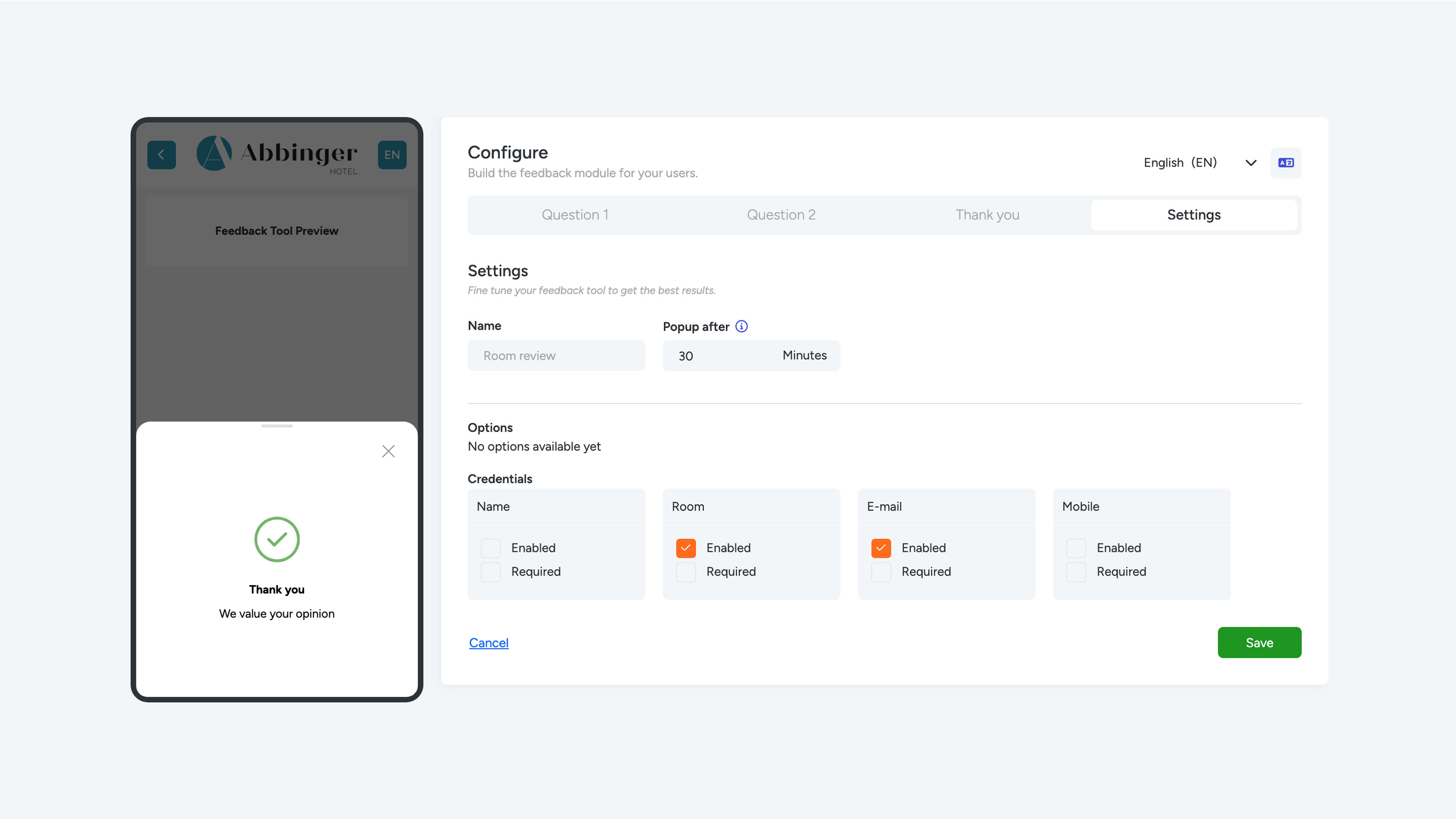
As an administrator, you have full control over how feedback is collected. For each tool, you can decide whether certain fields are required or optional. This gives you the flexibility to tailor the Feedback Tool to your specific needs and ensure you receive only the most valuable information. For example, you can ask guests for specific feedback about certain services or facilities, or you can make the process more flexible by offering open questions and optional fields.
Place in the (Web)App
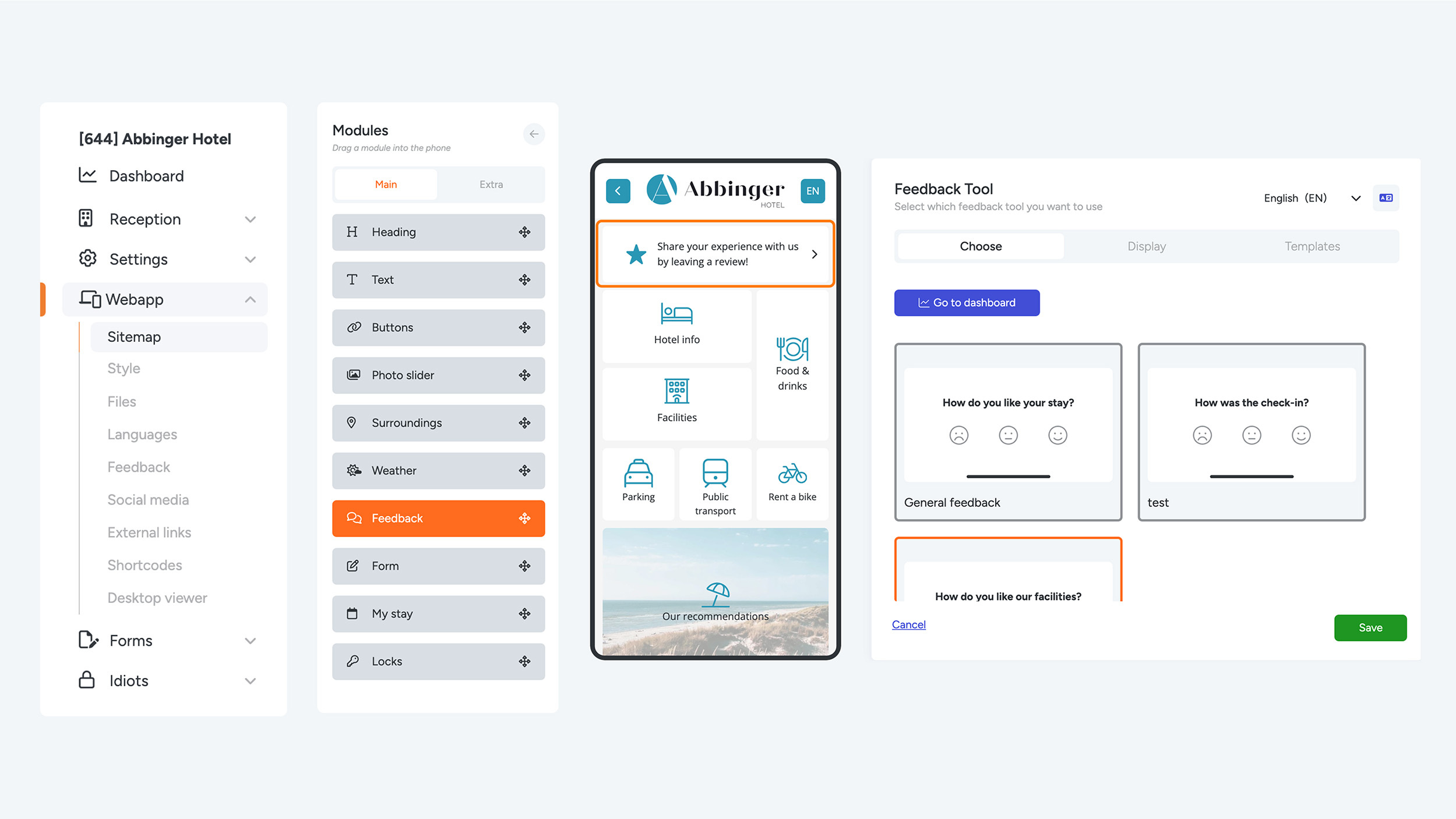
Drag the feedback module into the phone preview. You'll then see a button in the first tab, "Go to dashboard." Click on this button.
Feedback Tool Dashboard and Analytics
Dashboard
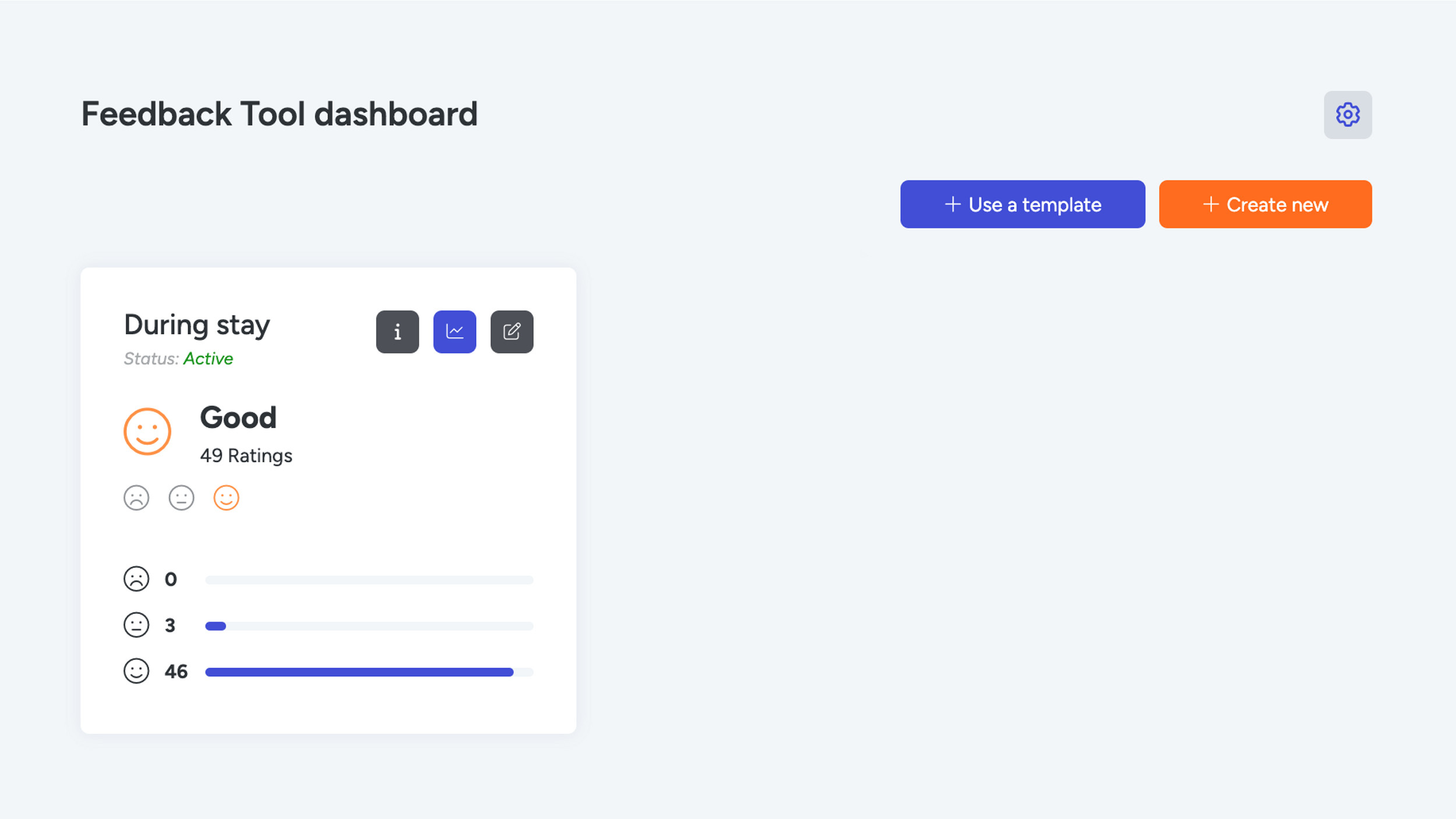
Through the dashboard, you can track the current status of the different Feedback Tools that are available n the (Web)App. From the dashboard, you can also set up email notifications so you receive feedback by email.
When you create a new Feedback Tool on our platform, you can choose to use a ready-made template or create a completely new Feedback Tool from scratch.
The Feedback Tool dashboard shows stars or smileys. Here you can also see the status of a Feedback Tool and whether or not it's active in your WebApp
Analytics
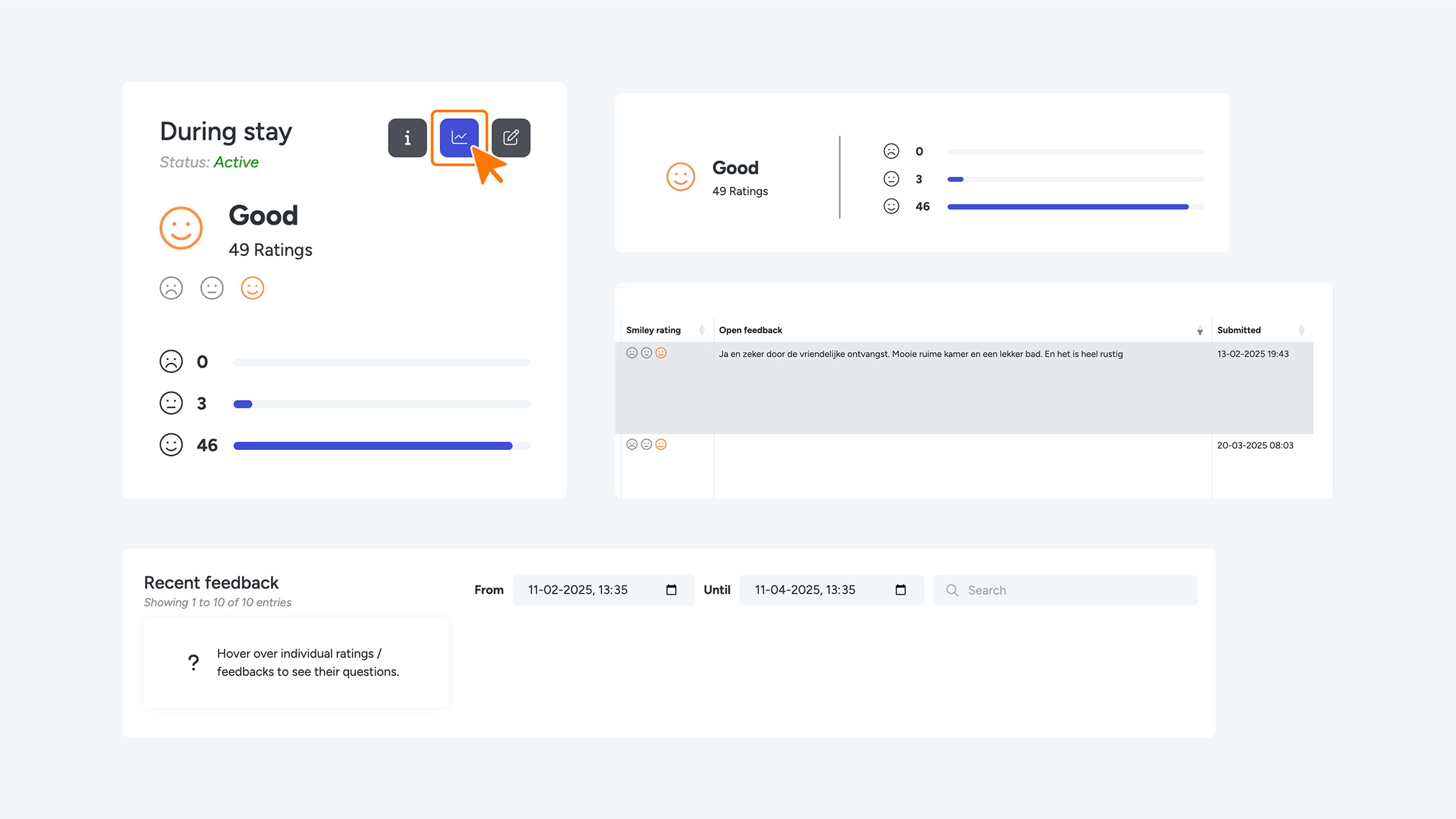
When you click the blue “Analytics” button, you gain access to a detailed overview of the data from a specific Feedback Tool. Here, you can see a complete overview of all received feedback, sorted by date.
By hovering over the smileys or stars, the corresponding question from the Feedback Tool will appear.
Looking for specific feedback, a particular guest or user? Use the search bar to easily filter results and quickly find the information you need.
Creating a New Feedback Tool
If you want to create a new Feedback Tool, you can choose between a custom feedback tool or a template. For the most part the template will already have been filled in.
If you choose to create a new Feedback Tool, you will need to complete the following steps:
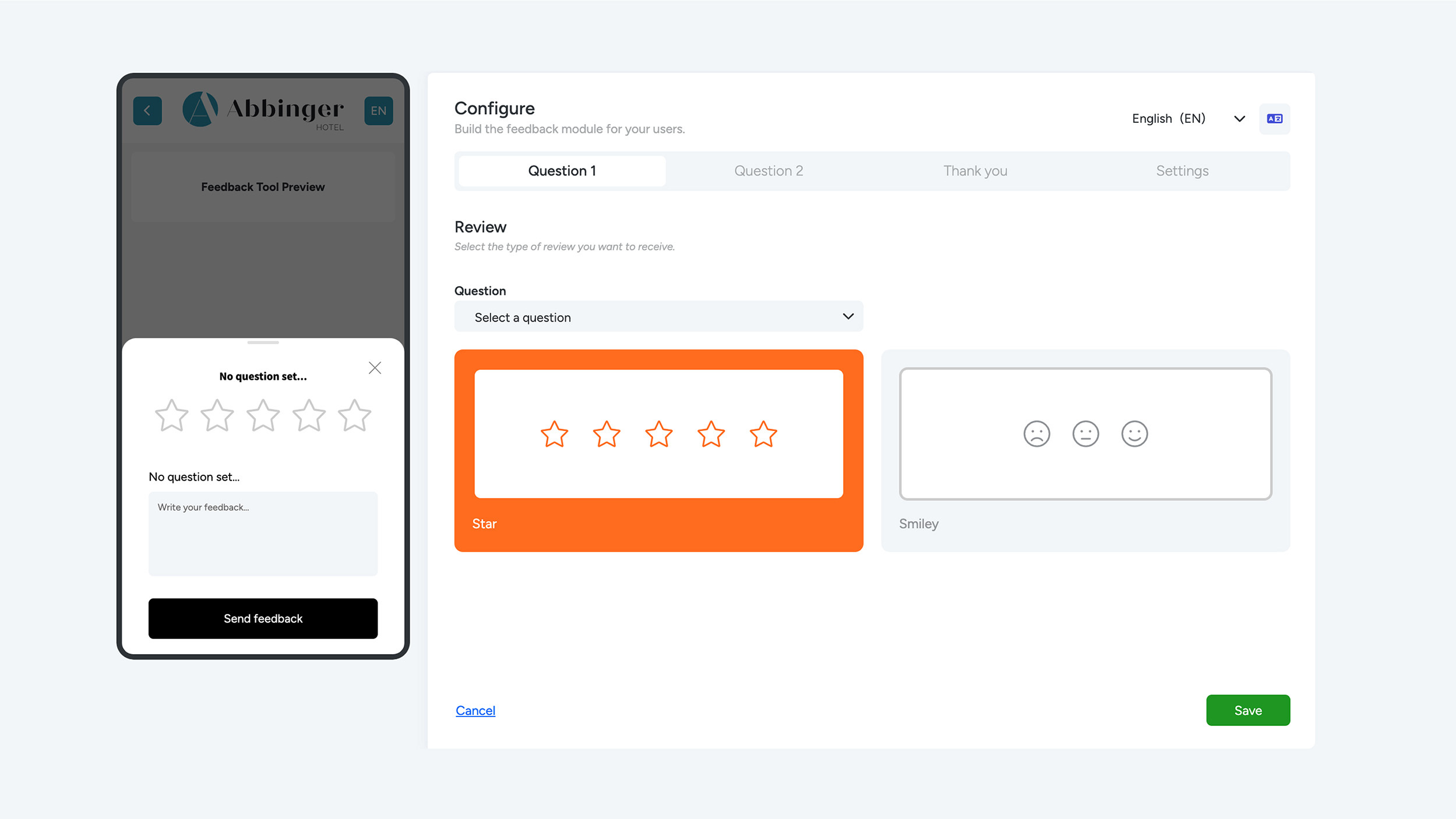
Click the “Create new” button. You will see several tabs with settings. Every Feedback Tool contains two questions.
Kies op ‘create new’ knop. Hier zie je verschillende tabs met instellingen. Alle feedback tool heeft 2 vragen. We beginnen bij de eerste tab ‘Vraag 1’ (question 1). Kies bij Vraag (question) de eerste vraag die je aan je gast wilt vragen. Als je op de dropdown klikt zie je standaard vragen die je aan jouw gast zou kunnen vragen:
Question 1
Start with the first tab, “Question 1.”
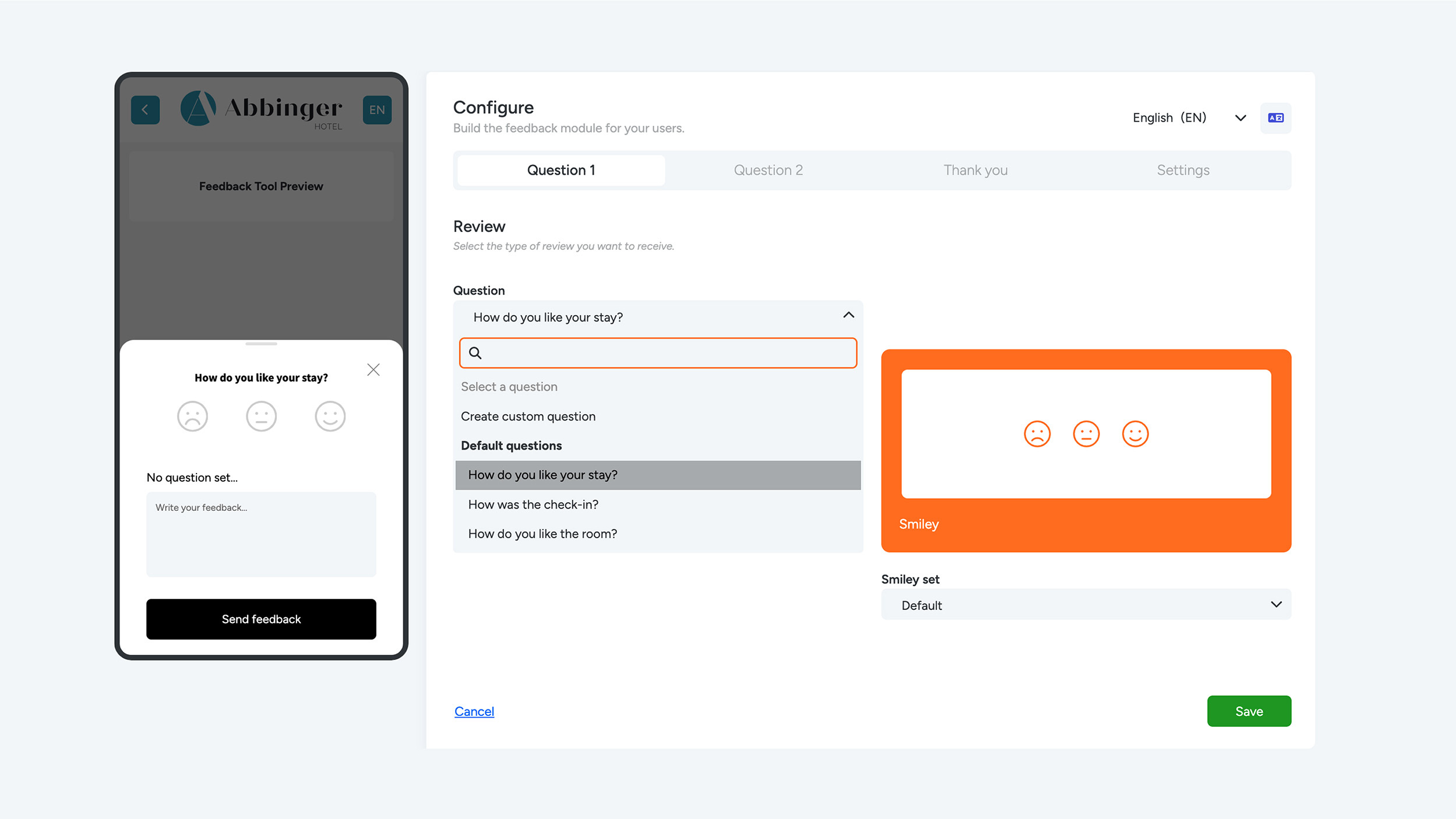
Under Question, select the first question you want to ask your guest. When you click the dropdown, you will see standard questions you can choose from, such as:
- How do you like your stay?
- How was the check-in?
- How do you like the room?
- How do you like the breakfast options?
- How do you like our facilities?
- How was the booking process?
- Were you able to reach the hotel easily?
- How do you like our housekeeping?
- How do you like the room service?
- How do you find our activities?
- Does the room meet your expectations?
- What do you think of the reception?
- How friendly is our staff?
- How do you like our restaurant?
If the desired question is not listed, you can choose a custom question. Don’t forget to translate the custom question in the top-right corner.
Next, choose whether you want to receive a star rating or smiley rating for this question.
Question 2
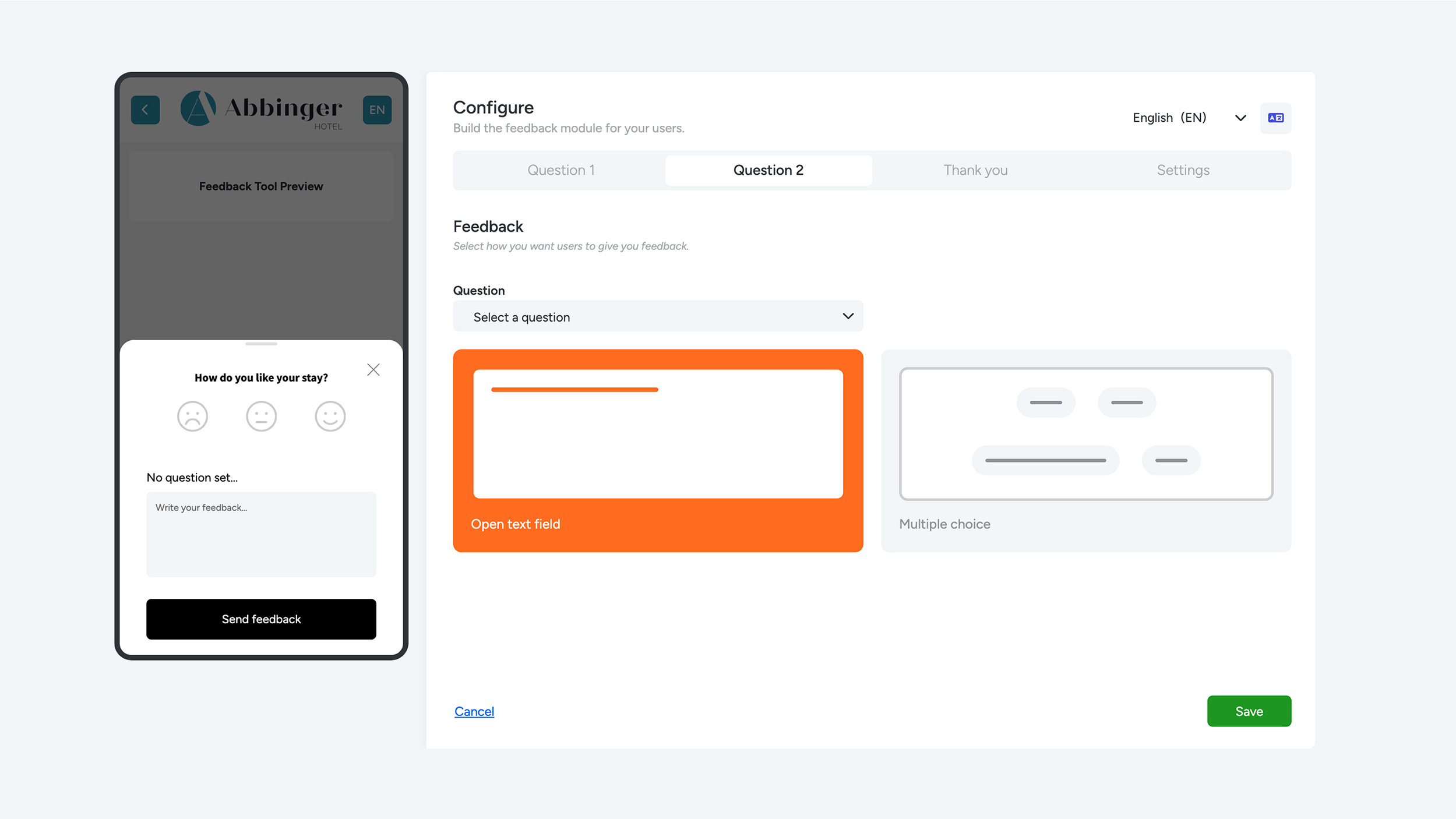
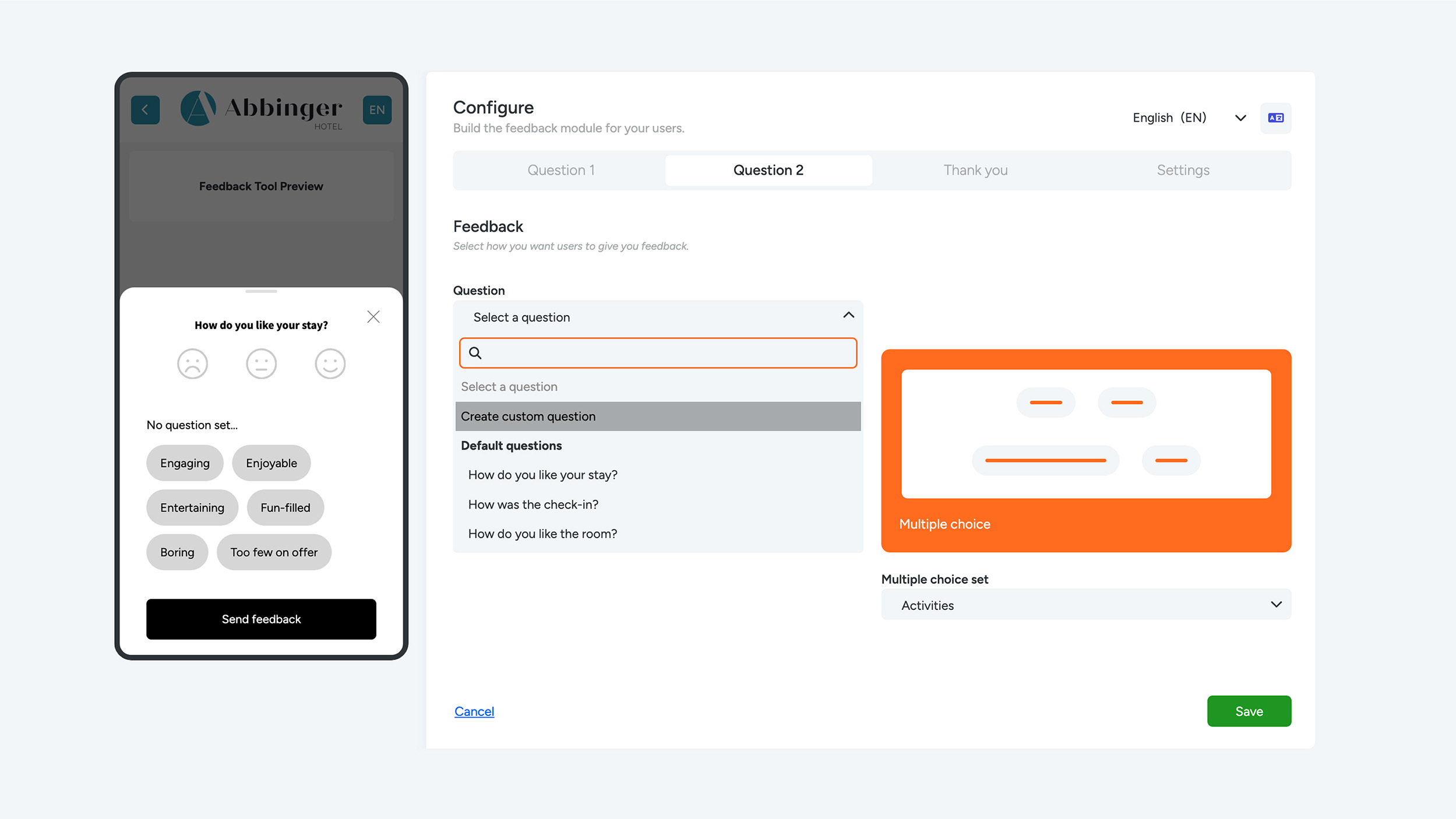
Once you’re done with Question 1, move to the second tab, “Question 2.”
Question 2 works slightly differently. Just like Question 1, you select a question, but make sure to choose a different question so you can collect feedback on multiple topics.
If you choose an Open text field, guests can enter their own response.
If you choose Multiple choice, you must select a Multiple choice set from the dropdown. Choose the correct set that matches the selected question.
Thank You Settings
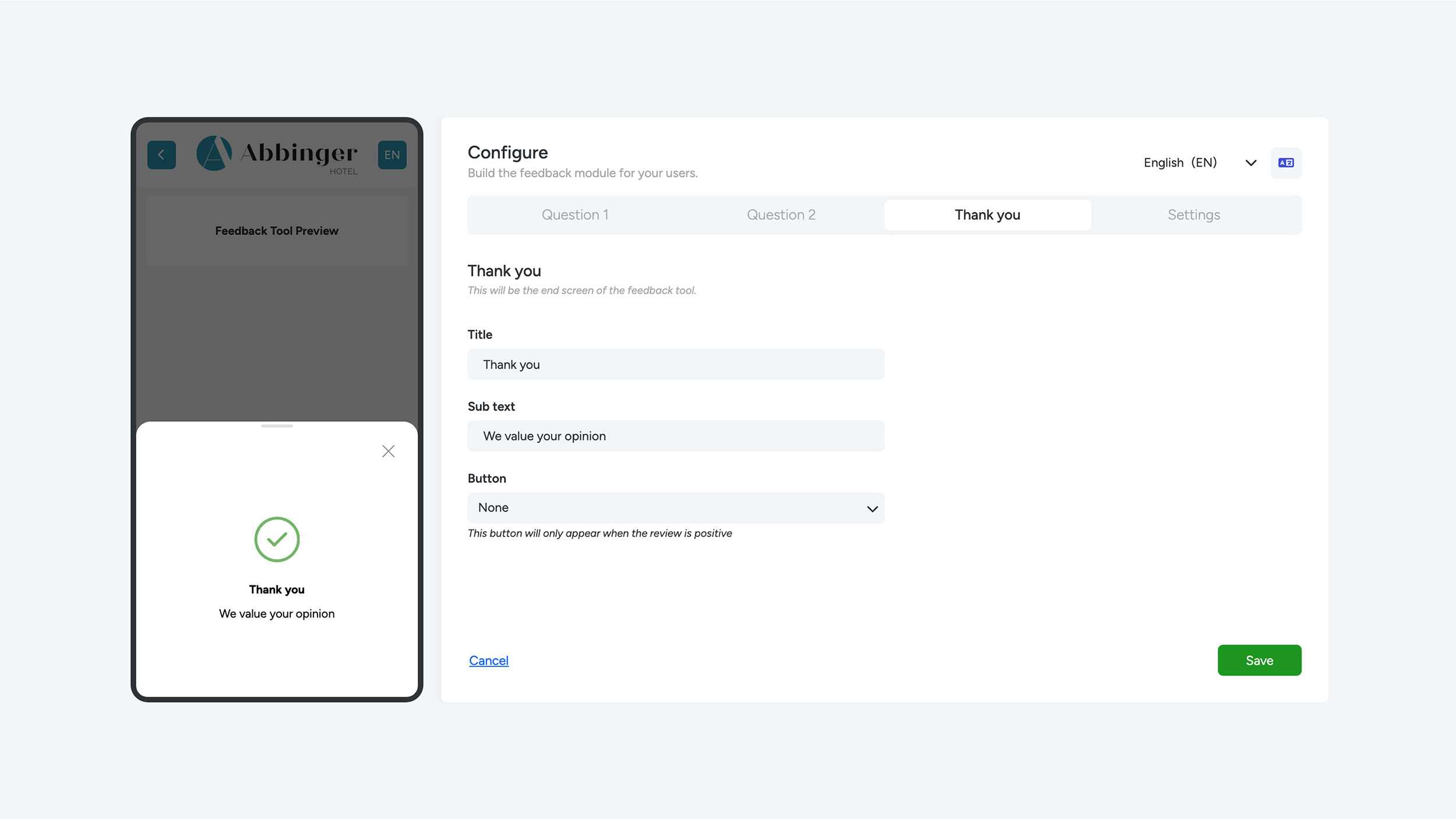
After completing and translating the questions, move to the third tab: “Thank You.”
This is the screen the guest sees after submitting their feedback.
Enter a title and subtext, and then choose whether to include a Tripadvisor or Google Review button in the Feedback Tool. If the guest leaves a positive review, they will be automatically redirected to one of these platforms to leave a public review as well.