9. Files
All your files in one place
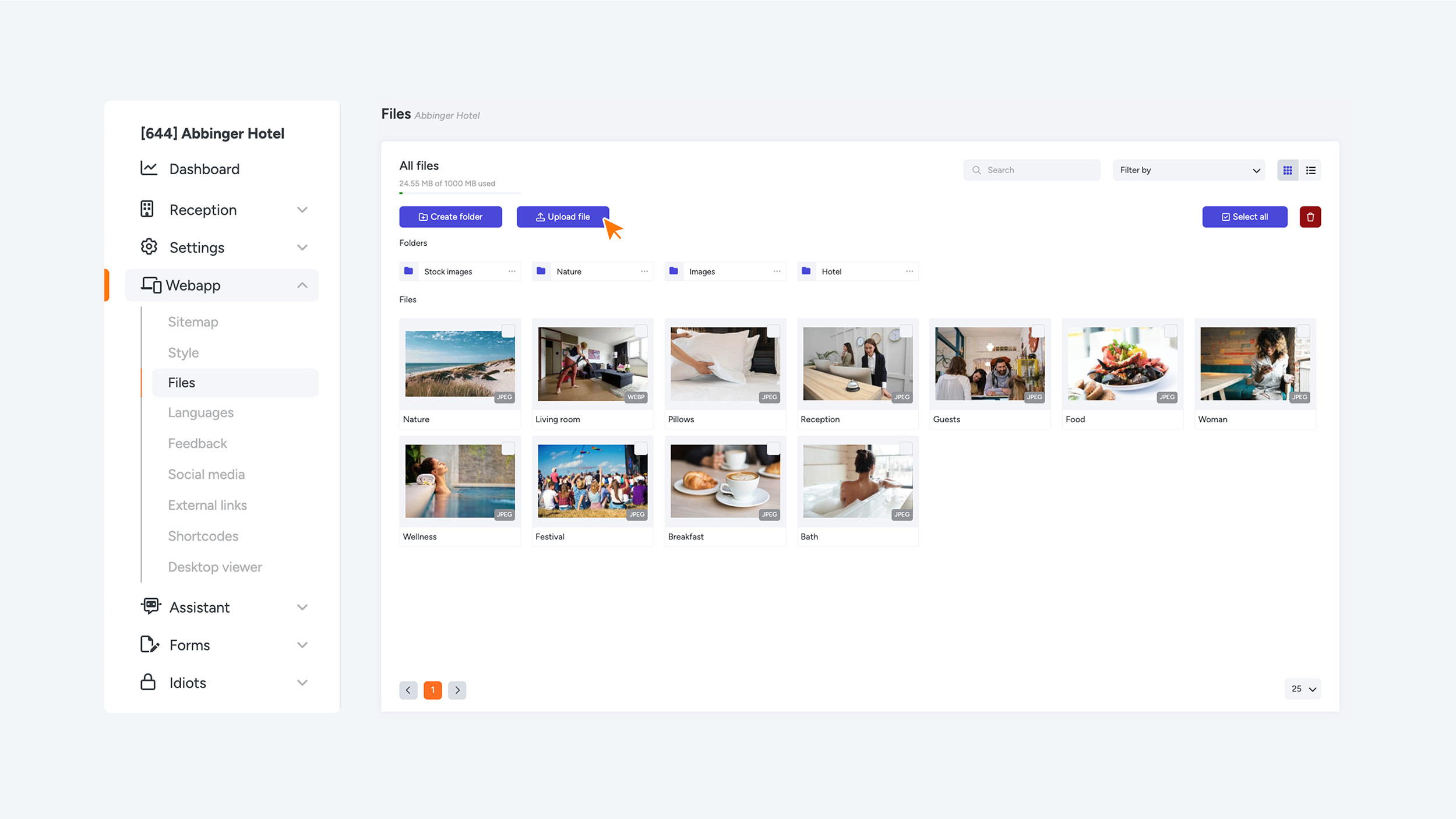
The Files section functions as the media library of your web app. In this area, you can easily upload new files and, if necessary, crop or adjust these to the correct format.
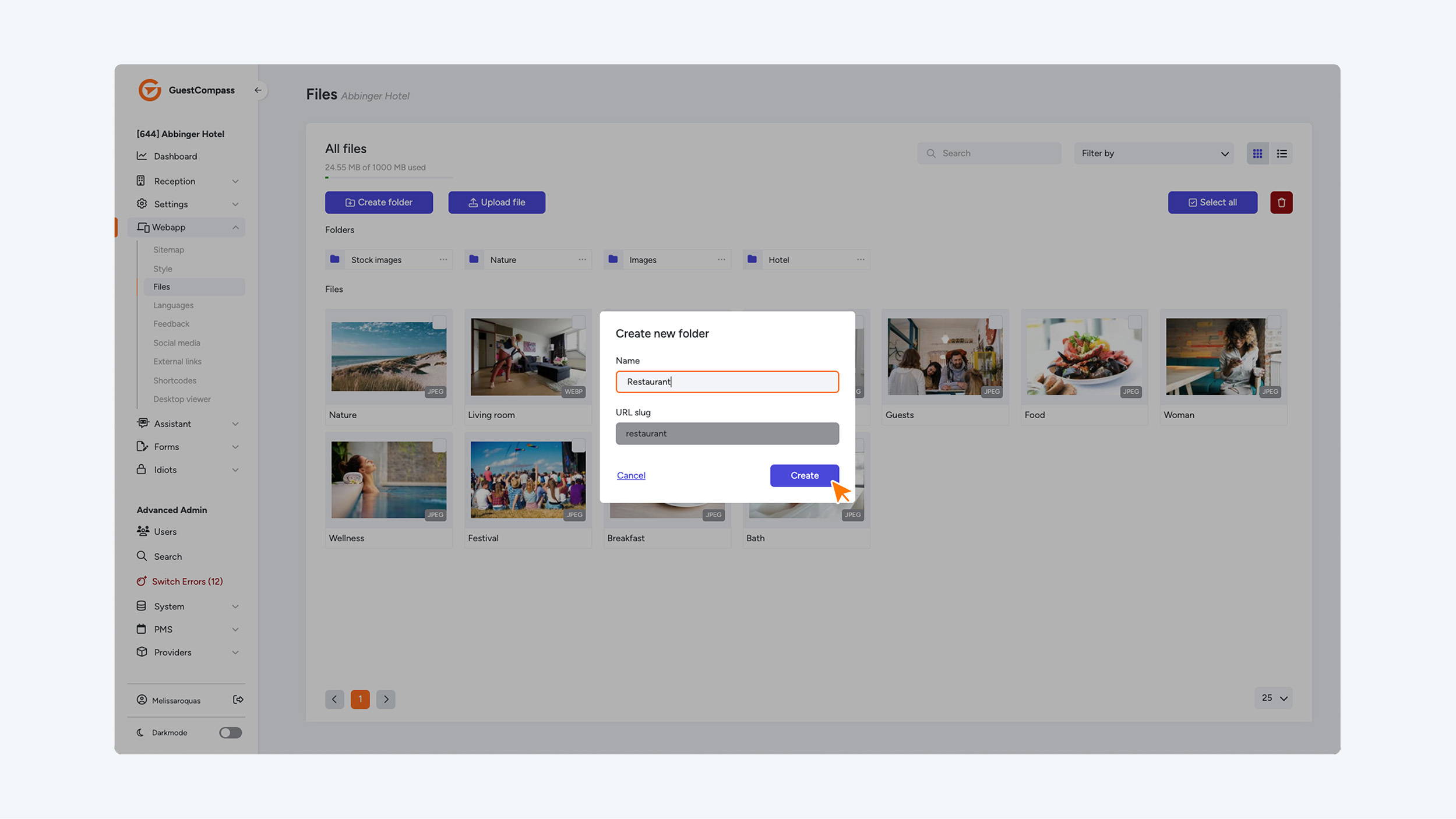
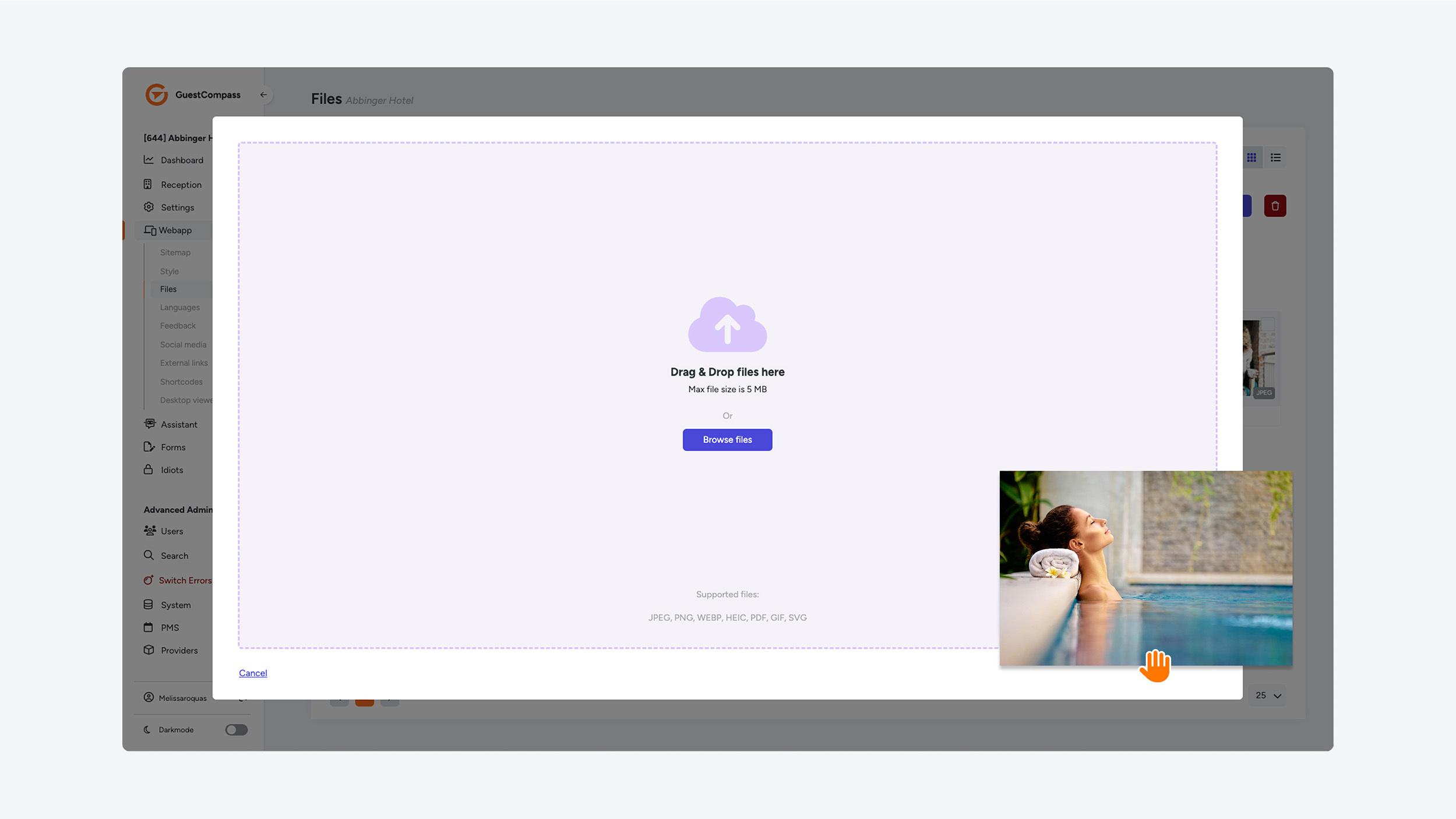
At the top left of the screen, you can quickly see how many MB (megabytes) of your storage space is already in use, giving you a clear overview of your available space. In the media library, you can upload various file types, including JPEG, PNG, WEBP, HEIC, PDF, GIF, and SVG, as long as each file is no larger than 5 MB. This gives you the flexibility to store a wide range of formats for use in your app or project.
One of the handy features of our platform is that you can edit images once they are uploaded. You have the ability to rename files, crop images to the correct dimensions, or delete them entirely if they are no longer needed. You can also view detailed information about each file, such as the file size, file format, upload date, last modified date, and the image dimensions. This information gives you more control and insight into your files.
To organize your files even more, you can place them into folders. Each folder can be given a name so you can create a logical structure that fits your projects or workflow This makes it easy to navigate through your files and quickly find what you need. Additionally, you can use the search function within the media library to search by file name or file type, allowing you to quickly locate the right file—even if you have already uploaded a large amount of files.