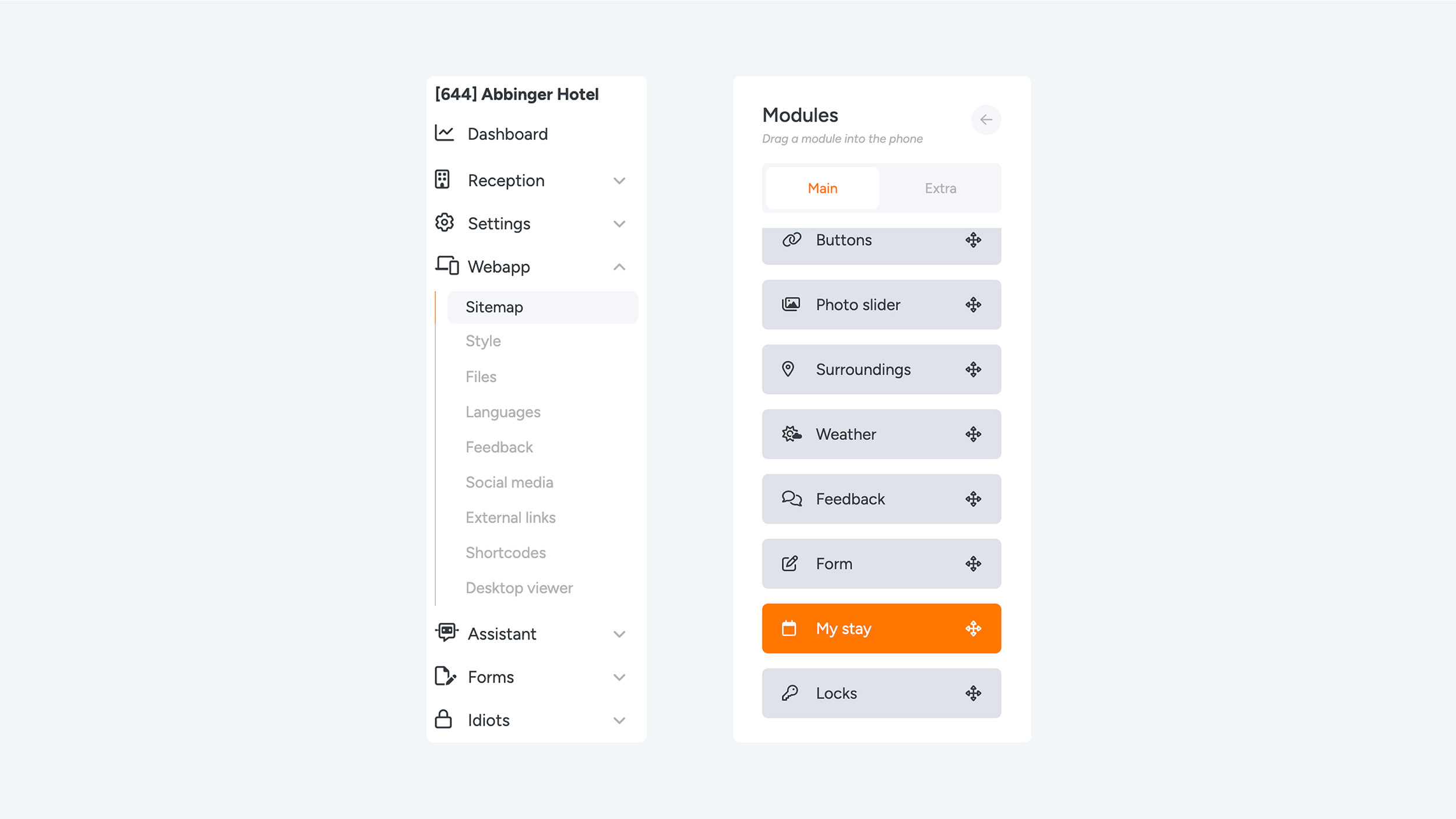
19. My Stay
Tab 1 – Main Settings
In the first tab of the My Stay module, you can configure various settings to make the (Web)App more personal and user-friendly for guests, students, and employees. Below is an overview of the available options.
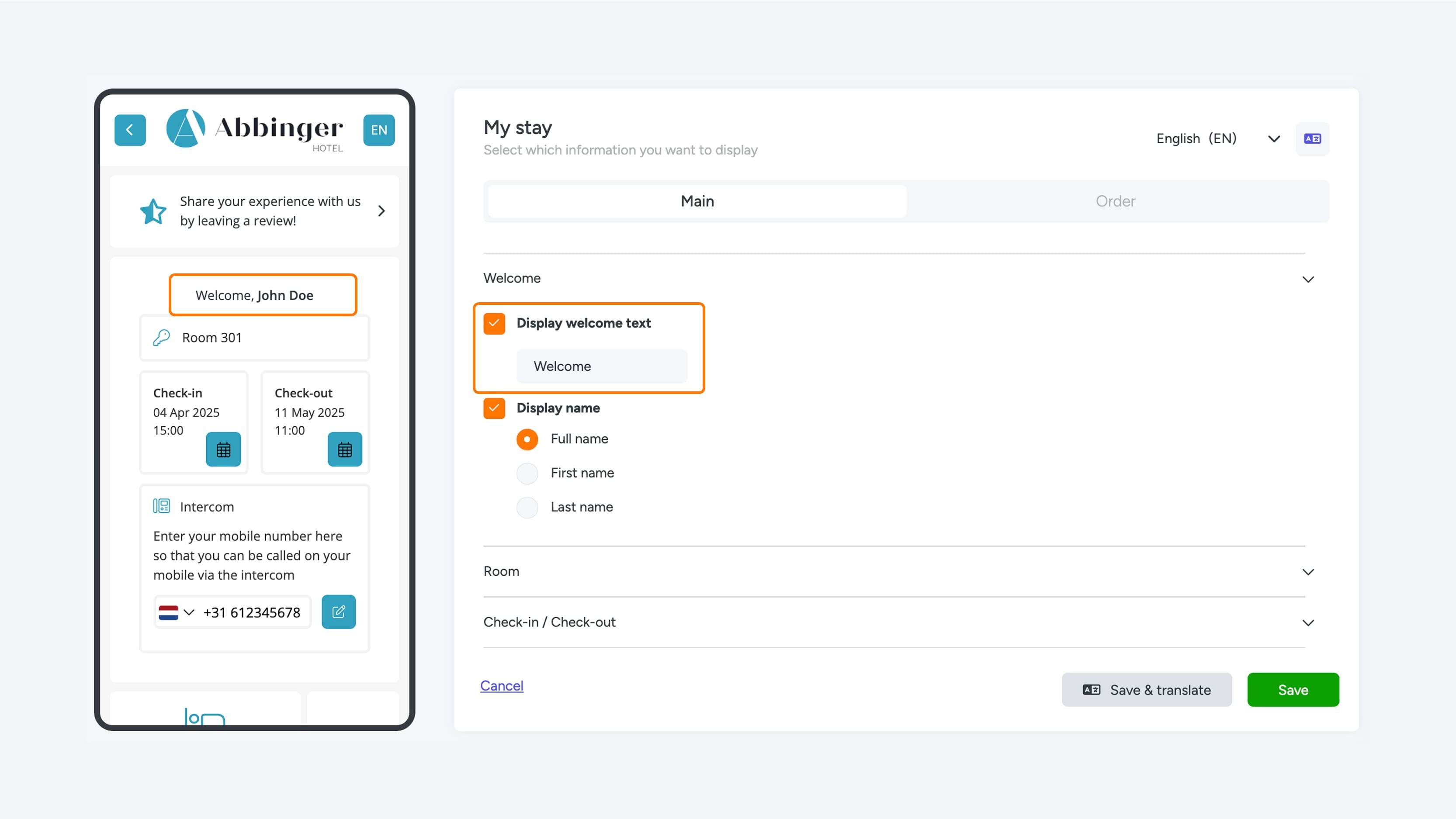
- Salutation and Name Display
The first setting allows you to adjust the salutation to make communication feel more personal. You can then choose to display the user’s full name, first name only, or last name only.
Please note: these details can only be displayed if they have been shared by the guest, student, or employee.
Show Switch List
With this option, you can make the so-called switch list visible to the user. This is an overview of the rooms and access doors the user has permission to access. Examples include the front door, room door, stairwell doors, elevator, and facilities such as the swimming pool, spa, or dining area. This gives users direct insight into their access rights and which areas are available to them.
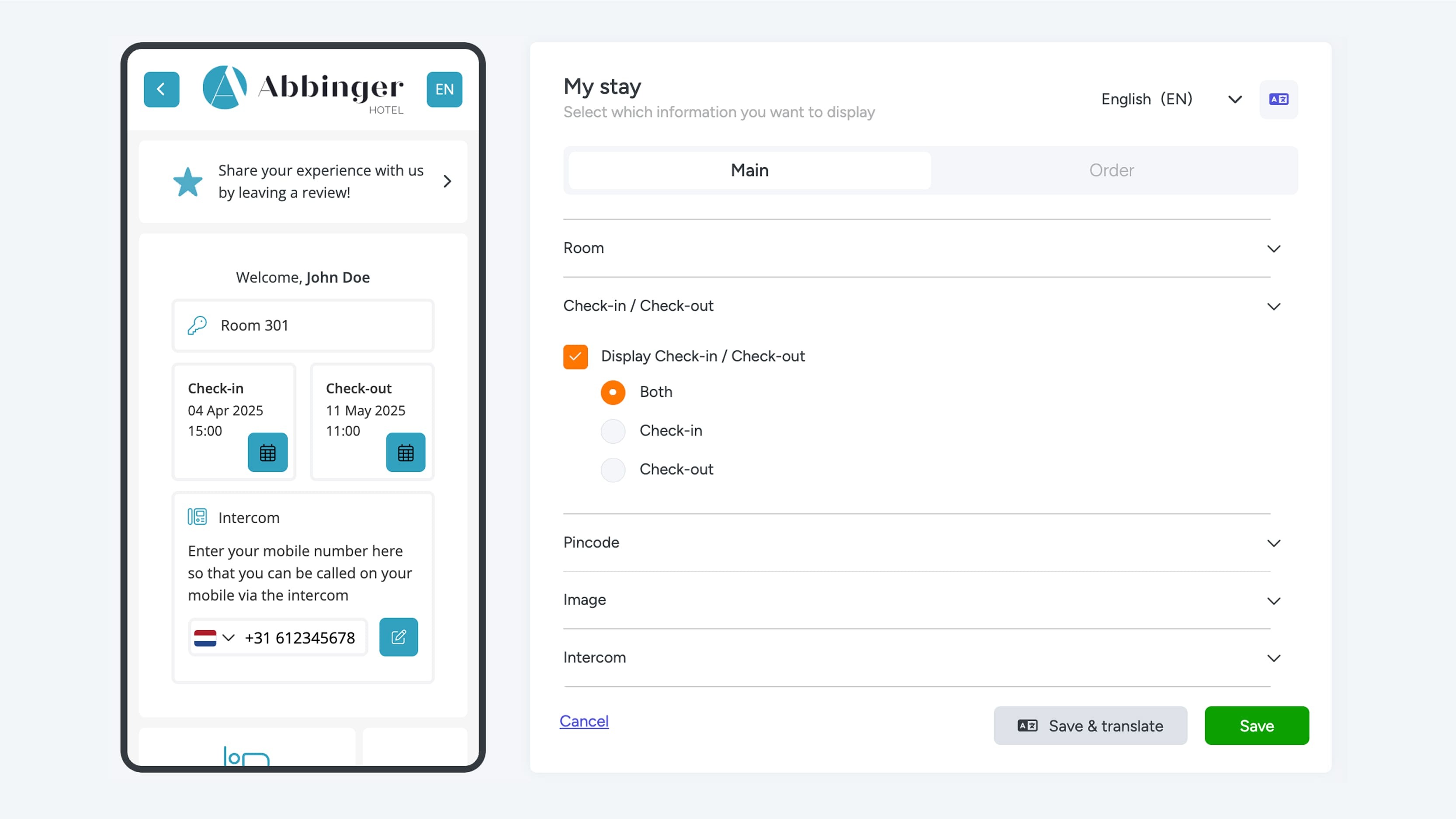
Check-in / Check-out Display
This setting allows you to show the check-in and check-out dates. Ideal to help inform users on the start and end dates of their stay, so they always know what to expect.
PIN Code (for iLOQ users)
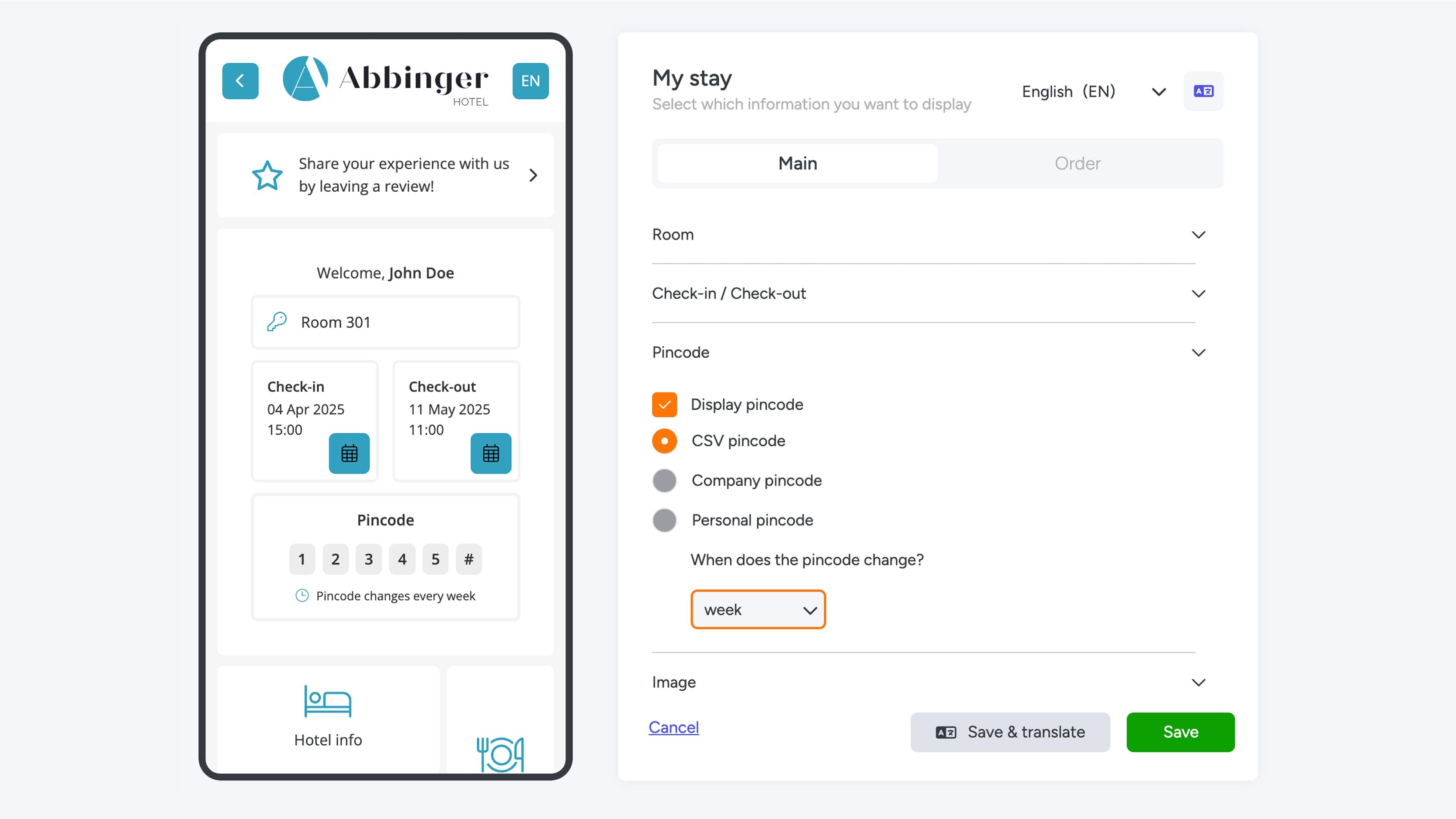
For locations that use iLOQ technology, a PIN code can be displayed here. This feature only works if the building is equipped with an iLOQ PIN keypad. You can choose from three types of PIN codes:
- CSV PIN code
- Company PIN code
- Personal PIN code
You can also set how often the PIN code changes: daily, weekly, or monthly. For weekly changes, you can choose which day of the week the new PIN becomes active. The user will automatically receive a message displayed below the PIN code and will always stay up to date. If a personal PIN code is selected, the user can generate a new code for themselves within the app.
Image
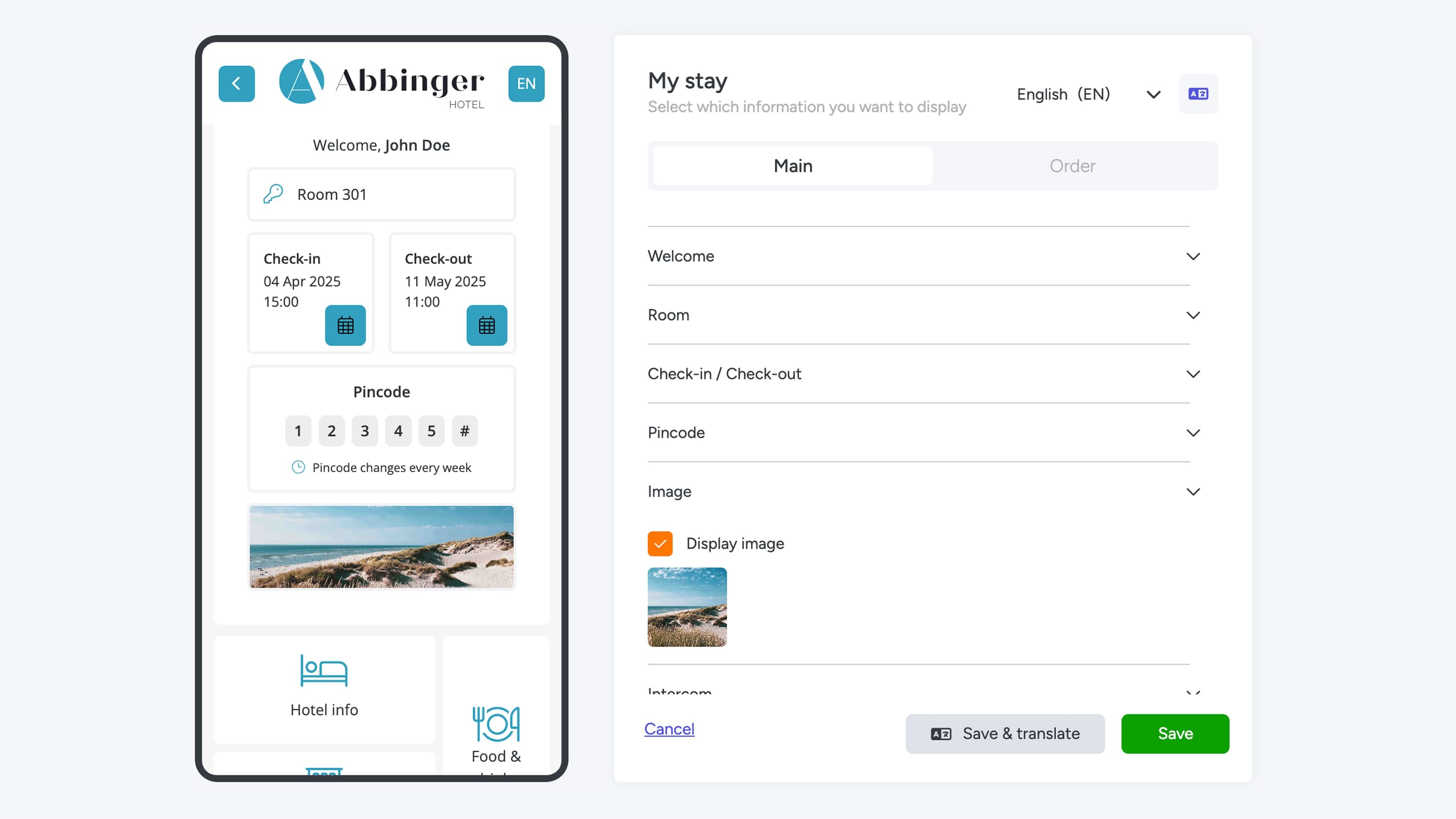
To make the My Stay module more visually appealing, you can add an image. This helps create a warmer, more welcoming appearance, such as a photo of the location or an atmospheric image.
Intercom Integration
As a sixth option, you can enable an intercom feature in the module. Please note that this is only possible if an intercom system is integrated with the app.
Translation of texts
After adjusting texts it's easy to add translations. In the upper right corner of the screen you can use the 'Translate & Save' option, or change the page to another setting using the language choice dropdown menu.
Tab 2 – Order
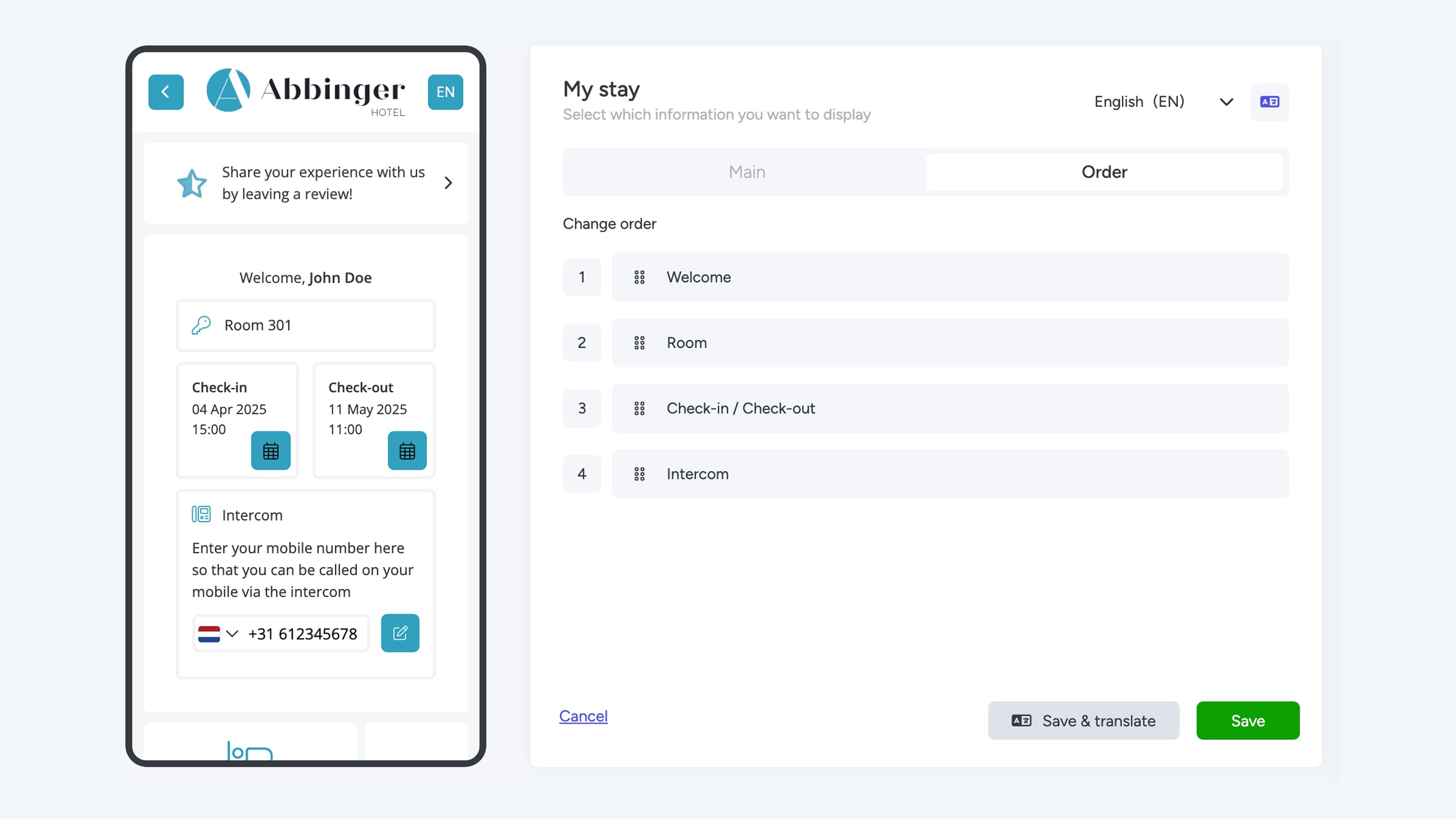
In the second tab of the My Stay module, you can customize the order of the displayed items. Using the drag-and-drop icon, you can easily move the different settings into your preferred order.