Sitemap
The Start of the (Web)App
The sitemap is an essential component when building the (Web)App. It consists of all the pages connected in a so-called “tree structure,” which ensures that the (Web)App is presented in an organized manner. In the page settings, under the tab “Used on ... pages”, you can see on which pages the current page is linked.
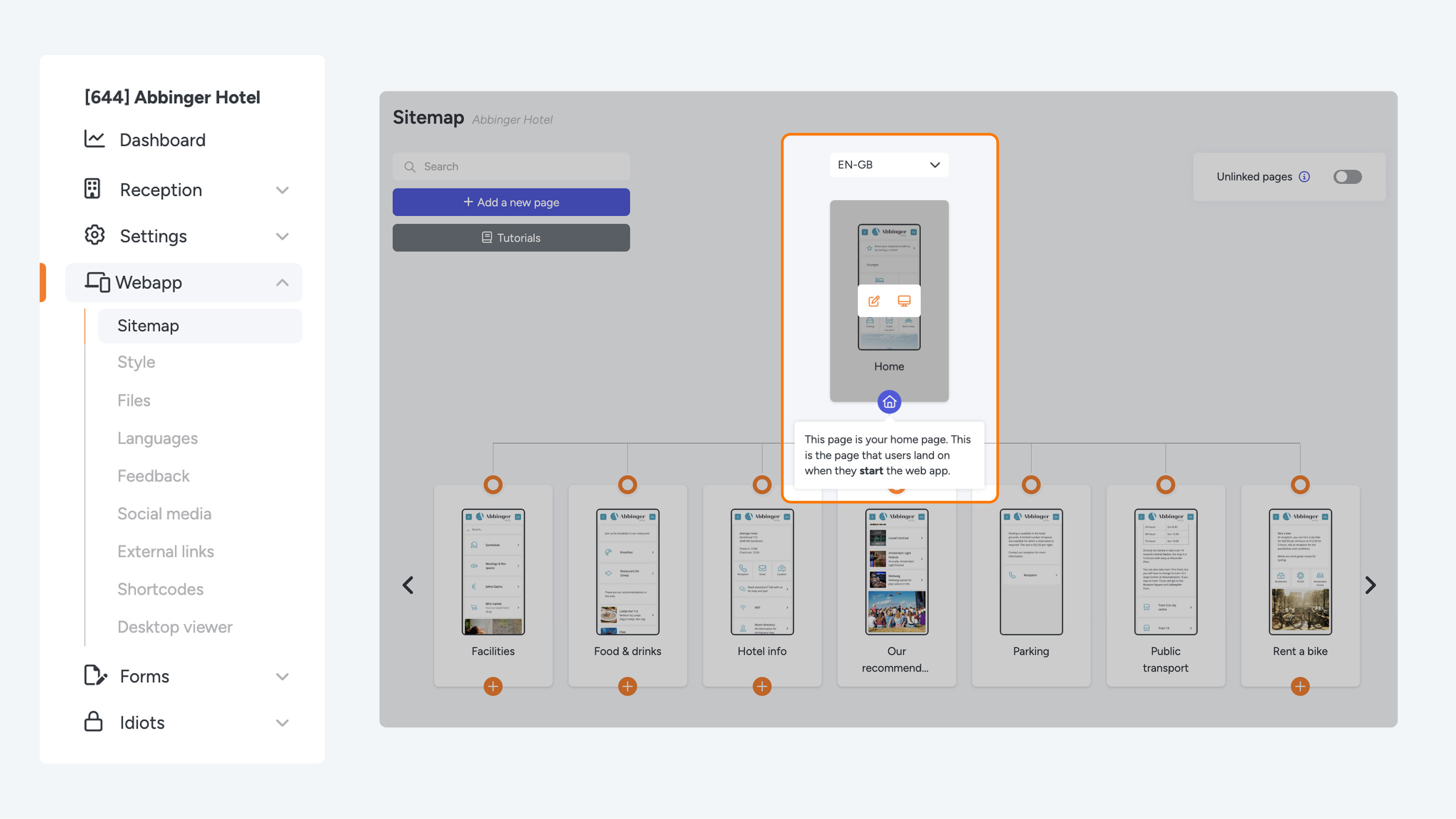
The homepage serves as the starting point of this structure and is always positioned at the top of the sitemap. This page is recognizable by the house icon. When building a (Web)App, make sure to start from the homepage. You can link other pages to the homepage by using the button module.
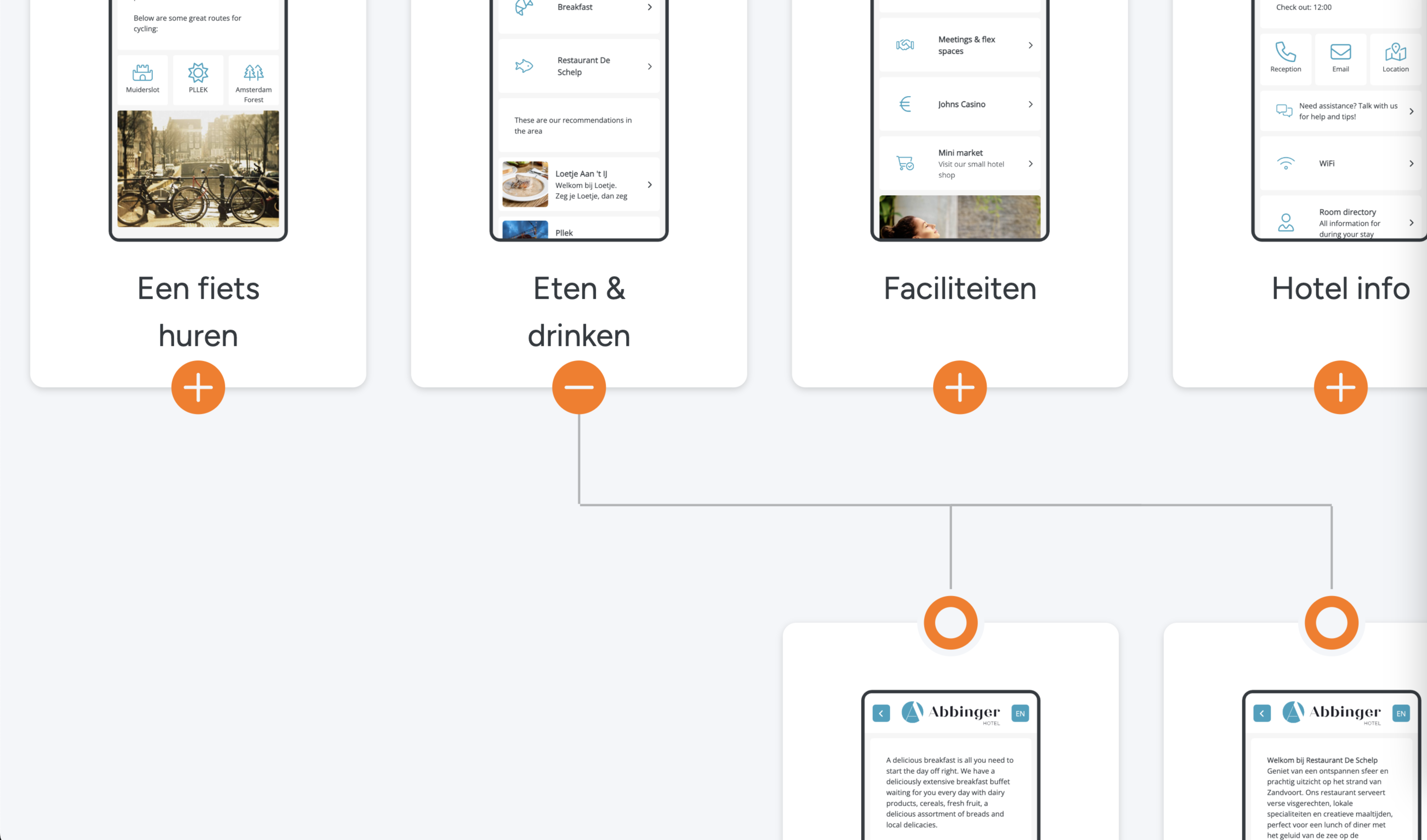
Some pages in the sitemap have a ‘+’ icon below them. Clicking this icon provides an overview of which other pages are linked to this specific page. This makes it easy to see how pages are connected. Clicking the ‘-’ symbol collapses the structure again, maintaining a clear overview.
When you have multiple pages on the same level, you can use an arrow to view all the pages at that level.
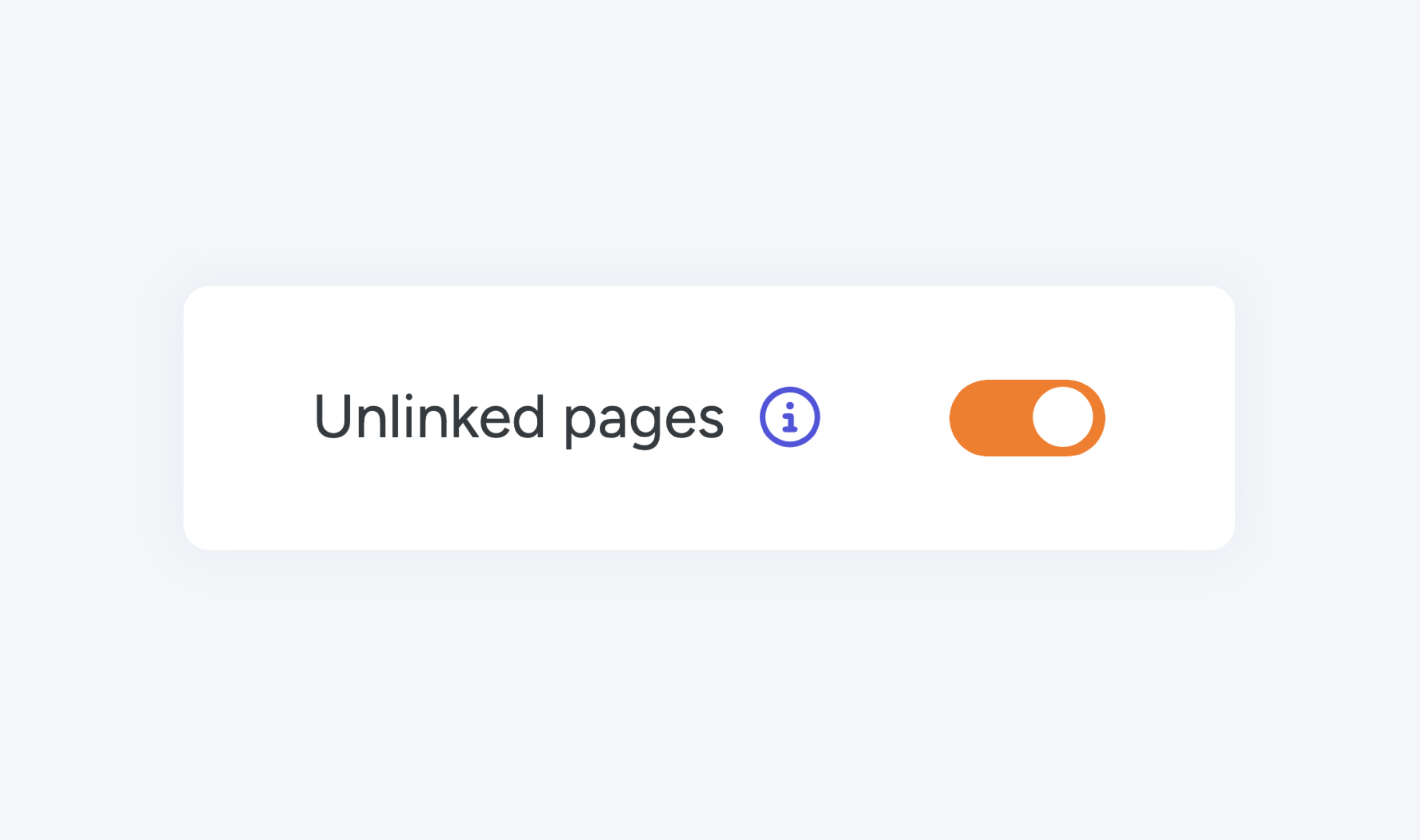
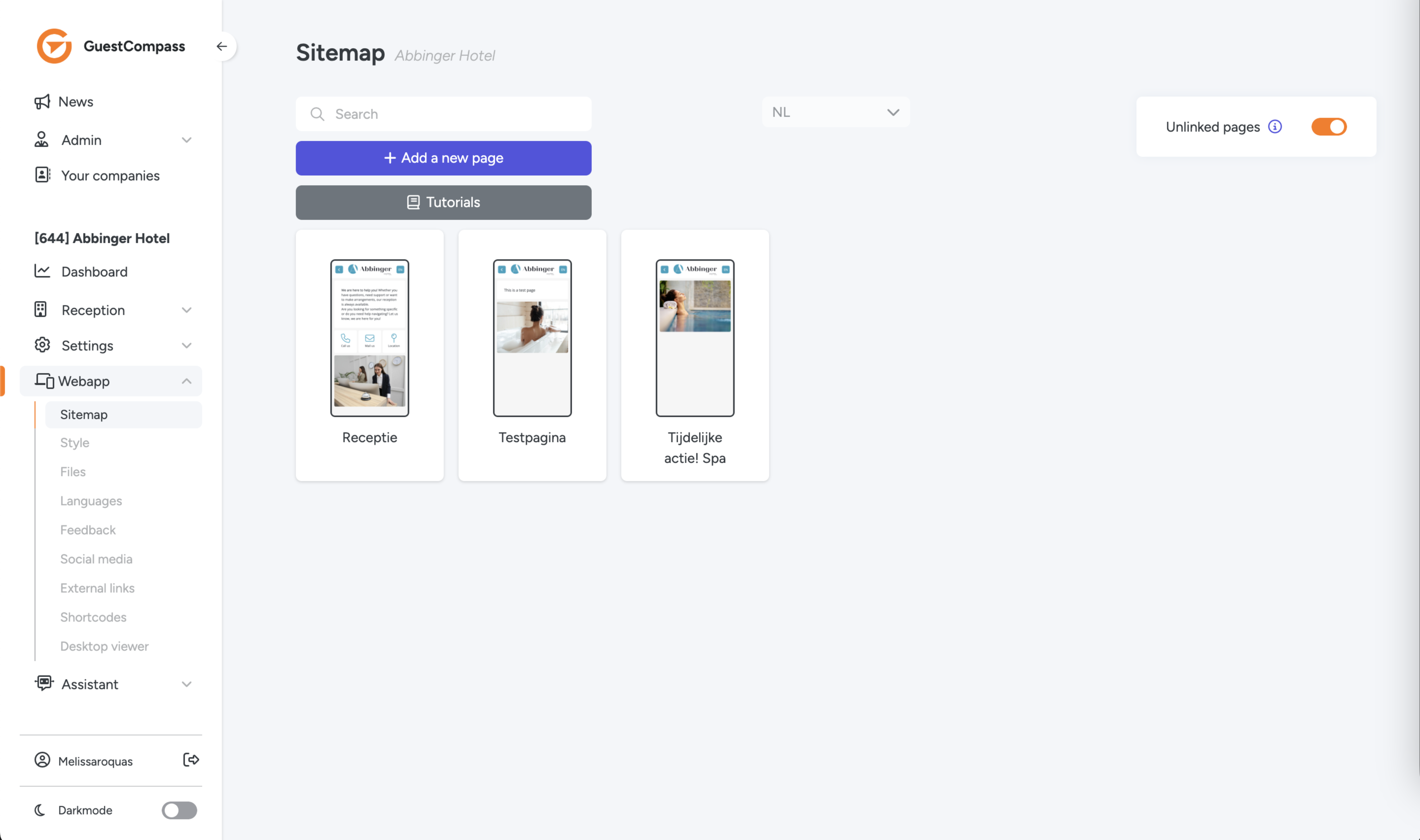
One feature of the sitemap is the ability to temporarily hide pages without permanently deleting them. These are called “Unlinked pages.”
Linking Pages
To connect pages, use the buttons available within the modules. These buttons can be configured to link to another page within your (Web)App or to an external link. For more information on adding, creating, and configuring buttons, see the Buttons page.
Unlinked Pages
Unlinked Pages
If you create a page for your WebApp but later decide not to use it, you don’t have to delete it permanently. Instead, you can simply unlink the page. Unlinking a page means it is no longer connected to the rest of the (Web)App. The page can be reactivated later if needed.
You can find an overview of all unlinked pages under the Sitemap section. At the top right of the sitemap, you will find the “Unlinked pages” option. By clicking the toggle next to this option, an overview of all unlinked pages becomes visible. These pages are temporarily disconnected from the navigation structure of your (Web)App, meaning they are not visible to users in the live version of your app.
In the Unlinked Pages overview, you can view and edit unlinked pages. This allows you to modify the content of these pages before deciding to place them back into the active structure of your (Web)App. The overview also makes it possible to relink or delete pages as needed. This is especially useful for pages you don’t want to delete permanently but only want to temporarily remove from the navigation.
An example of when to use Unlinked Pages is for pages that you don’t want to show year-round in your (Web)App. Think of pages for specific holidays such as Christmas or New Year, or temporary pages for upsell campaigns that are only relevant for a limited period. By keeping these pages unlinked in your platform, you can easily reactivate them when the time comes, without having to recreate the entire page.