16. Social media
Link to various channels
In the (Web)app you can add social media buttons, allowing users to easily link to various social media platforms. These buttons are visible at the bottom right of the app, so guests or users can effortlessly navigate outside the app to the desired social media. This offers a convenient way to connect with platforms such as WhatsApp, Instagram, Facebook, and many more.
Tab 1 - Media
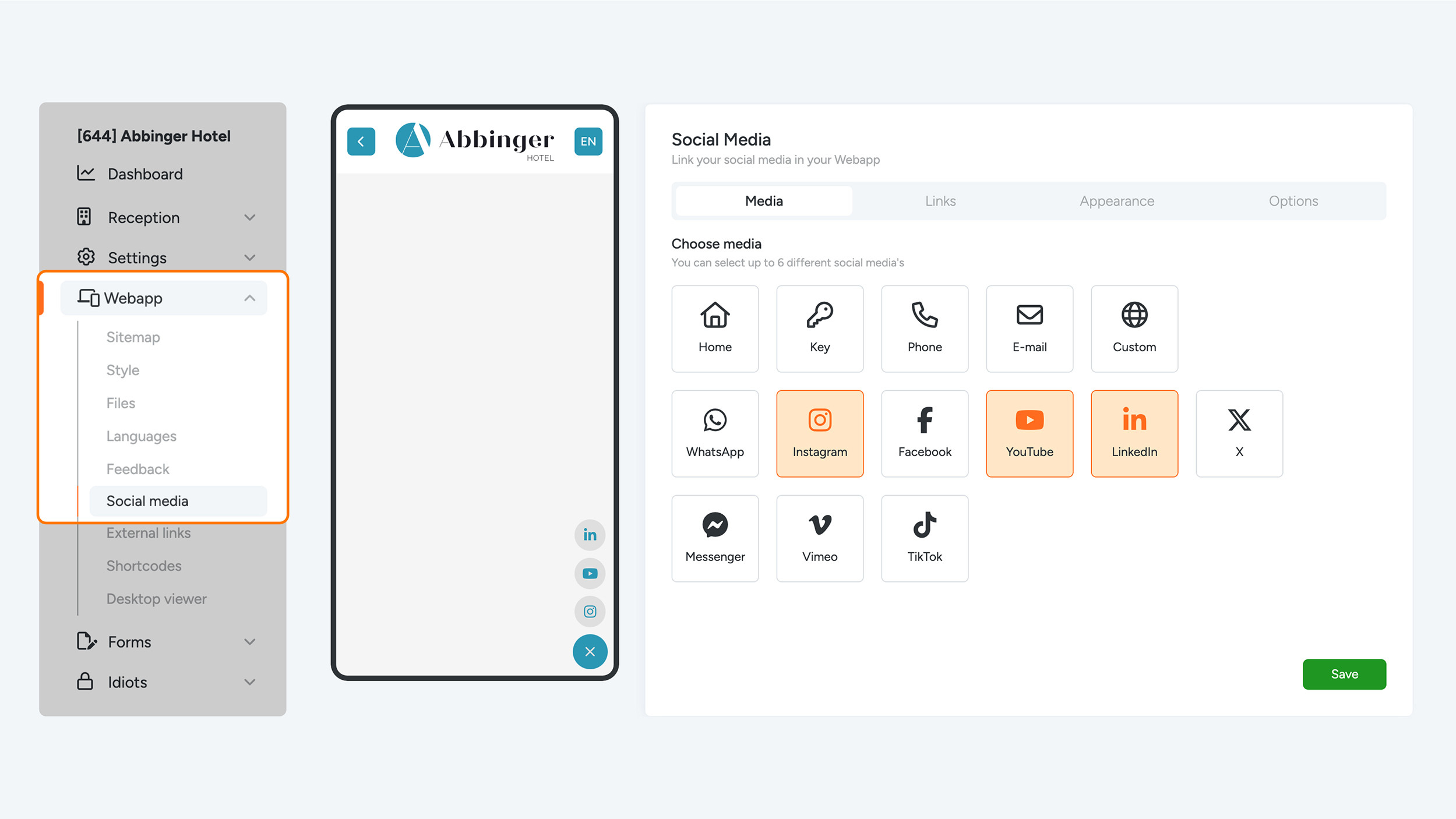
In the first tab, you determine which social media you want to display in the (Web)App. You have the option to select up to six different platforms from a list of popular options. These are the platforms you can choose from:
- Home
- Key
- Phone
- Custom (for custom links)
- X (formerly Twitter)
- Messenger
- Vimeo
- TikTok
Tab 2 - Links
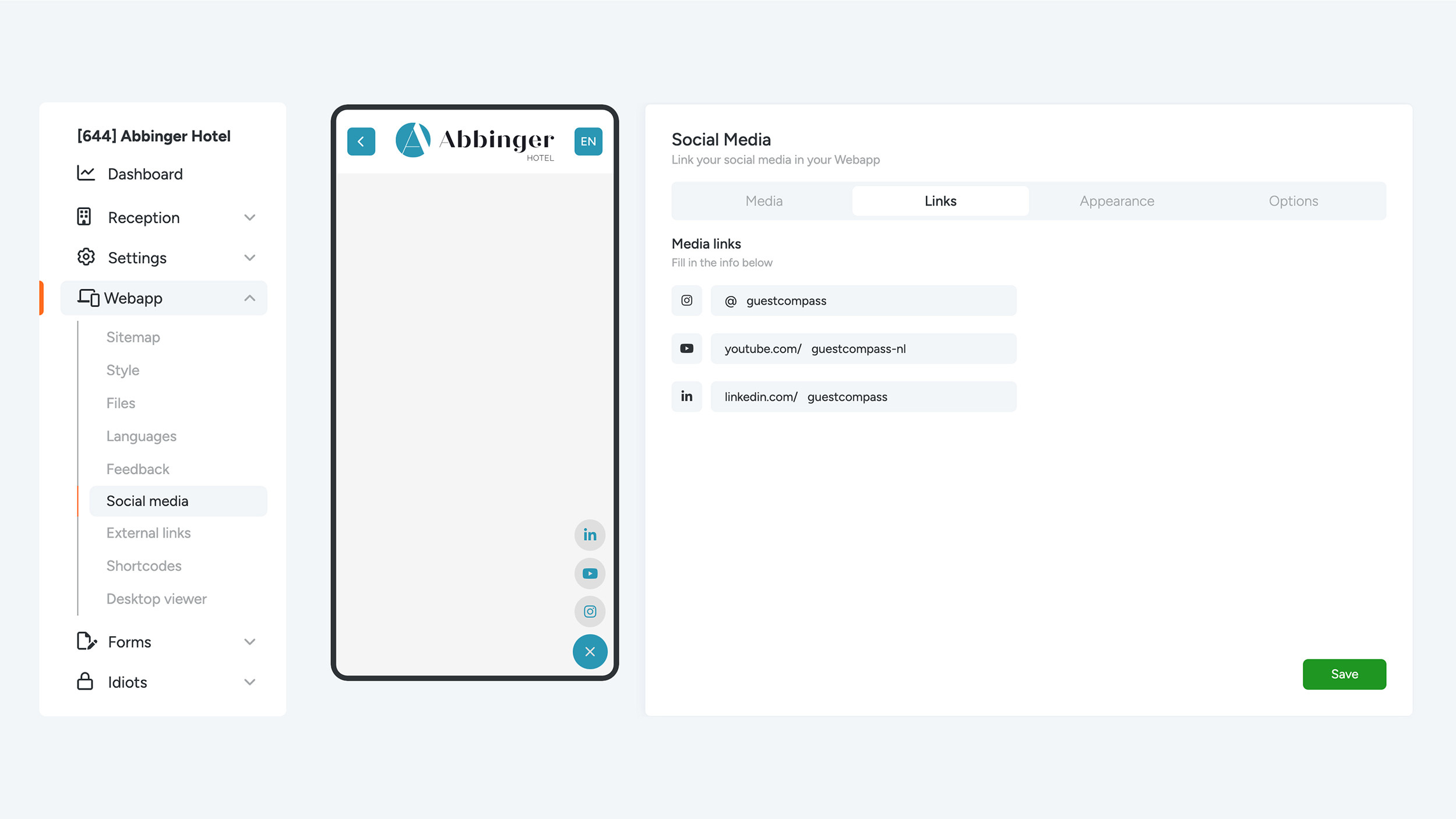
After selecting the desired social media in Tab 1, you can enter the corresponding data or links here. These can be URLs that direct the user to the specific social media profiles or pages. Here you enter the relevant information, such as an Instagram account, a WhatsApp number, a Facebook page, or another social media link, depending on the choices you made in the first tab.
Tab 3
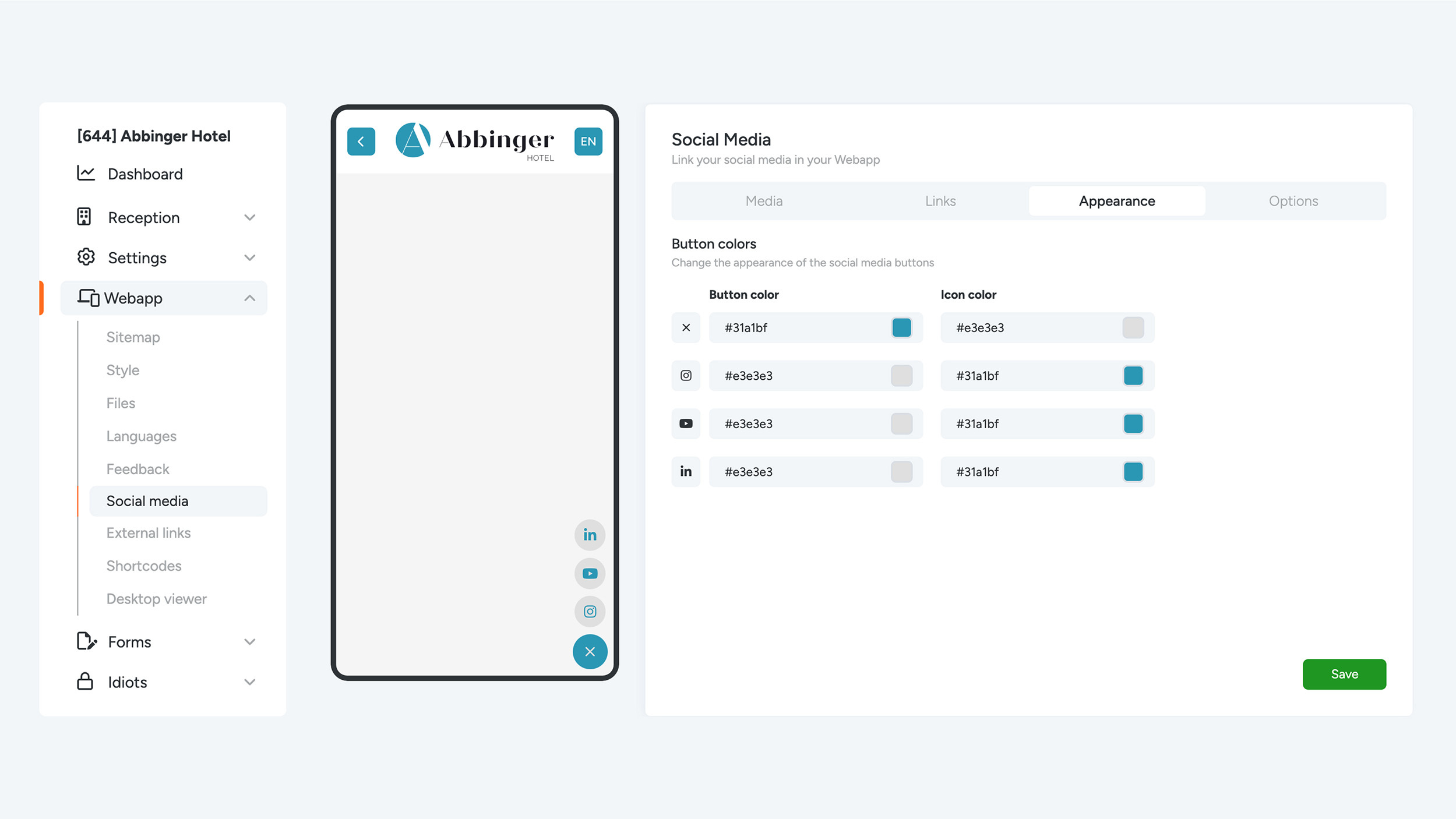
In this tab 3, you can adjust the visual appearance of the social media buttons. This gives you the freedom to style the buttons in the app so that they match the design of the WebApp. You have the following options:
- Button colors
- Icon colors
Tip! Choose a color that is not the same as the module color, so the social media button color stands out more.
Tab 4
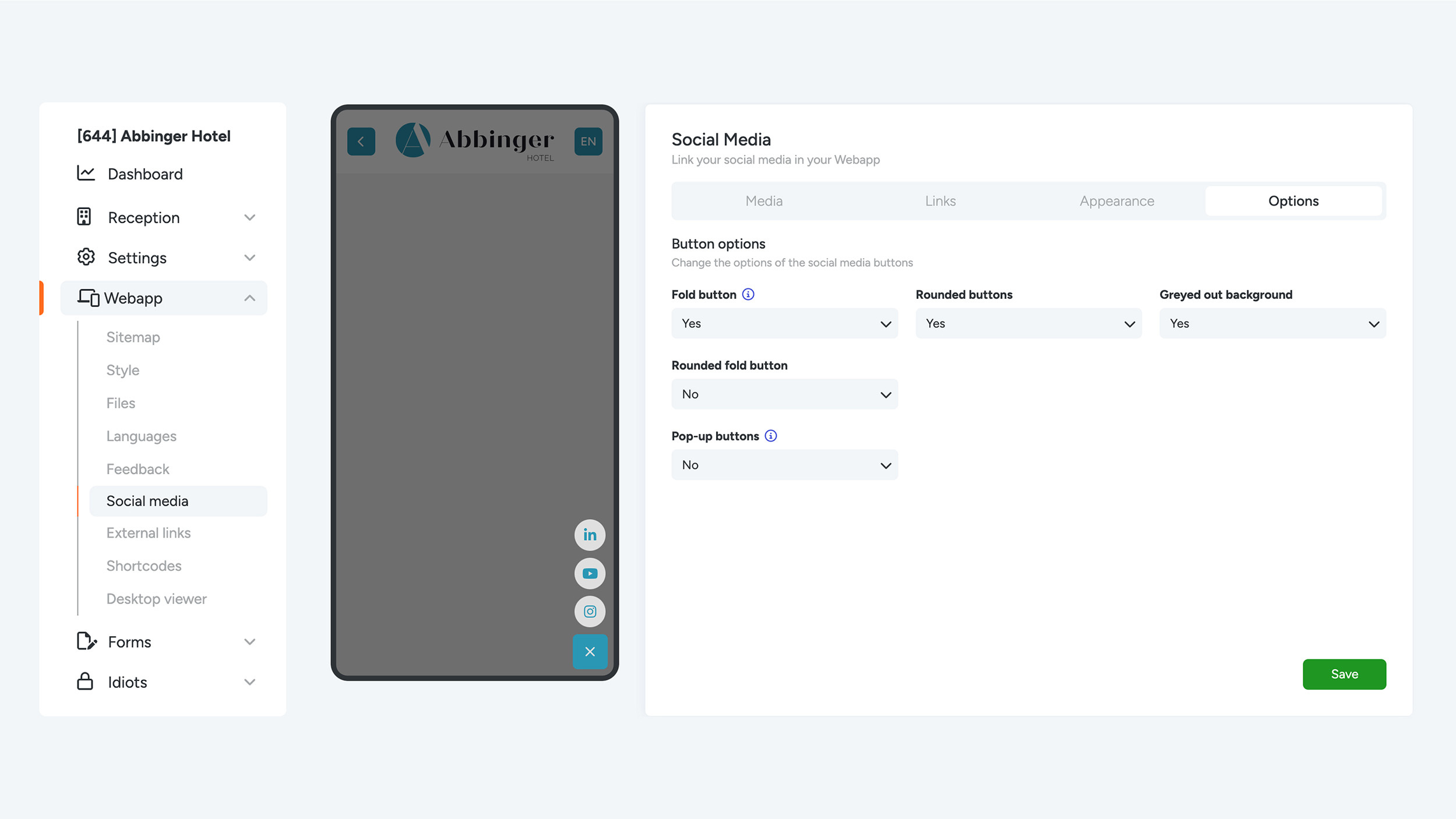
In the last tab, you can further fine-tune the settings of the social media buttons.
- Fold button: This option hides all social media buttons behind a single collapsible button. This saves space on your screen, keeping the app more organized, especially on mobile devices.
- Rounded buttons: If you want to give the buttons a more rounded appearance, you can enable this option.
- Greyed out background: This option makes the background less noticeable, allowing the focus to be entirely on the buttons. You can only enable this option if the ‘Folded button’ is on.
- Rounded fold button: This option also rounds the collapsible button itself. This is only available if the ‘Folded button’ is on.
Pop-up buttons: This feature allows the social media buttons to be displayed as pop-ups when the user opens the app for the first time. This can also only be enabled if the ‘Folded button’ is active.
