21. YouTube
Add a video to your (Web)App
Would you like to make your (Web)App more lively and interactive? Then add a YouTube video to your page(s)! Videos can be used to explain something, create a certain atmosphere, or simply make your (Web)App more fun and engaging.
Find a YouTube video
Go to www.youtube.com and search for a video you want to use in your (Web)App.
Do you have a video but no YouTube channel? In that case, we can also upload and place the video for you. A video in the (Web)App can be public or unlisted. With an unlisted video, the video is not publicly visible on YouTube and cannot be found without the direct URL.
Once you have found a video, copy the video link from the address bar of your browser.
Go to the “YouTube video URL” input field in your (Web)App and paste the copied link there. The video will immediately appear in the phone preview of the (Web)App.
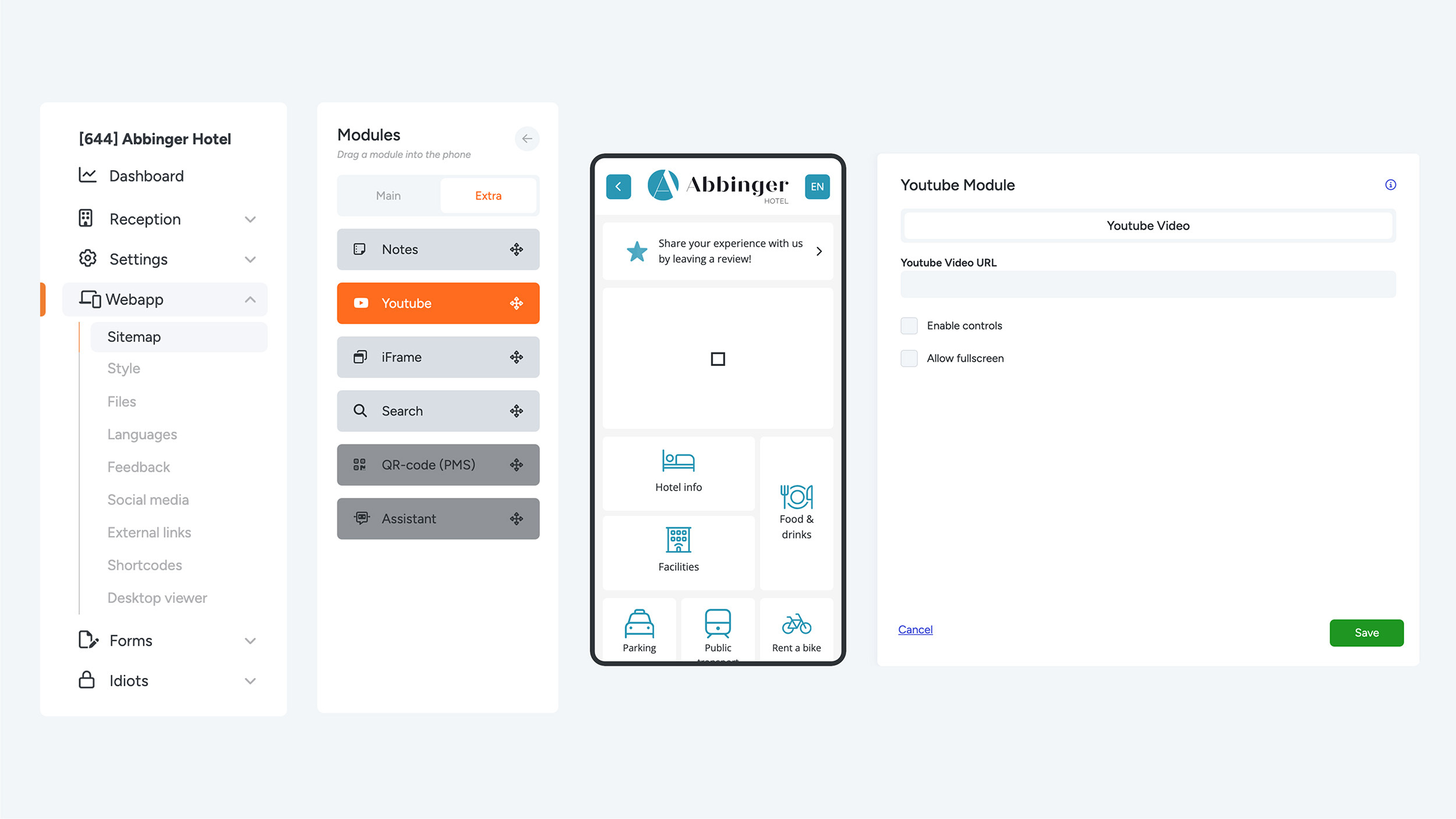
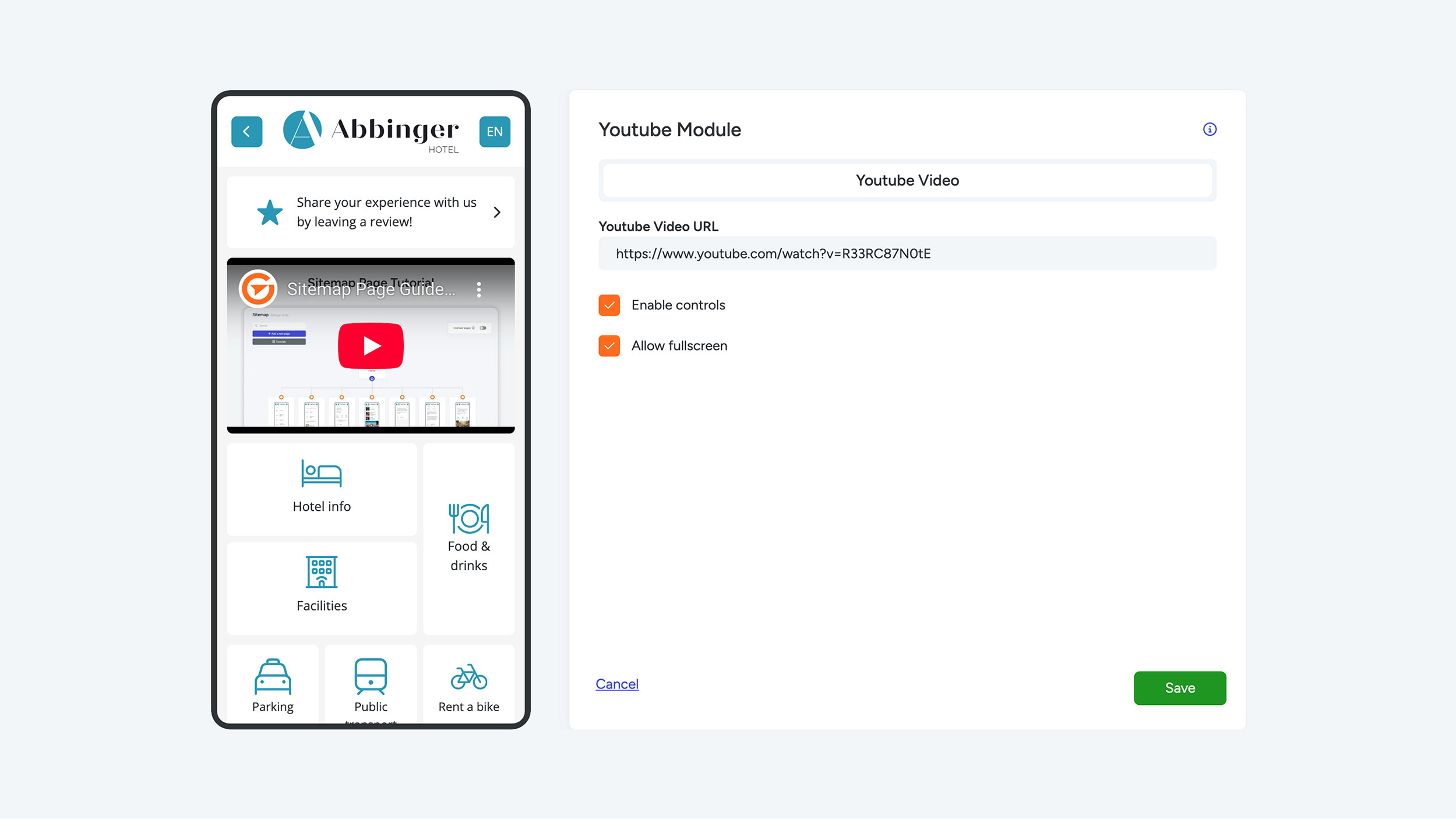
Choose the settings
Decide how the video should be played:
- Enable controls – Allows the user to pause or skip through the video.
- Allow fullscreen – Enables viewing the video in full-screen mode.
Finished setting everything up? Save the module. The video is now added to your (Web)App!
