The sidebar (menu)
Find your way around Connect quickly
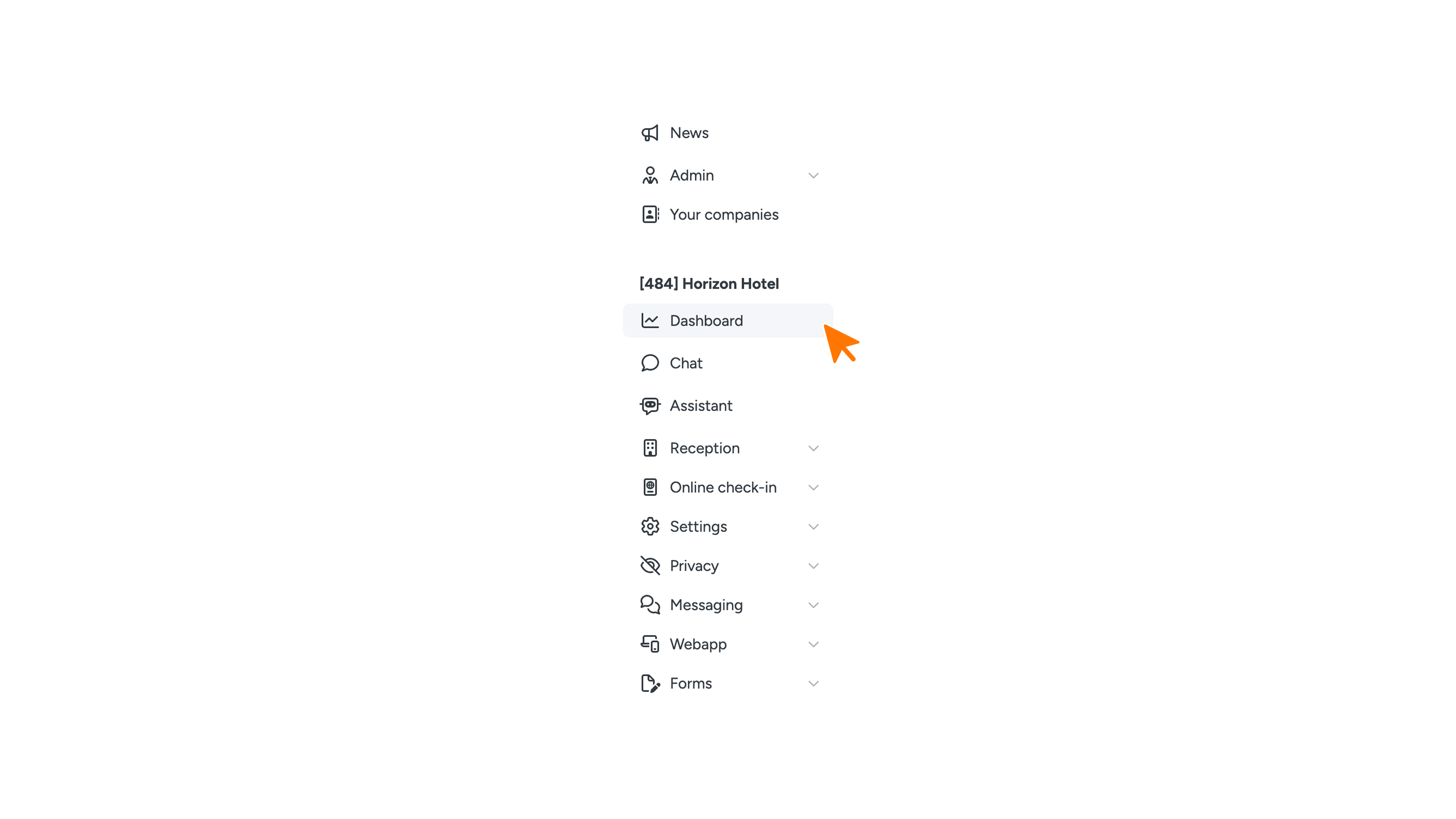
The sidebar on the left side of your screen gives you access to every part of Connect. You decide how wide the sidebar is and which sections you expand. If you work with multiple buildings, this is also where you switch between them.
How do the sections work?
The menu items are grouped into sections, such as Settings and Webapp.
- Click the name of a section to expand it.
- Click the name again to collapse it.
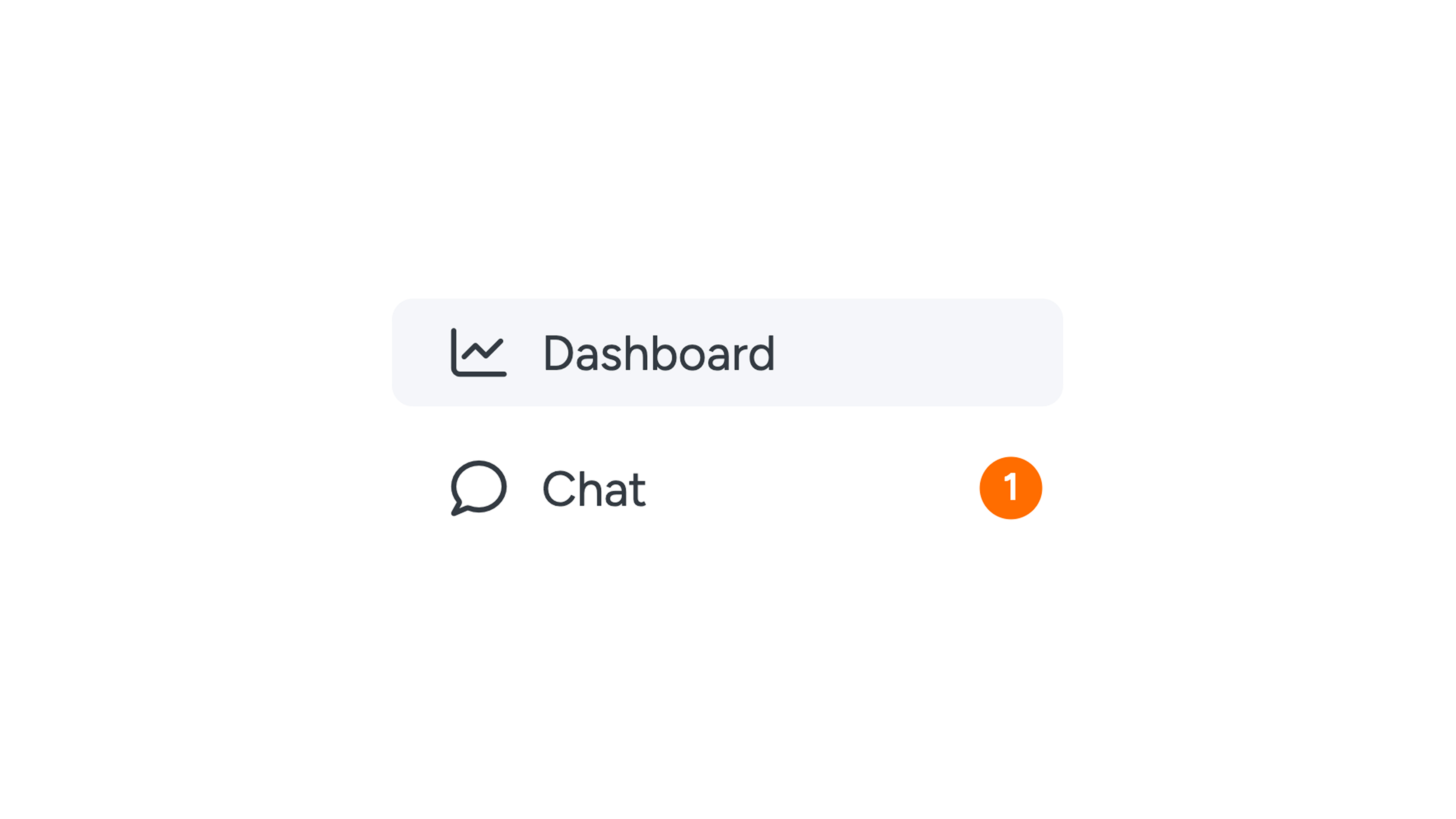
A number or icon next to a menu item shows that something needs your attention, such as a new chat message.
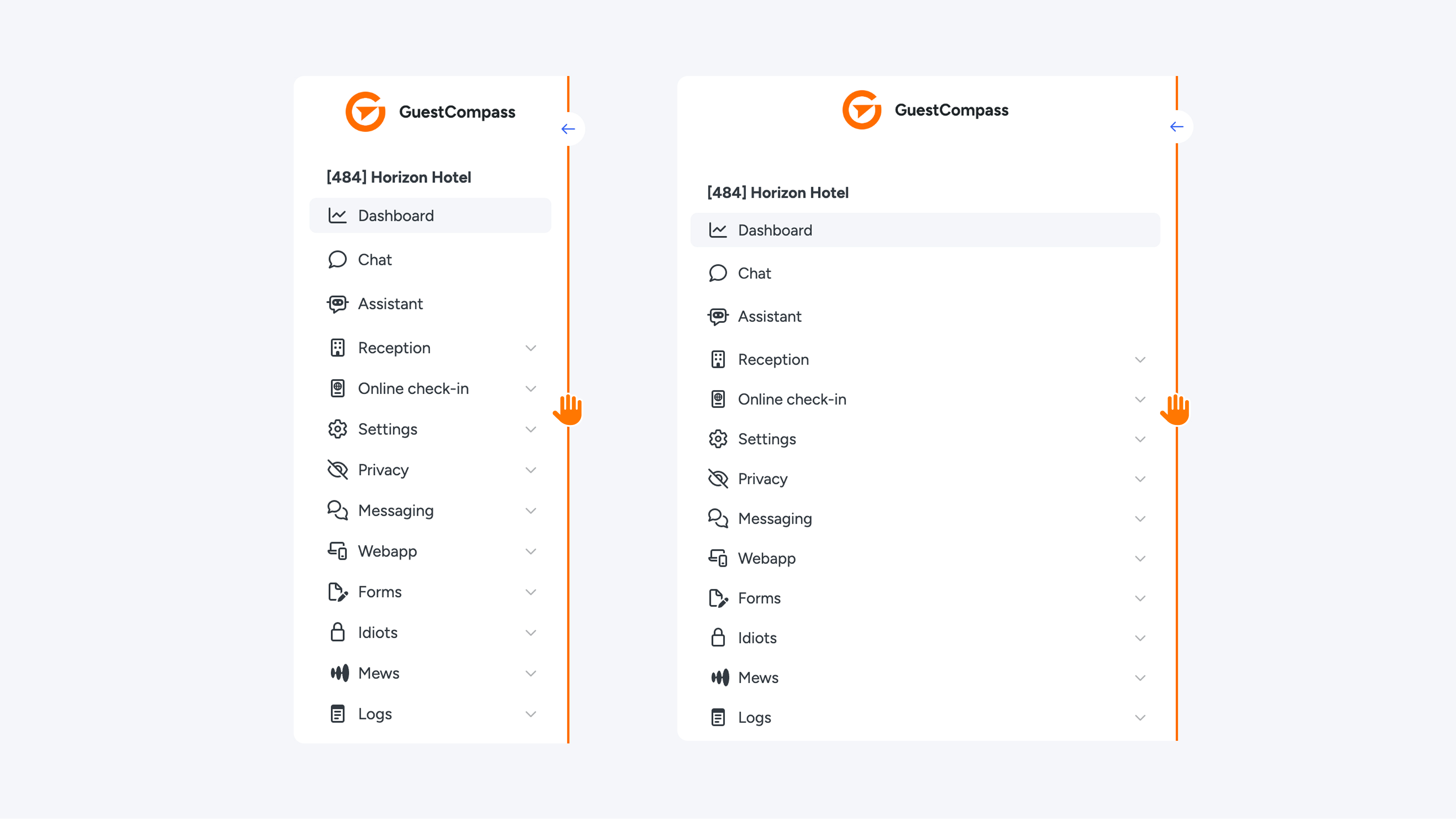
Want to make the sidebar wider or narrower?
- Move your mouse to the right edge of the sidebar.
- Drag the edge to the right to make the sidebar wider, or to the left to make it narrower.
Connect remembers the width in this browser. If you work on a different computer or in a different browser, you'll need to set the width again there.
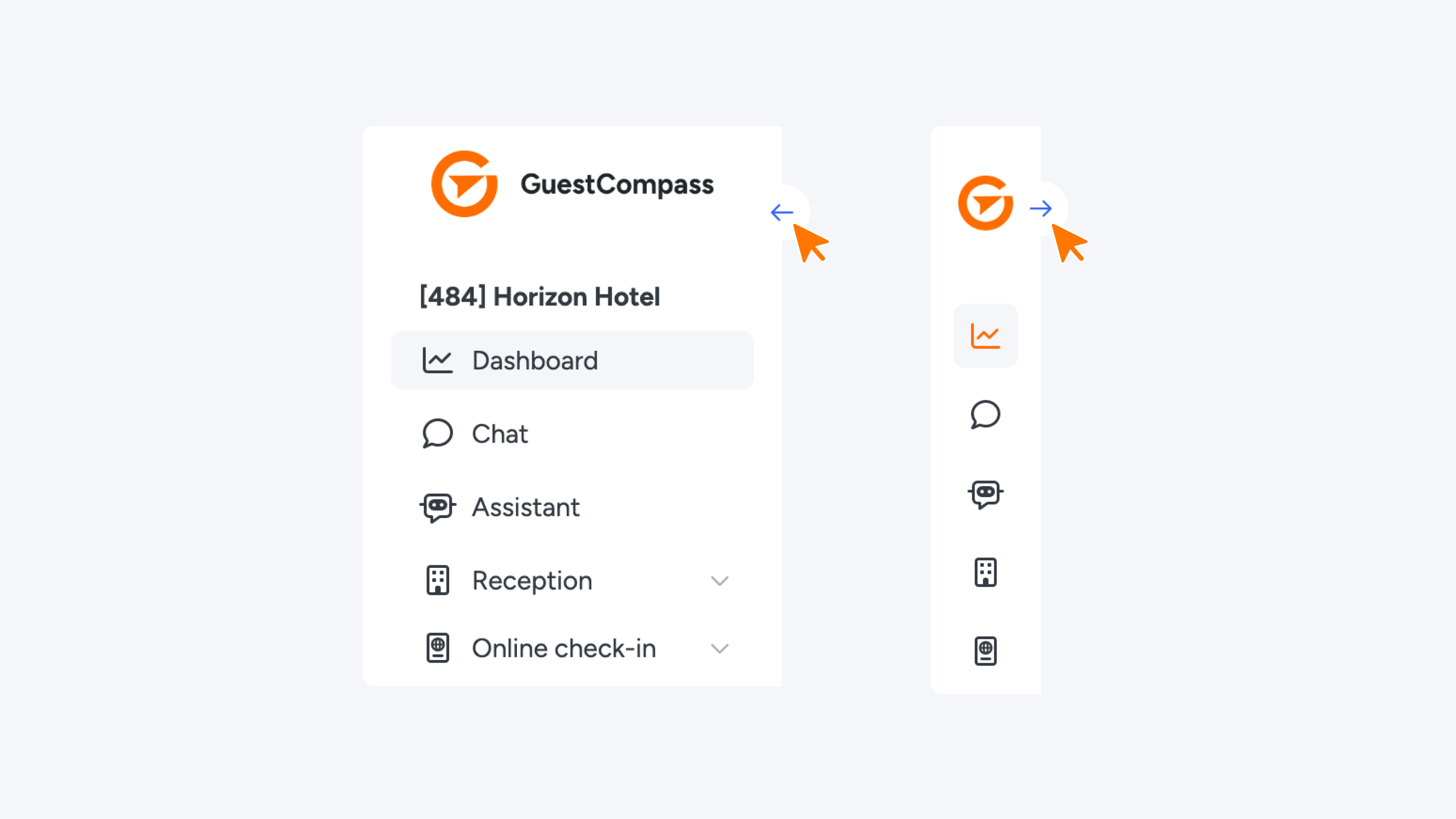
Want to collapse the sidebar?
Collapse the sidebar when you need more space. You'll then only see a narrow bar with icons.
- Click the arrow on the edge of the sidebar.
- Click the arrow again to expand the sidebar.
You can also collapse the sidebar by dragging its edge all the way to the left. When the sidebar is collapsed, hover over an icon to see the name of the menu item.
Want to switch buildings or locations?
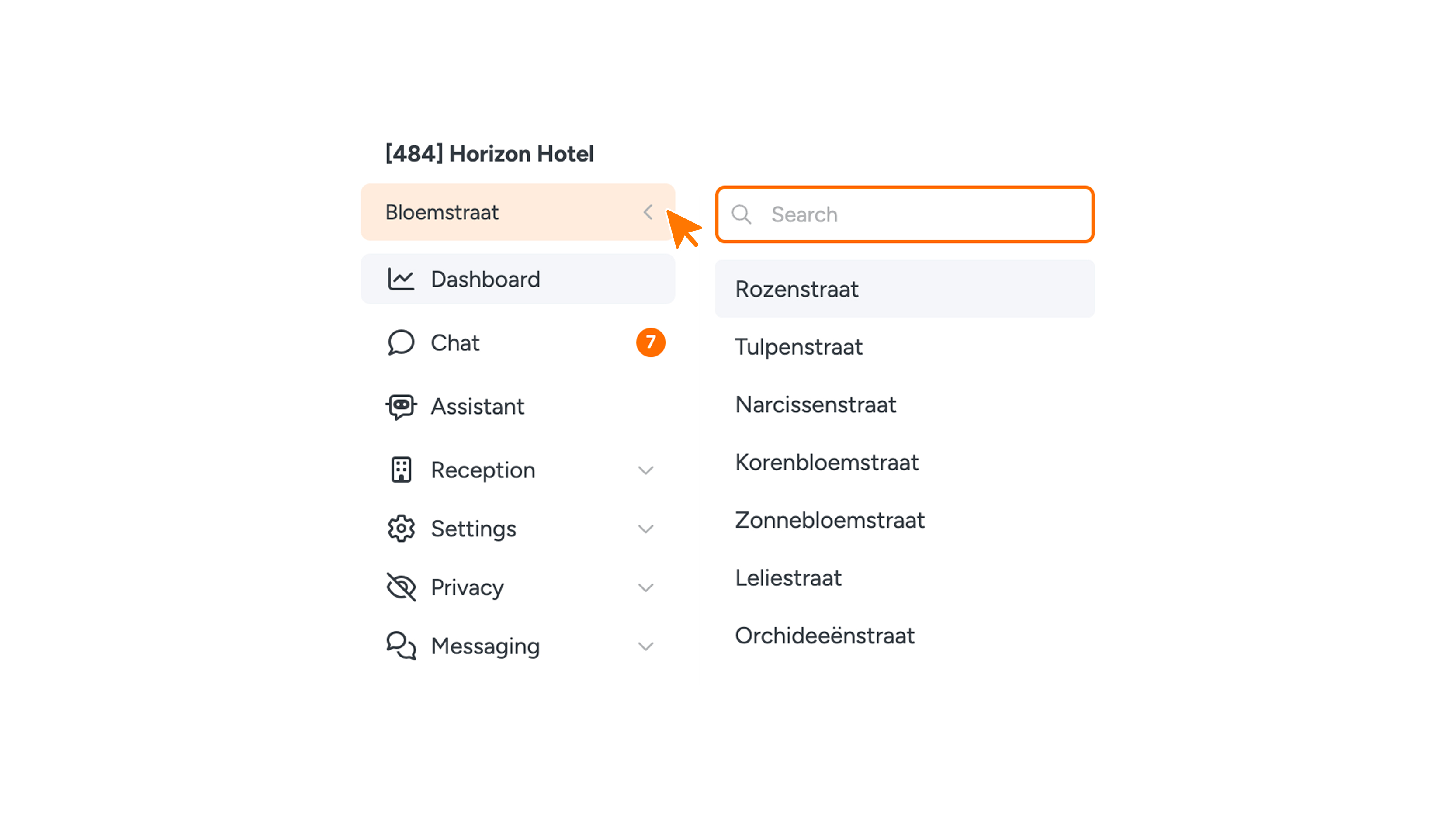
If you have multiple buildings, the sidebar contains a dropdown menu with your buildings. The selected building determines what information you see on pages such as users, key fobs, Switch lists and switches.
- Click the dropdown menu with the building name.
- Type part of the name to search, or scroll through the list.
- Click the building you want to open.
Note: the dropdown menu only appears if you have access to more than one building.
What's at the bottom of the sidebar?
- News: read the latest updates about Connect. A dot shows that there's news.
- Profile: click your username to open your profile, for example to change your language.
- Dark mode: use the toggle to switch between the light and dark theme.
- Logout: log out of Connect.
Working on your phone?
On your phone, the sidebar isn't open by default. Tap the menu icon at the top of your screen to open the sidebar. Tap it again to close it.
